Monthly recap and Wrapped
Available onFreeProResearch
On the 1st of each month Readsira builds a private page from what you finished reading in the month before. In January you also get a recap of the whole year (Wrapped). The recap is yours alone. Nothing is shared until you pick a card and share it.
Before you start
- A month needs at least 5 finished items to get a recap. An item is finished when you read a feed entry, or read a saved article to 90 percent. With fewer, the recap page says Not enough reading for a recap yet and tells you how many items you have read so far and when the next recap arrives.
- A recap is built once and then stays as it was. Reading more later does not change a past month.
Steps
-
Press your name at the bottom of the sidebar. The account menu shows Your reading recap with the month of your newest recap. Choose it.
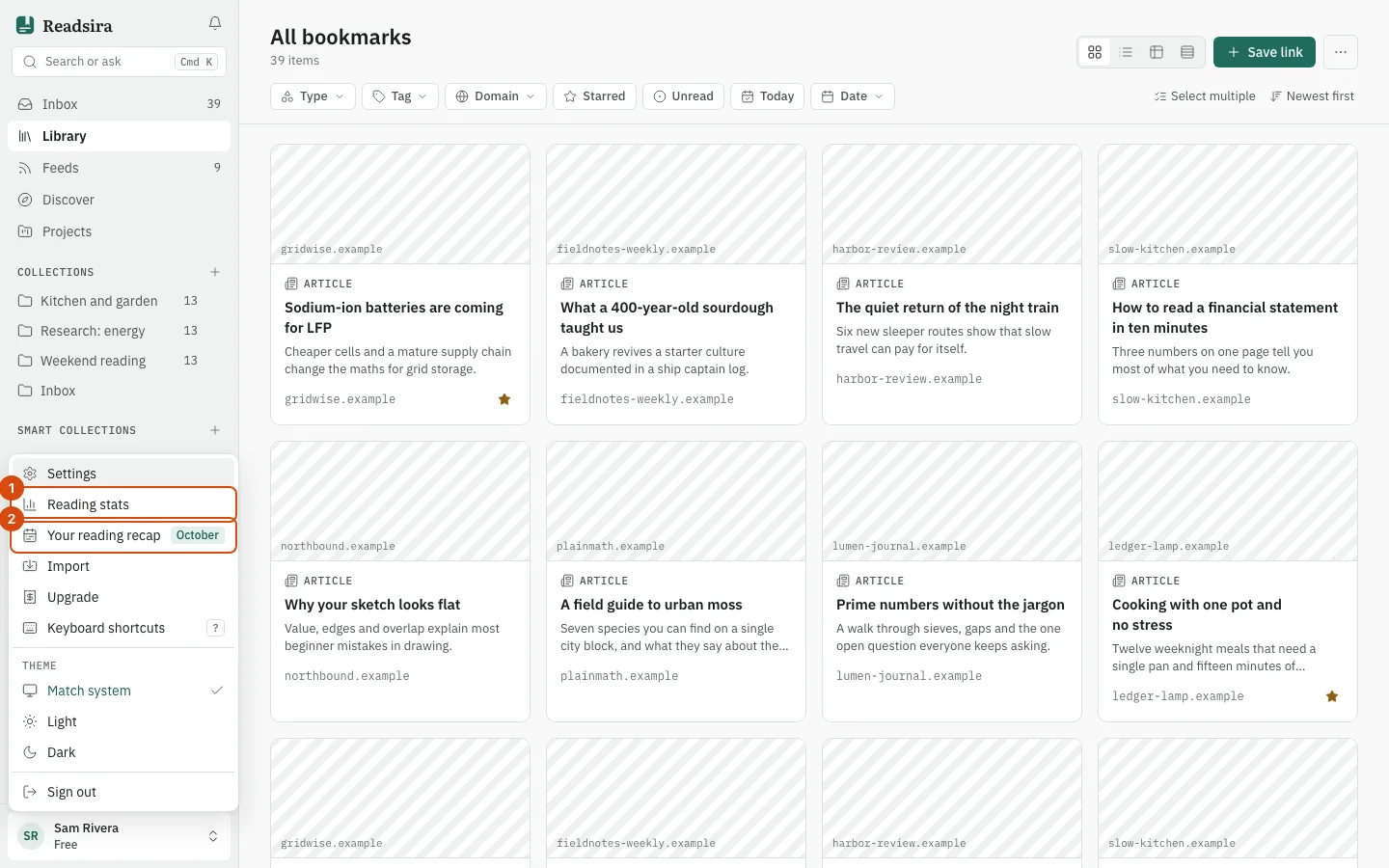
When a new recap is ready, a banner also offers it: press Open recap, or Not now to hide the banner for that month.
-
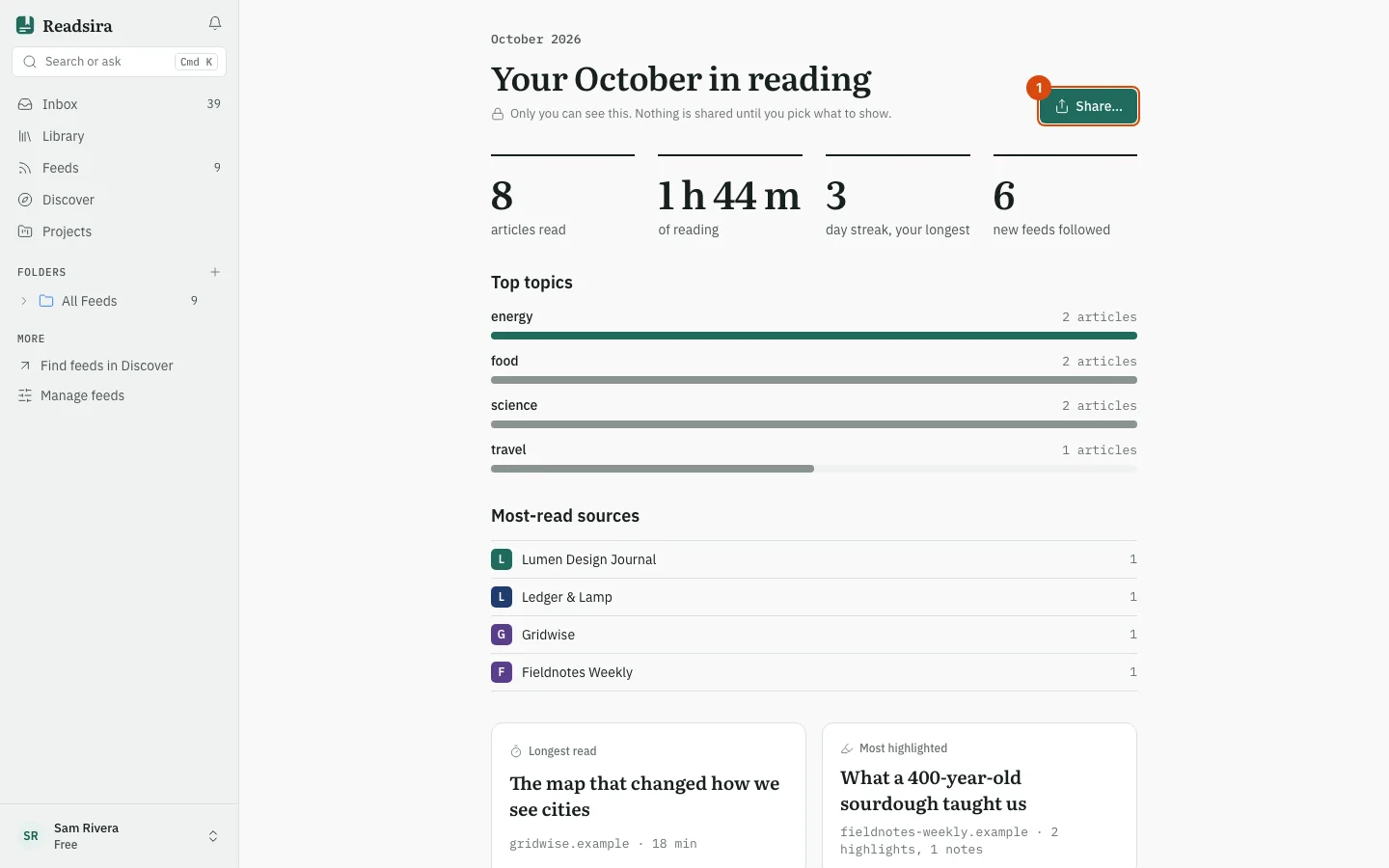
Read the recap. It shows the number of articles you read, your reading time, your longest streak and the feeds you followed that month, then Top topics, Most-read sources, Longest read and Most highlighted. Quote of the month · from your highlights shows one of your highlights, and Reading streak shows the days you read on a calendar. Press the longest read or the most highlighted read to open it in the reader.
-
To see another month, use the arrows next to the title (Previous month and Next month). Only months that have a recap appear.
-
To see a whole year, press the link under the title that starts "See your" and ends with the year. In the year view, the bars show each month and a bar opens that month's recap.
Share a card
You choose what leaves your account. The page says so: Only you can see this. Nothing is shared until you pick what to show.
-
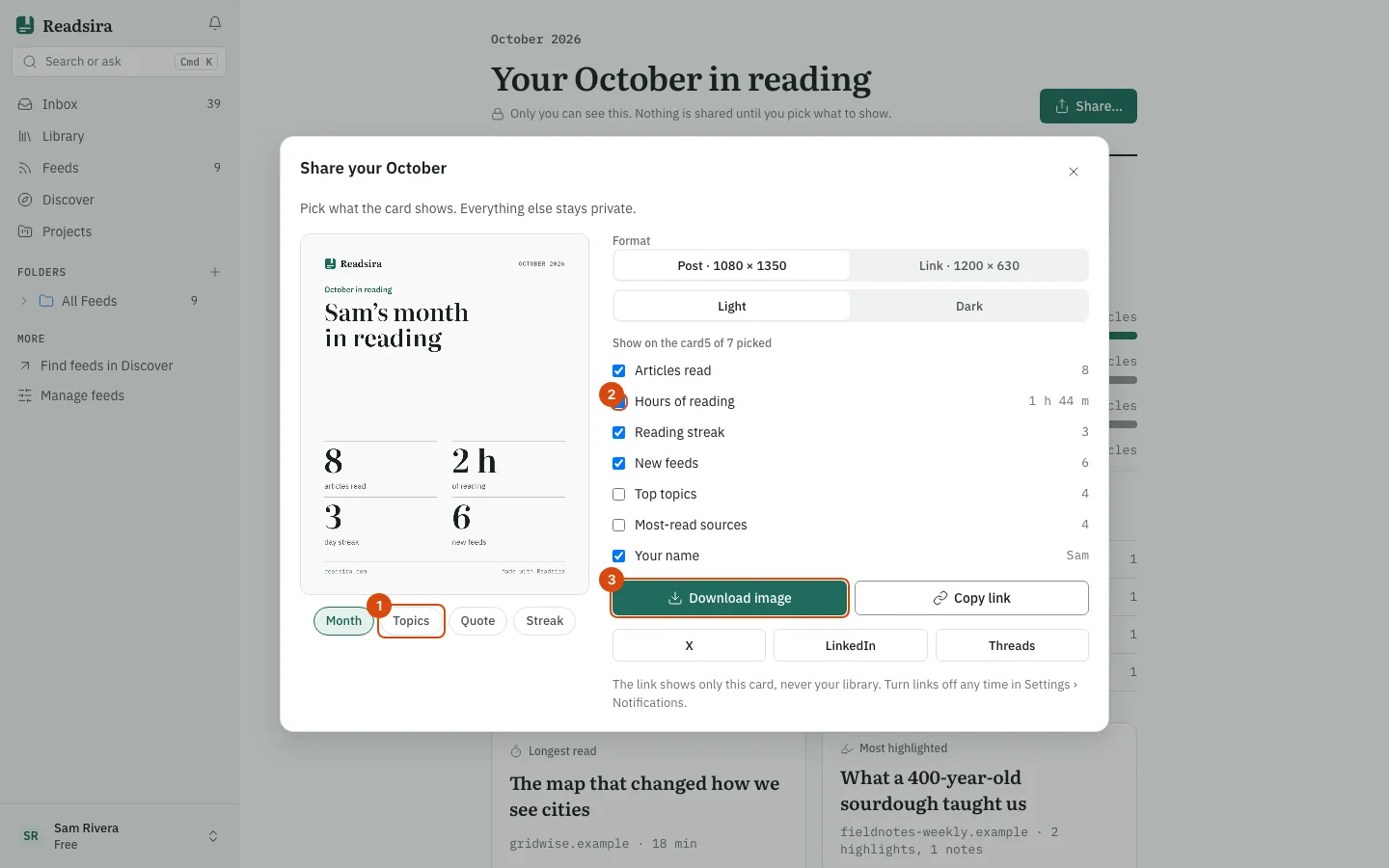
Press Share… at the top of the recap. A dialog shows a preview of the card.
-
Choose the card under Card: Month, Topics, Quote or Streak.
-
Choose the Format (a post or a link preview image) and the Theme (Light or Dark).
-
On the Month card, tick what to show under Show on the card: Articles read, Hours of reading, Reading streak, New feeds, Top topics, Most-read sources and Your name. Your name is your first name only. Anything you leave unticked is not on the card.
-
Press Download image to save the card as an image on your device. This creates no link. Or press Copy link to create a public link to this card.
-
To switch a link off, press Turn off beside it under Public links of this month. The link stops working at once.
A public link shows only the card you picked. It never shows your library, your other highlights or any other month, and search engines are asked not to index it.
Recap settings
Open Settings and choose Notifications. The Reading recap section has these switches:
- Monthly recap: build a recap on the 1st of each month. Turn it off to stop new recaps and banners. Months already built stay available.
- Yearly recap: build the yearly recap in the first week of January.
- Count podcasts and videos: add the listening time of podcasts and videos to your reading time. It is off by default.
- Shared recap links: shows how many of your recap links are public and has Turn off all links to switch them all off.
Tips
- Reading time counts only items with a known length. The recap says how many were left out.
- Free, Pro and Research accounts get the same recap.
- Deleting your account deletes your recaps and their public links.