Highlights and notes
Available onFreeProResearch
Select text in the reader to keep it as a highlight. Your highlights and notes are searchable and stay with the article.
Steps
-
Open an article in the reader.
-
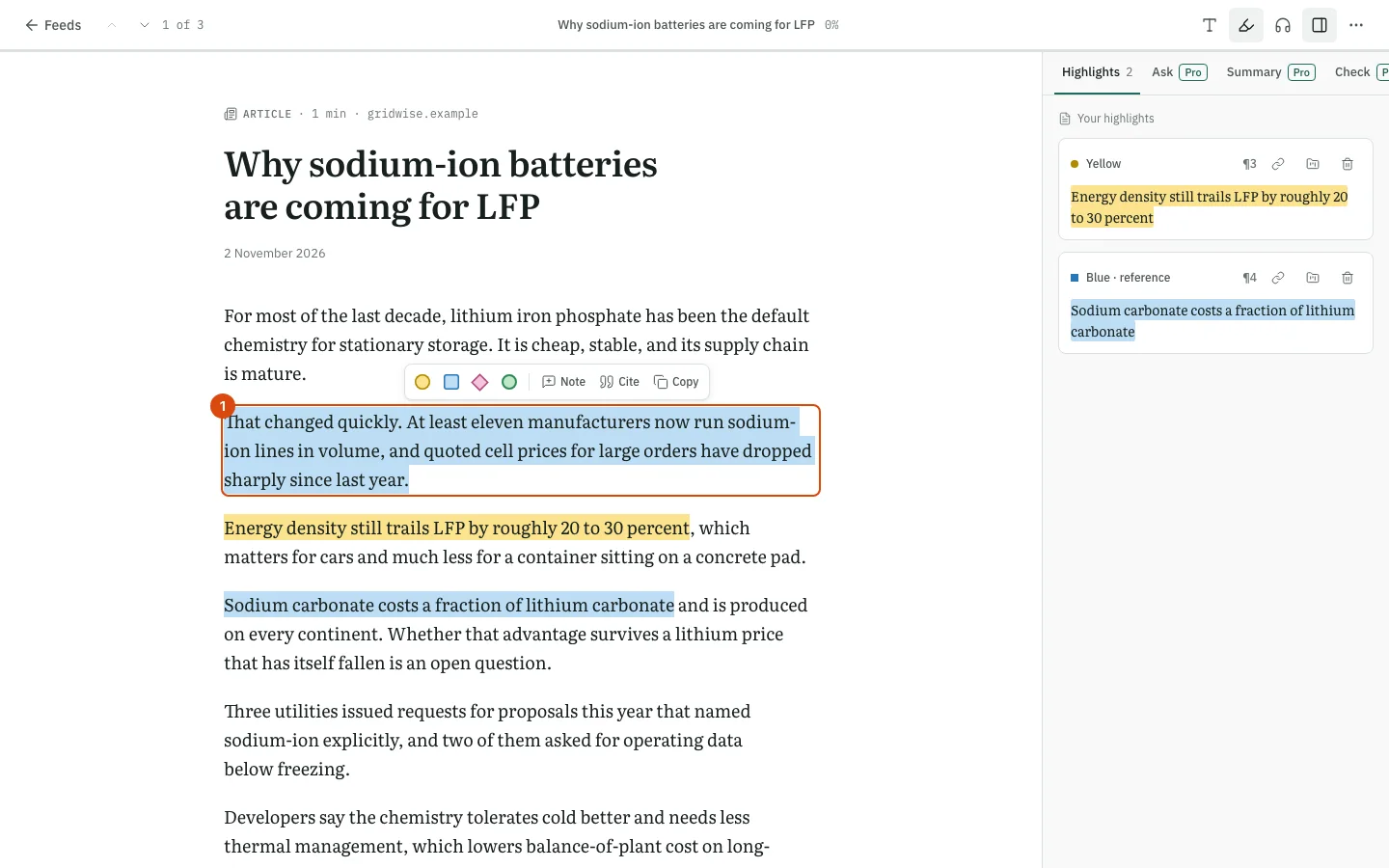
Select the words you want to keep with the mouse. A small toolbar appears next to the selection.
-
Pick a color: Yellow, Blue · reference, Pink · question or Green · to use. The app names them as a hint: blue for reference, pink for a question, green for something to use. Use them as you like.
-
To attach a thought to the passage, press Note in the same toolbar and type it. The toolbar also has Cite to copy a citation and Copy to copy the text.
-
To see all highlights of the article, open the side panel and choose Highlights. Each one shows its paragraph number.
-
To write about the whole article, open the Notes tab and type in the field. It saves as you type, and search uses these notes to find the article later.
-
To remove a highlight, press Remove on it in the panel.
Share a highlight
In the panel, use Share publicly (link copied) on a highlight. Readsira makes a public link and copies it. Unshare (revokes public link) turns the link off again. Only highlights you share this way are public.
Links to a highlight
An address of the form /highlight/<id> takes you straight to the article the highlight belongs
to. This is the link that Readwise shows next to a highlight that Readsira synced. It works only
for the account that owns the highlight; for anyone else the page says it was not found.