Clean up your library
Available onFreeProResearch
The cleanup page finds saves you may not need any more. It only suggests. Nothing is removed until you choose it.
Steps
-
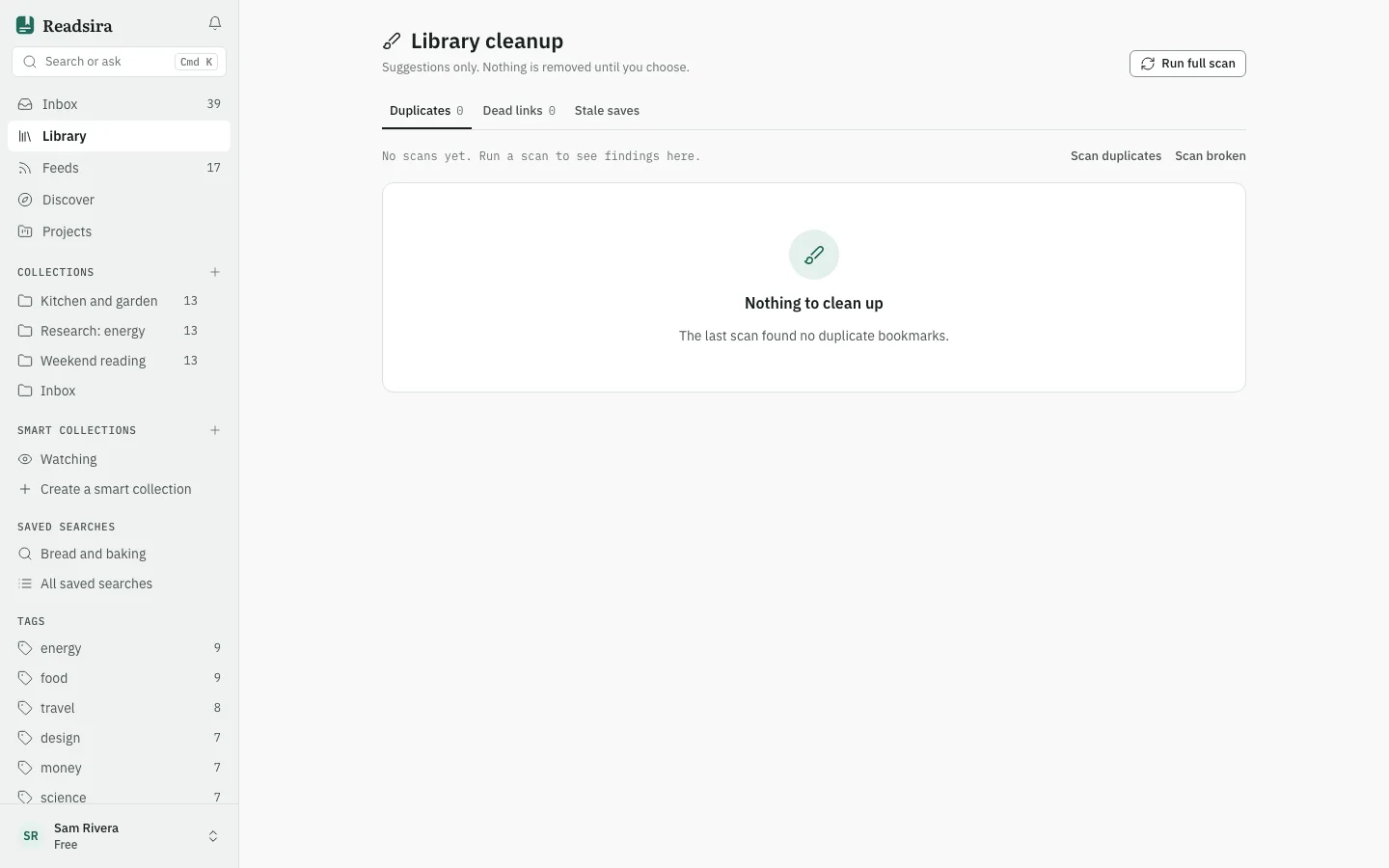
Open Library, press More and choose Clean up.
-
Press Run full scan to look for duplicates and dead links together. To run only one check, use Scan duplicates or Scan broken in the line under the tabs. That line shows the state of the last scan, when it ran, how long it took and what it found.
-
Open the tab Duplicates. Each group is one address that you saved more than once. To keep one copy, press Keep newest, archive the rest on the group. Or press Select all except newest (or Select all except oldest) and then Delete selected.
-
Open the tab Dead links. It lists saves whose pages could not be reached. Tick the ones to remove and press Delete selected. By default pages behind a sign-in and pages that only limited the check are left out; switch on Show all issues (incl. pages behind a sign-in and rate limits) to see them too.
-
Open the tab Stale saves. It lists saves that are unread, more than six months old, not starred and not in a project. Tick some and press Archive selected. With nothing ticked, the same button archives the whole list. Archived saves stay in the Archive; nothing is deleted.
What happens to deleted items
Deleting asks you to confirm. The items go to Trash and stay there for 30 days. Restoring them brings back their highlights and notes.
Tips
- While a scan runs, the scan buttons are off. Wait for it to finish.
- Press Clear to clear your selection.