Reminders
Available onFreeProResearch
A reminder pings you at a time you choose, on a repeating schedule, or when something happens in Readsira, such as a new bookmark.
Steps
-
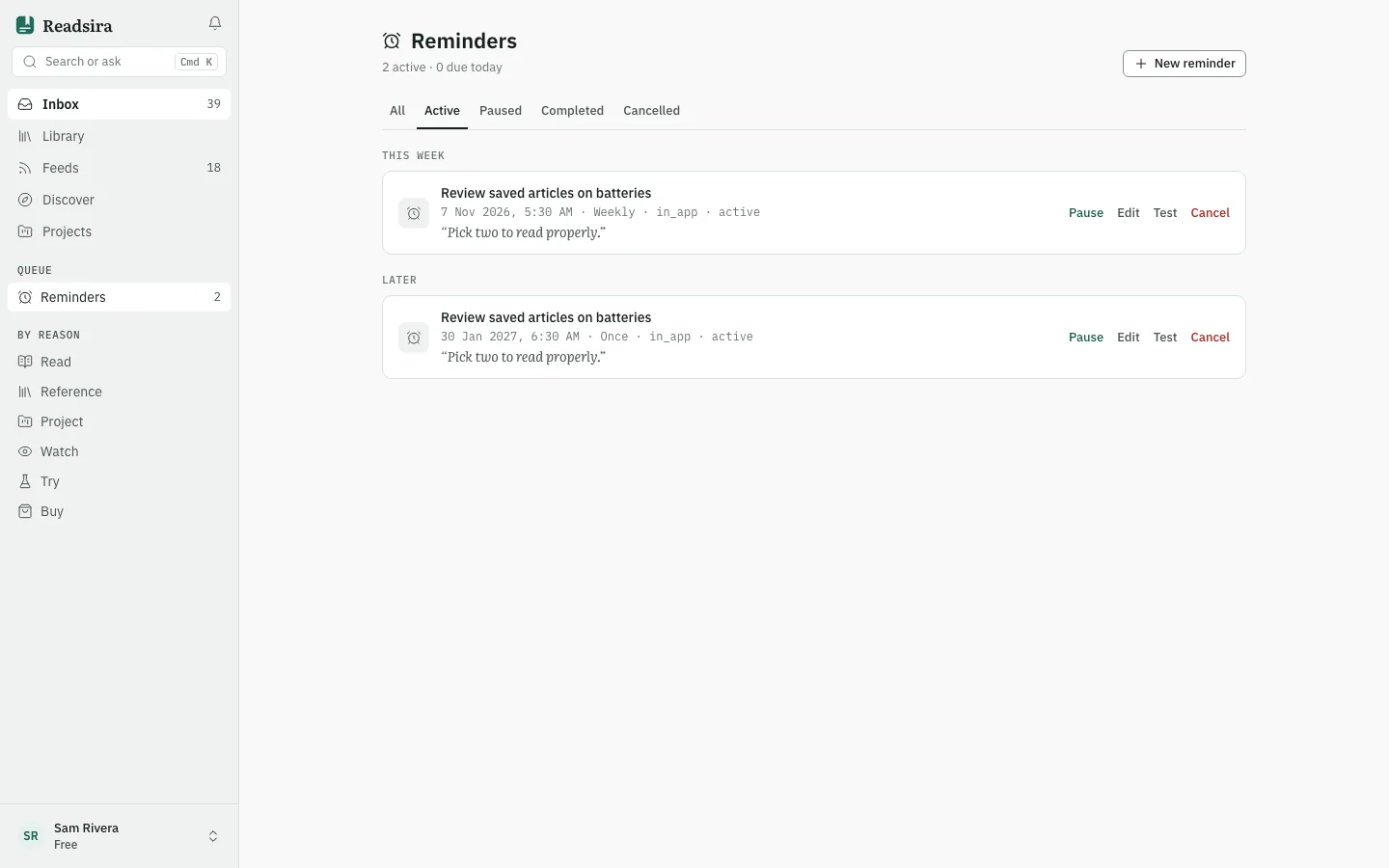
Open Inbox in the sidebar and choose Reminders.
-
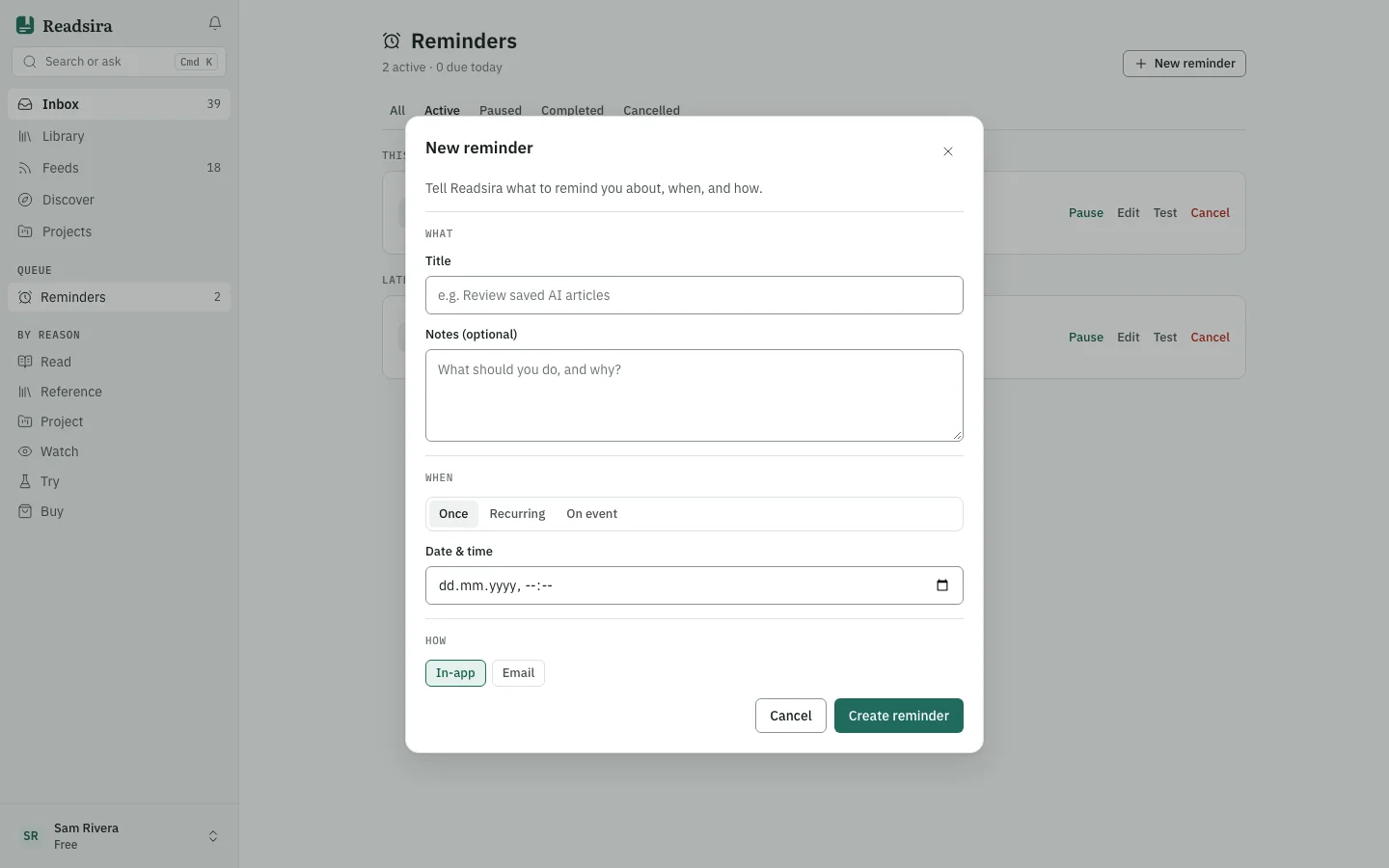
Press New reminder.
-
Under What, fill Title and, if you like, Notes (optional).
-
Under When, choose one of three tabs:
- Once: pick a date and time.
- Recurring: choose Daily, Weekly, Monthly or Yearly, and set the time. Weekly asks for the days, monthly for the day of the month.
- On event: pick an event, such as saving a bookmark or a new feed entry arriving. A scope is required, so the reminder only fires for matching items and does not flood you.
-
Under How, choose In-app or Email, or both.
-
Press Create reminder. A one-time reminder needs a date and time; without them the dialog shows an error.
Manage your reminders
The list is grouped by when each reminder fires next: Today, This week, Later and No date. The tabs at the top filter by status: All, Active, Paused, Completed and Cancelled.
On each row:
- Pause stops it for now, Resume starts it again.
- Edit changes it.
- Test sends it once right now without changing its schedule.
- Cancel cancels it after you confirm. It stays in the list under Cancelled.
A one-time reminder moves to Completed after it fires. A repeating one stays active and shows the next time.
Tips
- Reminders that are due today also show as a card at the top of the Inbox, with a button to snooze them until tomorrow.