Tags
Available onFreeProResearch
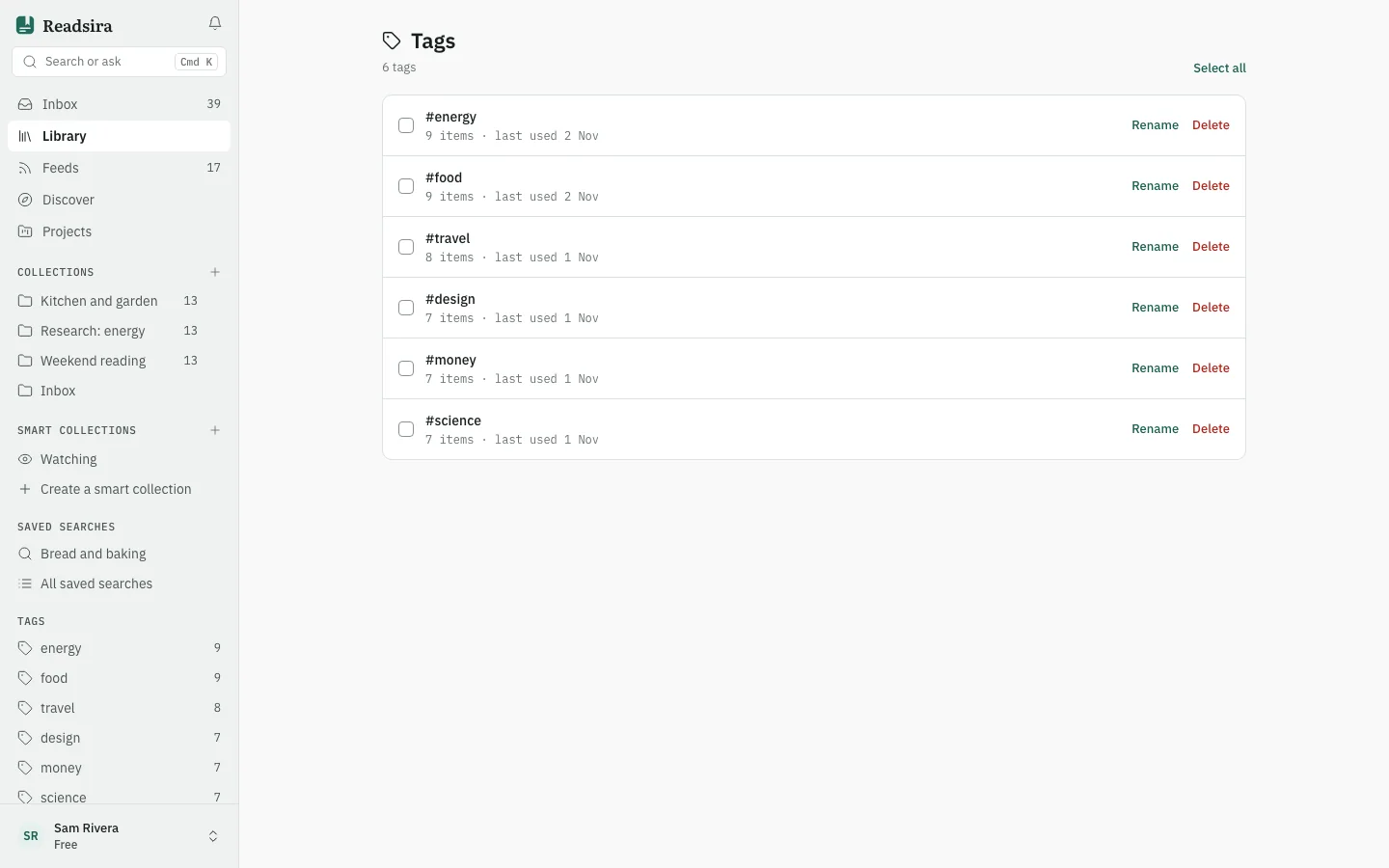
The Tags page lists all tags you have used, with how many items carry each one. Use it to fix spelling variants and remove tags you no longer need.
Steps
-
Open Library, press More and choose Tags.
-
To see the items with a tag, press the tag name. The library opens filtered to that tag.
-
To rename a tag, press Rename next to it and type the new name. The change applies to every item that has the tag.
-
To merge tags, tick two or more with the boxes. A bar shows the tags you picked and a button to merge them into the one with the most items. A short note such as "looks like a duplicate of ..." marks tags that Readsira thinks are spelling variants of a larger tag.
-
To delete tags, tick them and press Delete, or use Delete on one row. The tag is removed from every item. The items stay in your library.
Tips
- Select all ticks every tag at once.
- If a change fails, the page says so and nothing is changed. Press Try again.
- You can add tags to many items at once from the library: select items, then press Tag.