Inbox
Available onFreeProResearch
Every new save lands in the Inbox. Go through it in a few minutes a day: decide what to read now, what to skim and what to put away.
Steps
-
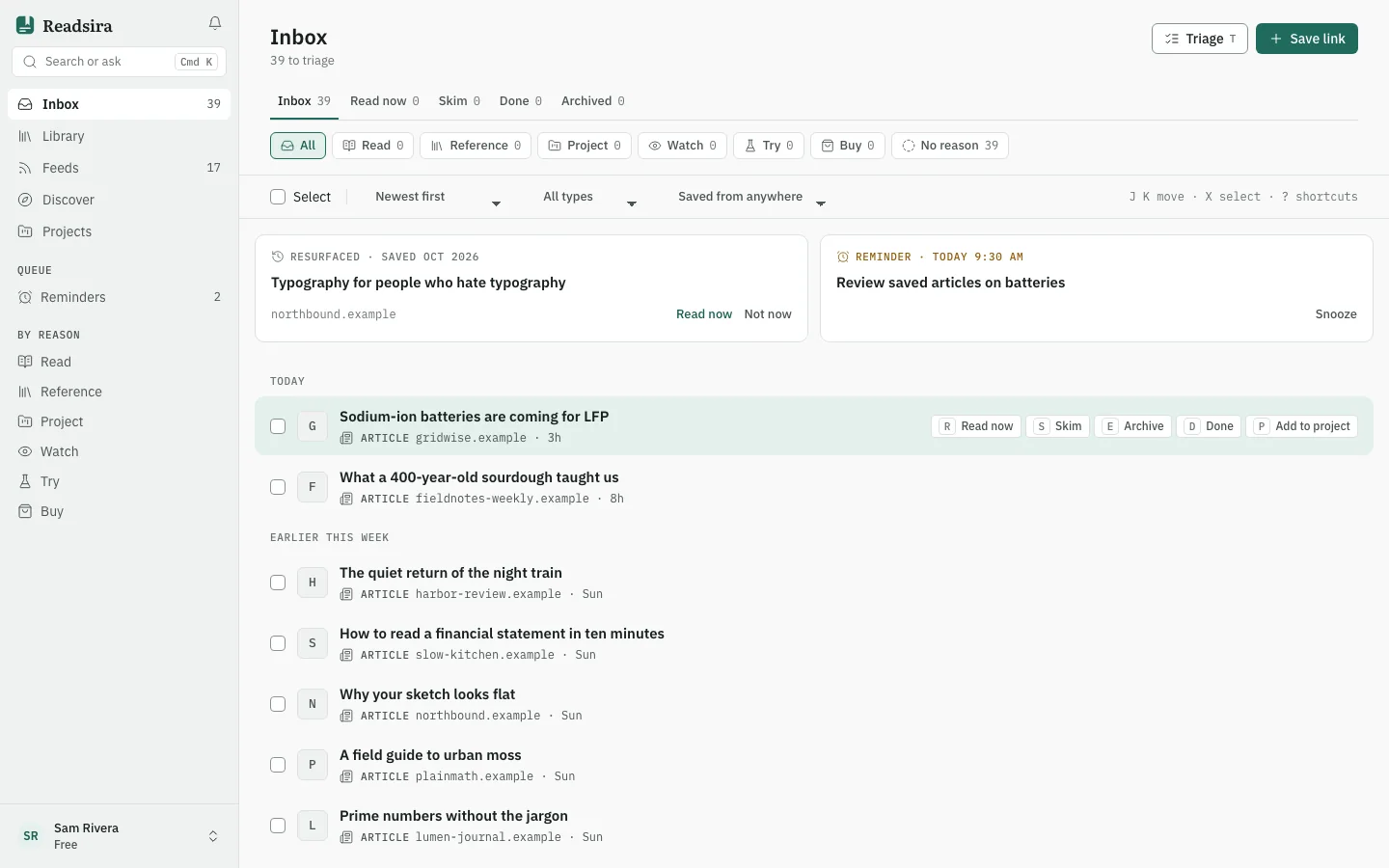
Open Inbox in the sidebar.
-
Look at the tabs above the list: Inbox, Read now, Skim, Done and Archived. New saves start in Inbox.
-
To say why you kept an item, use the reason chips under the tabs: Read, Reference, Project, Watch, Try and Buy. Pressing a chip shows only the items with that reason. No reason shows items you have not labelled yet. After a save, Readsira can also ask Why keep it? so you can pick the reason at once.
-
To sort an item, press one of the buttons on its row: Read now, Skim, Archive or Done. The item moves to the tab of that name.
-
To sort many items at once, tick them with Select and use the bar at the bottom. It also has Set reason.
-
To change the order, use the sort menu: Newest first, Oldest first, AI priority or Shortest read first. The type menu limits the list to bookmarks or feed entries.
Keyboard
Press Triage or the T key to start at the first item. Then:
| Key | Action |
|---|---|
J / K | Next or previous item |
O | Open the item |
R | Read now |
S | Skim |
E | Archive |
D | Done |
I, 1-6 | Set the reason (I then 0 clears it) |
X | Select the item |
Z | Undo the last change |
Esc | Clear the selection |
Press ? to see the same list in the app.
Tips
- Above the list you may see a card for an old save that came back, or for a reminder that is due today. Both have a button to read the item now.
- When the Inbox gets long, Readsira offers to archive everything saved before a given date. Those items stay in your library and in search.