Upload files
Available onProResearch
Upload a talk, an interview, a lecture or a PDF. Readsira turns it into text you can search, highlight and cite, together with the rest of your library.
Before you start
- Uploads need a Pro or Research plan. On Free, the page explains this and offers an upgrade.
- Supported files: MP3, M4A and WAV audio, MP4, MOV and WEBM video, and PDF.
- The size of a file, the minutes of audio or video, and the volume per month differ by plan: see Plan limits.
Steps
-
Open Library, press Save link and choose Upload file in the dialog. You can also drop files anywhere on the app, or open the address
/uploadfor the full page.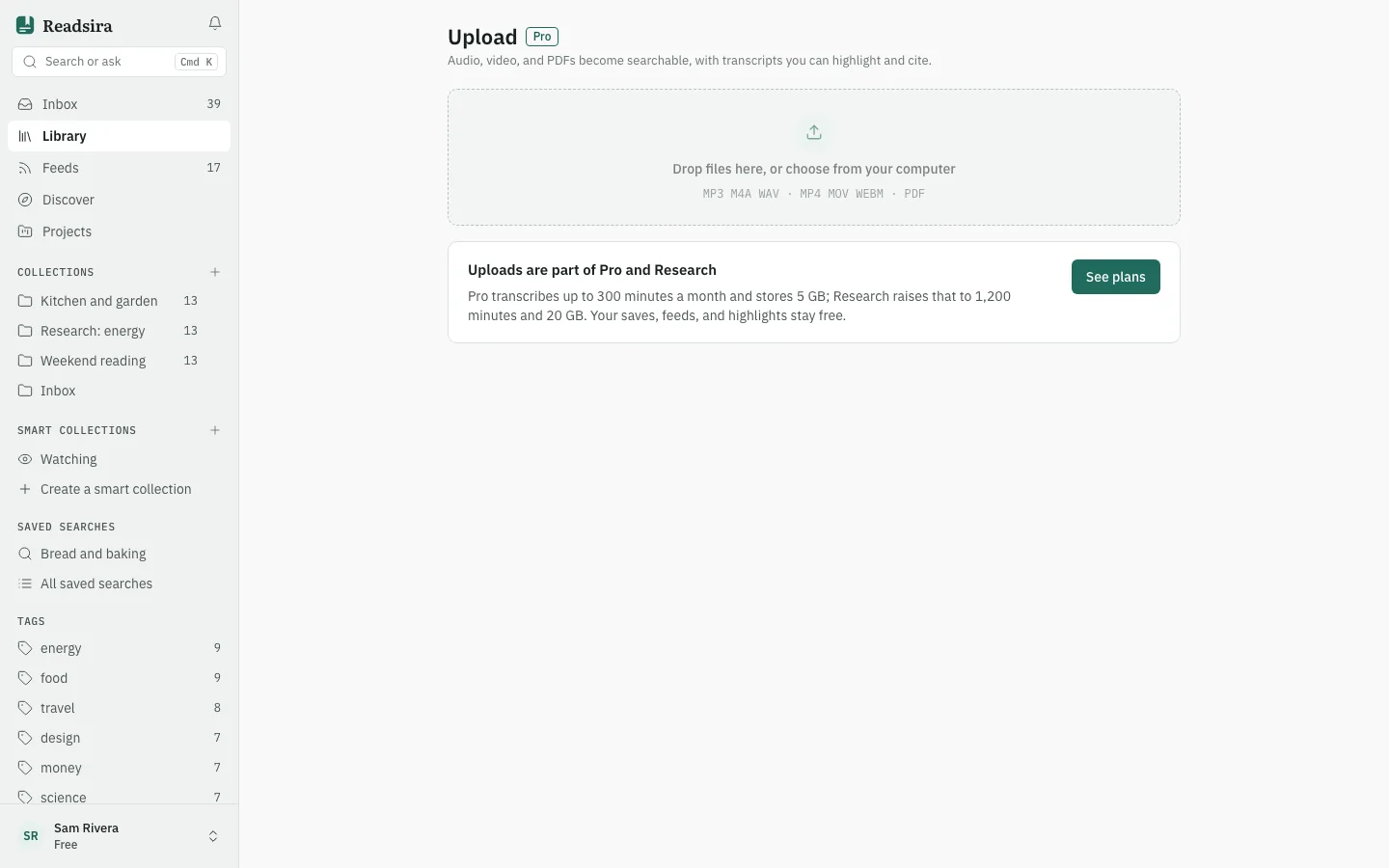
-
Drop your files on the drop area, or press the link to choose files from your computer.
-
Watch the list below. Each file moves through uploading, transcribing (or extracting text and figures for a PDF) and then ready. The page also shows how many transcription minutes you have used this month.
-
When a file is ready, press Open to read it. Audio and video have a transcript with timestamps; search results for them can open the recording at that moment.
If something goes wrong
- A file of another type is refused with a message that names the supported types.
- You can upload three files at the same time. Start the next one when one finishes.
- A recording with no speech, a format Readsira cannot read, or a file longer than your plan allows shows what failed. For a format problem, convert the file to MP4 or MP3 and upload it again.
- If this month's transcription minutes are used up, the file is transcribed when they reset.
- After a stopped upload, press Try again.