The reader
Available onFreeProResearch
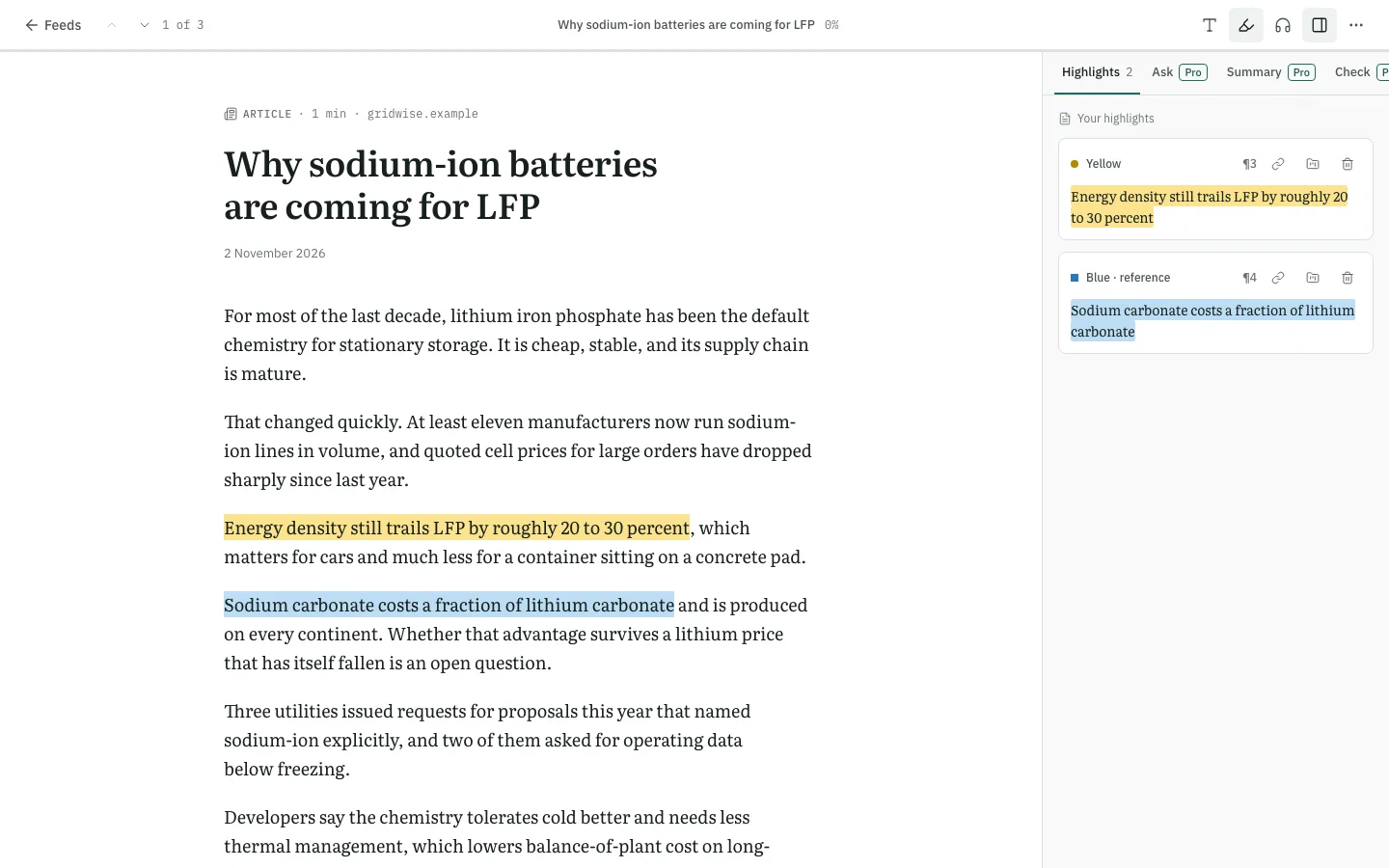
The reader shows an article as clean text, with a side panel for highlights and notes. Open it from a feed entry or from a saved item in your library.
Steps
-
To read feed entries, open Feeds. The list shows the latest entries of the feeds you follow. Press an entry to open it.
-
To read a saved link in the reader, open Library, open the item actions menu on the card and choose Open in reader. Without this step, a click opens the original page in a new tab.
-
To move on, use the arrows at the top (Previous entry and Next entry) or the links at the end of the text. When you came from the library, the arrows step through the list you were looking at and show your place, for example "3 of 40".
-
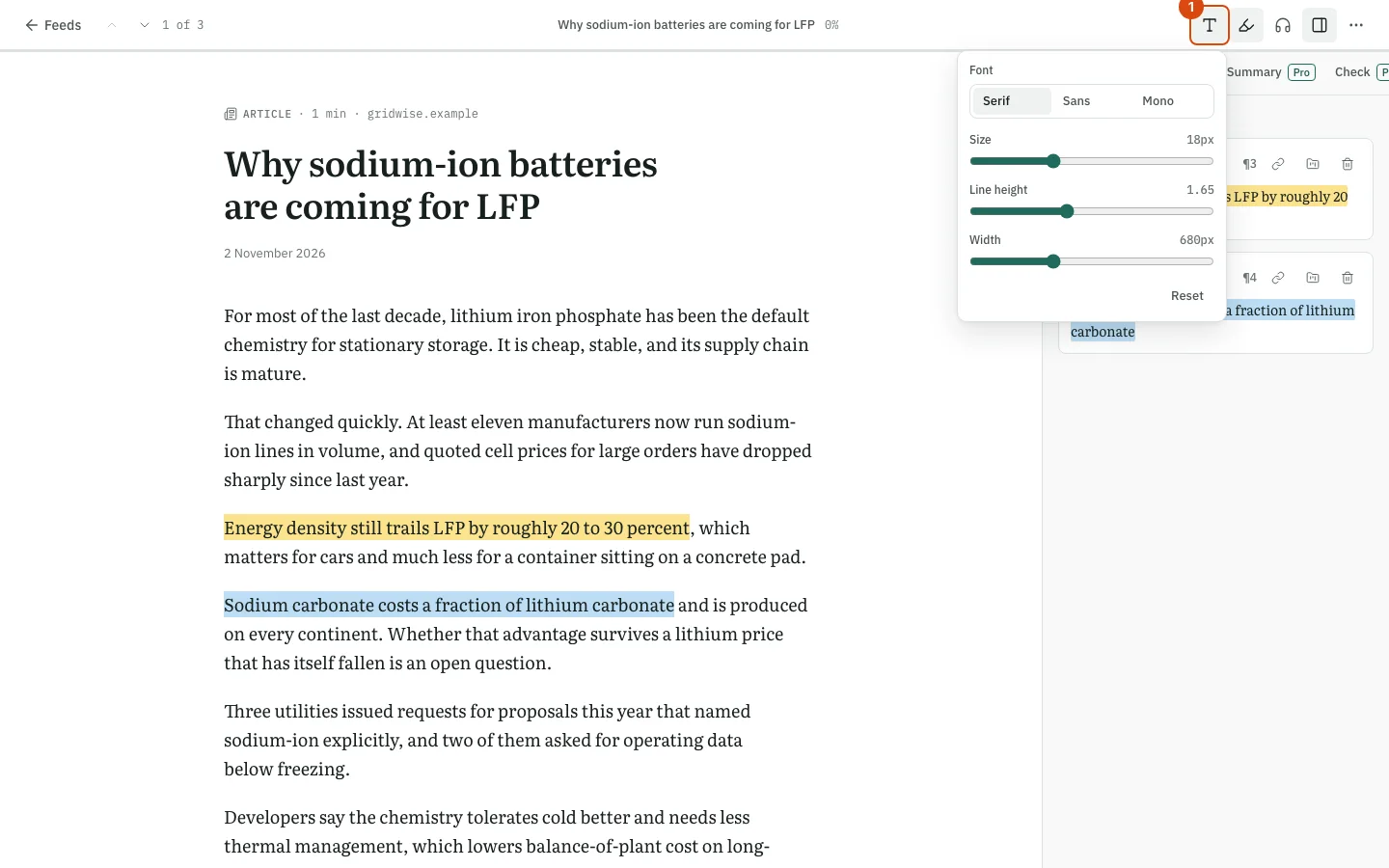
To change how the text looks, press the text settings button (Text settings) in the toolbar. Choose a Font (Serif, Sans or Mono) and move the sliders for Size, Line height and Width. Reset brings the defaults back.
-
To have the article read to you, press Read aloud. A player opens at the bottom with play and pause, 15 seconds back and forward, and a speed button.
-
To star or archive the article, use Favorite and Archive in the toolbar. Open original opens the page on its own site.
-
To pick up later, just close the reader. When you open the article again, Readsira offers to continue where you stopped (Continue) or begin again (Start over).
The side panel
Press Side panel to open it. Its tabs are Highlights and Notes, described in Highlights and notes, and three tabs marked Pro: Ask, Summary and Check. Videos with chapters also get a Chapters tab.
Tips
- With a Pro or Research plan, feed entries are read aloud in a natural voice. Without one, the player uses your browser's voice, and a browser that cannot read aloud shows a message instead.
- If a page does not load, the reader says so and offers Try again and Open original. Your tags and notes stay.
- Very long documents show their first part only; open the original for the rest.
- Items you open are also kept on your device for offline reading.