Search
Available onFreeProResearch
Search looks through your saved links, your feed entries, your highlights and the transcripts of audio and video. Type words and press Enter.
Steps
-
Open Search from the sidebar, or press
GthenS. -
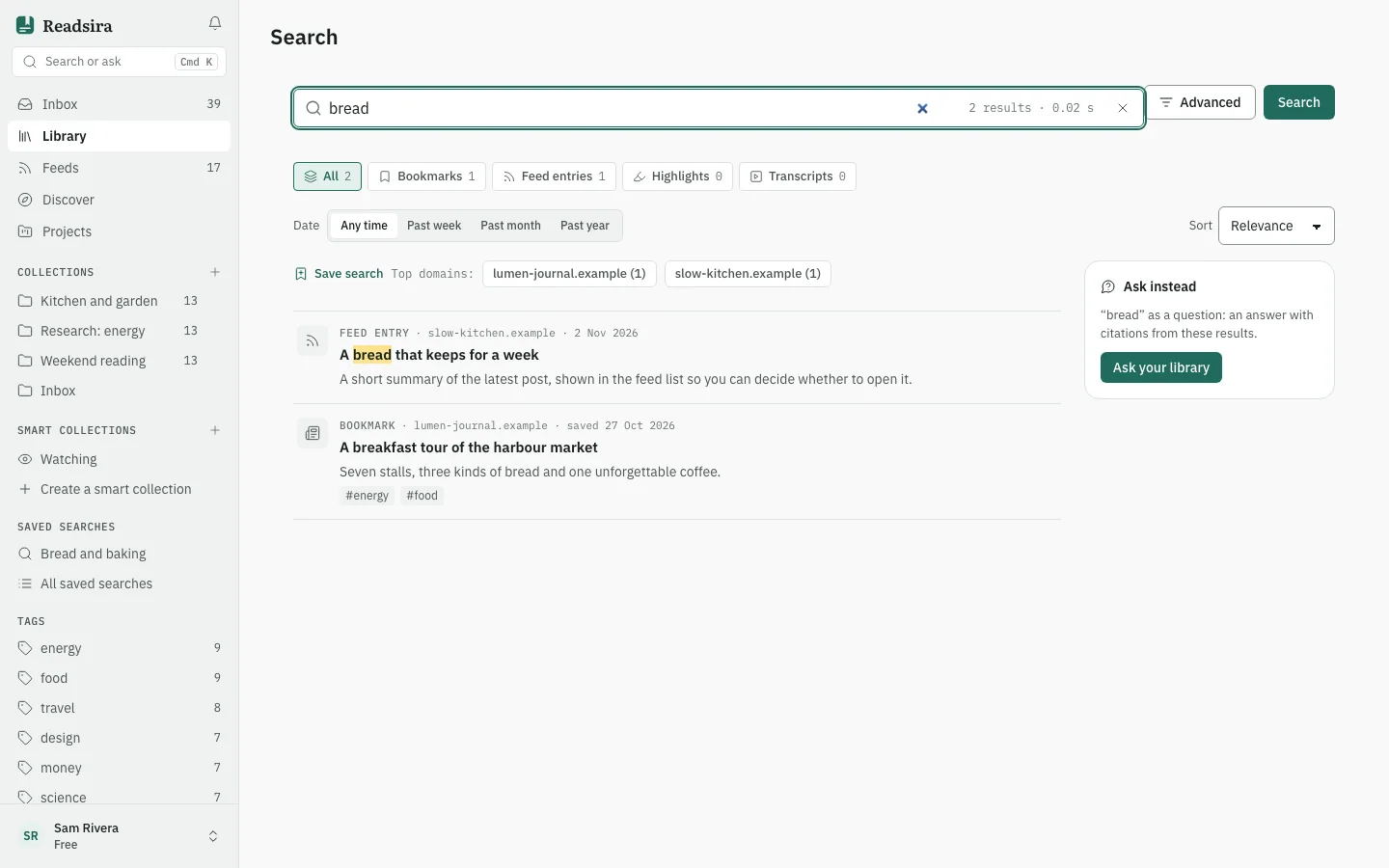
Type your words in the box and press Enter, or press Search. The button stays off until you type something.
-
Read the count above the results. Each result shows its kind (bookmark, feed entry, highlight or transcript), the words that matched, your notes and your tags. A badge tells you when the words were found only in the article text.
-
To limit the kinds of results, use the chips under the box: All, Bookmarks, Feed entries, Highlights and Transcripts. Each chip shows how many results it holds.
-
To limit by time, choose Past month, Past week or Past year next to Date. To change the order, use Sort: Relevance, Date saved, Last visited or Title.
-
For more control, press Advanced.
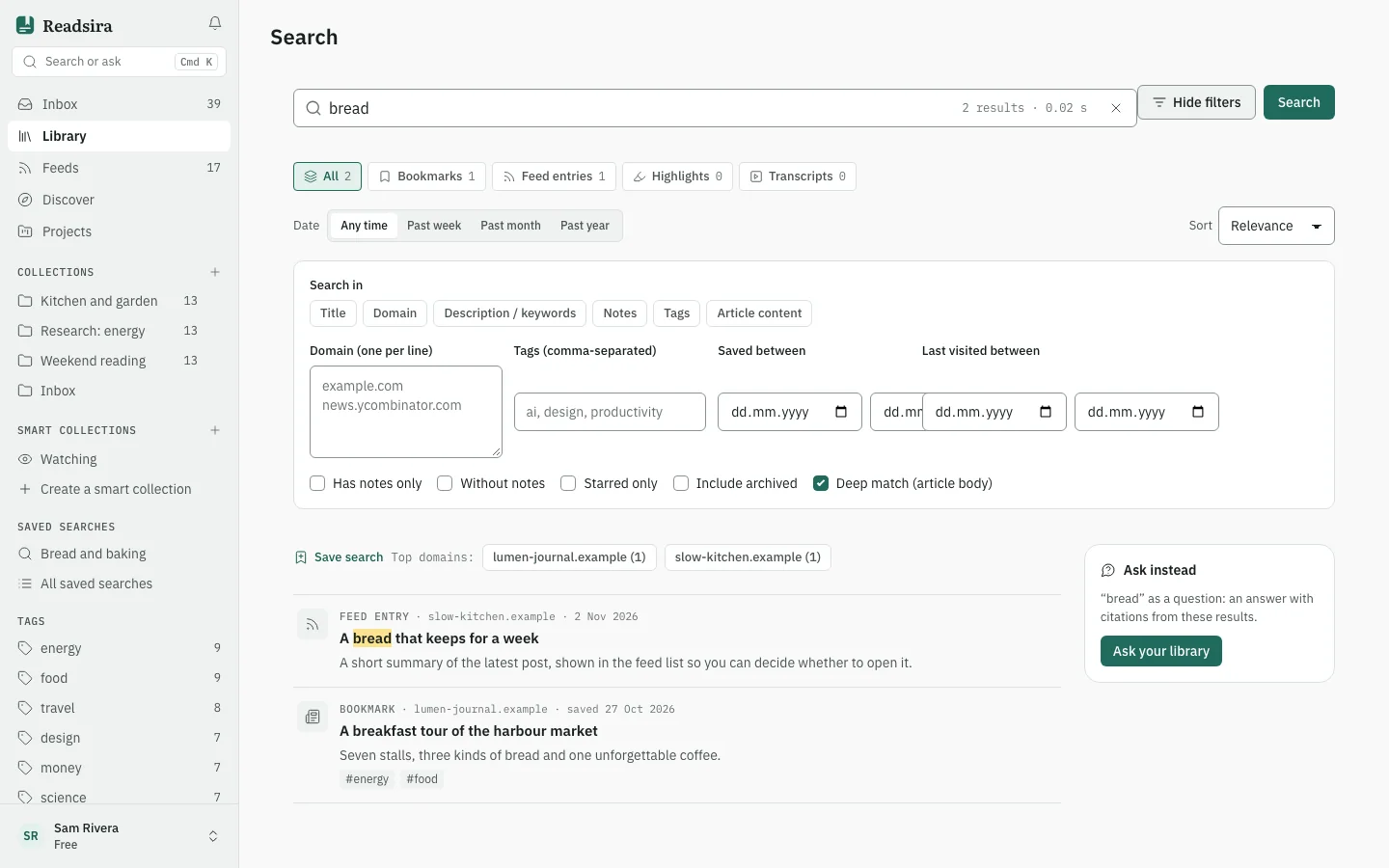
There you choose which parts to search (Search in), name domains and tags, give a date range, and switch on options such as Starred only, Include archived and Deep match (article body). Deep match also looks inside the extracted article text.
-
To open a result, press it. A feed entry opens in the reader. A saved link opens the original page in a new tab.
-
To keep a search, press Save search above the results. See Saved searches.
Tips
- Click the box while it is empty to see your Recent searches searches and run one again. Clear all removes them.
- When nothing matches, the page offers to search each word on its own, and a link to find feeds.
- Press Ask your library to turn your words into a question for your library. The number of answers per month differs by plan: see Plan limits.
- If transcripts are slow, the page says so and shows the rest; press the retry link to include them again.