Your library
Available onFreeProResearch
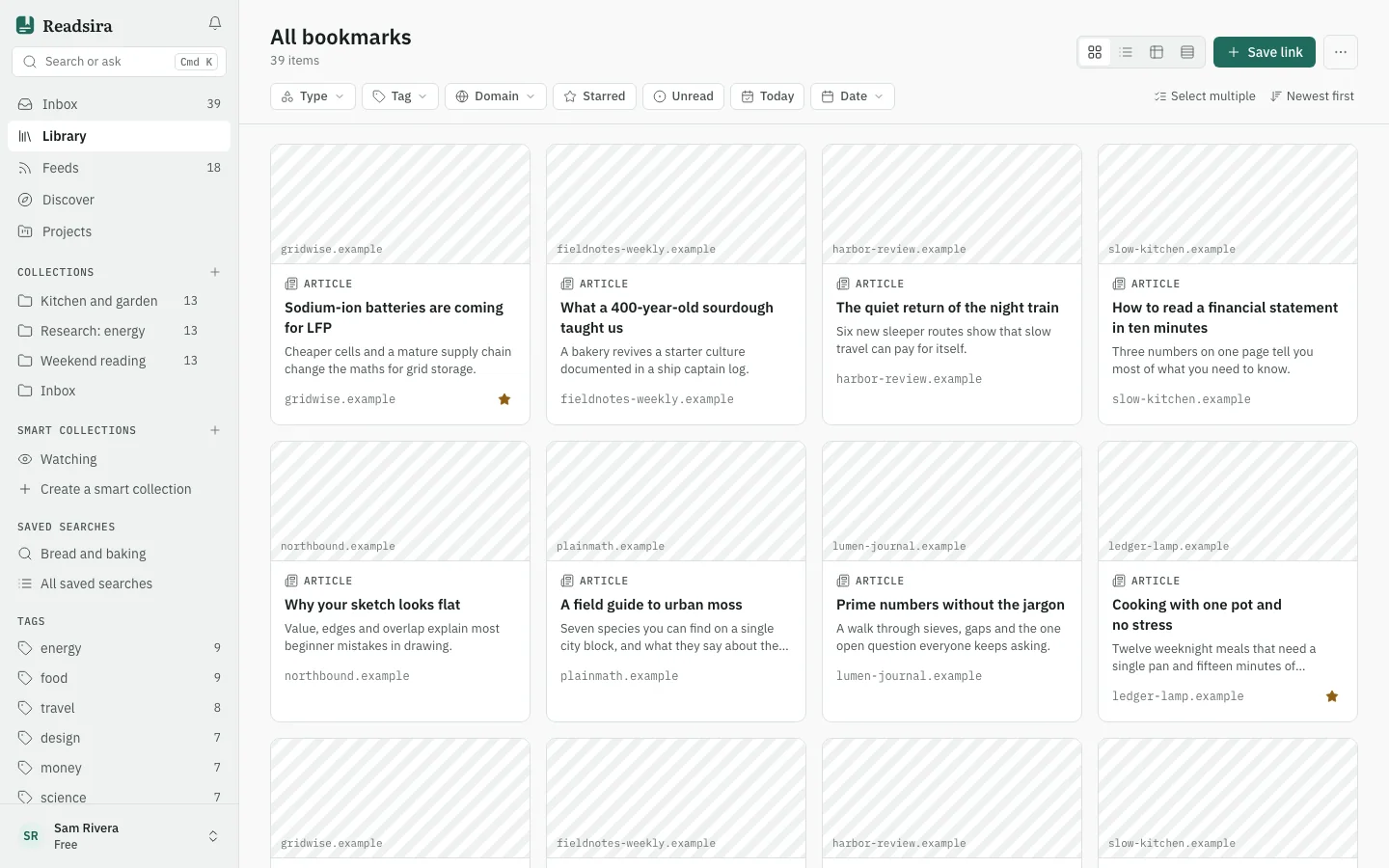
The library holds every link you saved. You can show it as cards or as a table, narrow it with filters, and change many items at once.
Steps
-
Open Library in the sidebar.
-
To add something, press Save link at the top right and paste the address.
-
Choose how the library looks with the four buttons next to it: Grid view, List view, Table view and Compact view. Readsira remembers your choice. The table view needs a wide screen; on a phone the library shows as a list.
-
To narrow the list, use the filter row under the title: Tag, Type, Domain, Starred, Unread, Today and Date. Filters add up: Unread plus a tag shows only unread items with that tag. When nothing matches, press Clear filters.
-
To change the order, open Sort in the same row. You can sort by newest or oldest, title, domain, collection, last opened, reading time or number of highlights.
-
To work on several items, press Select multiple, tick the items, then use the bar that appears at the bottom: Move, Tag, Archive, Star or Delete. Deleted items go to Trash and can be restored for 30 days.
-
To keep a set of filters, press Save as smart collection while filters are on. Readsira adds a smart collection to your sidebar that always shows what matches.
-
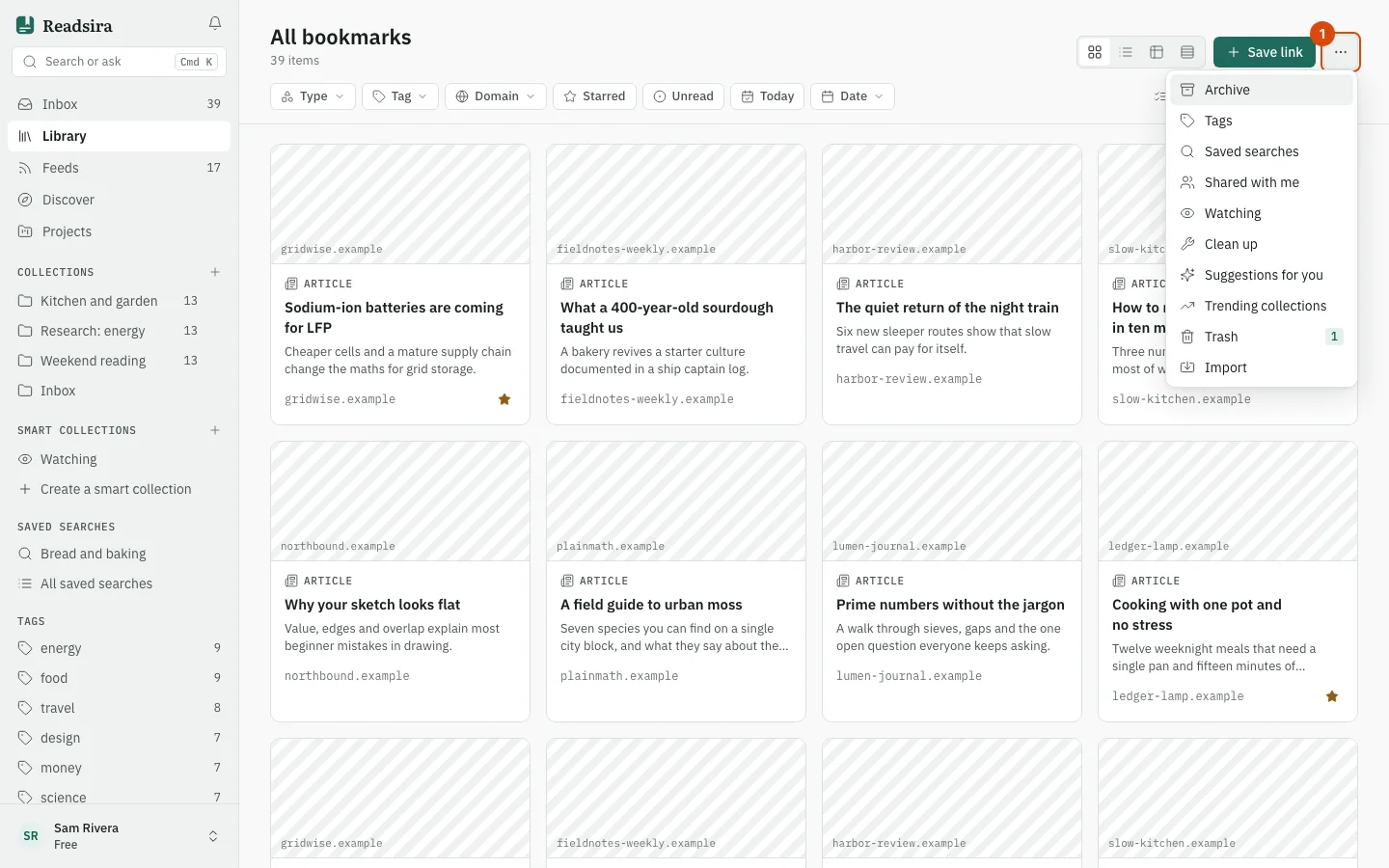
To reach the other library tools, press More at the top right.
What you can do with one item
Open the item actions menu on a card to open the item in the reader, open it in a new tab, copy a share link, set a reminder or edit it. Clicking a saved link itself opens the original page in a new tab. To rename an item, double-click its title.
In the table view you can show or hide columns, such as domain, tags, reading time, highlights and where the item was saved from.
Tips
- Items you saved are kept until you delete them. The number of saved items you can keep has a fair-use limit that differs by plan: see Plan limits.