Take the tour
Available onFreeProResearch
After you confirm your email, Readsira opens a short tour of three steps. It sets a few defaults and points you to the fastest way to fill your library. You can skip all of it and change everything later.
Steps
-
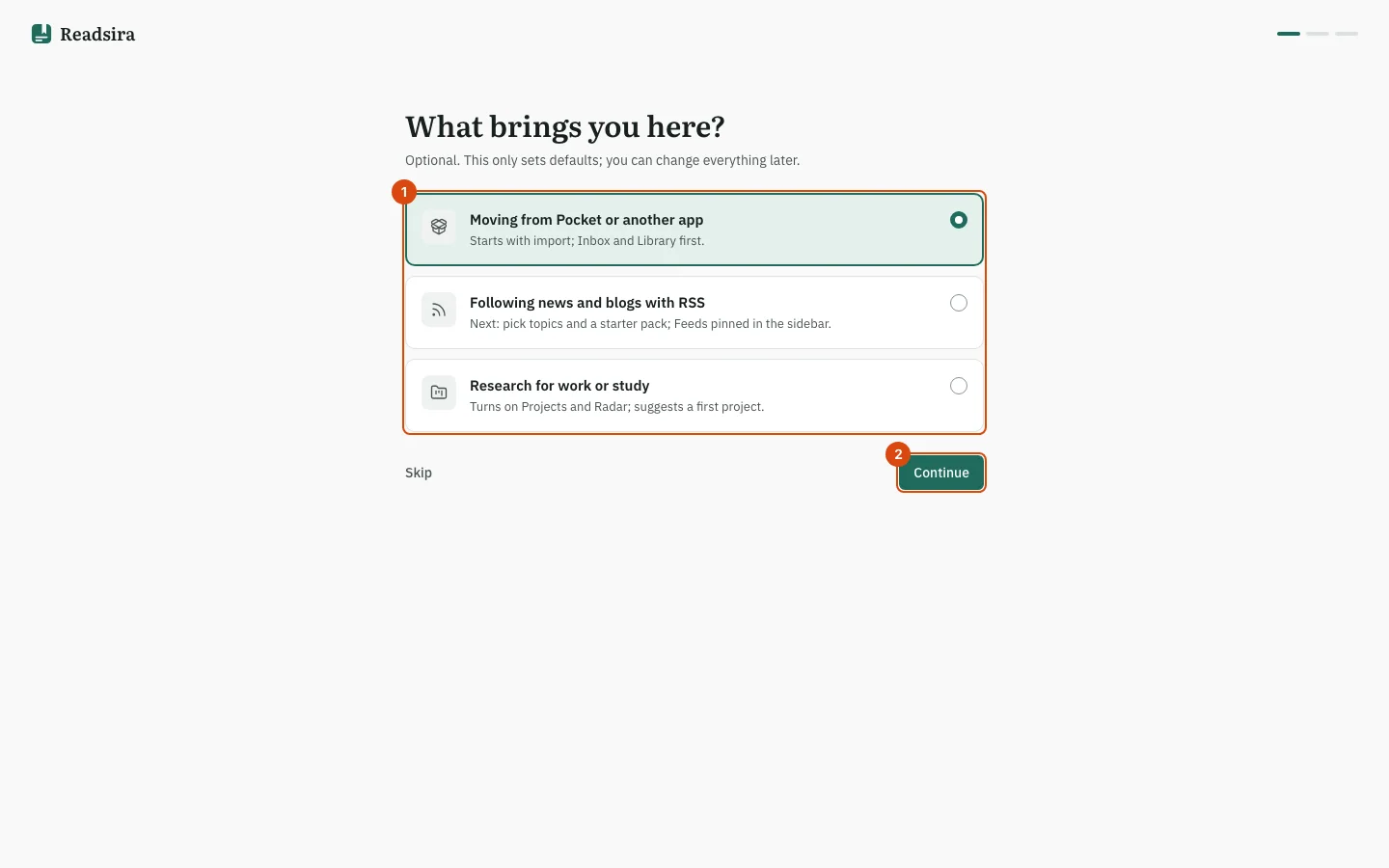
The first page asks What brings you here? Pick one answer:
- Moving from Pocket or another app: you start with the import page, and the Library (Inbox first) is your home view.
- Following news and blogs with RSS: you pick topics and a starter pack of feeds, and your home view is Feeds.
- Research for work or study: Projects and Radar are turned on, and Projects opens with a new project ready to name. This answer is offered only when Projects are available to you.
-
Select Continue. Or select Skip to go straight to the next step.
-
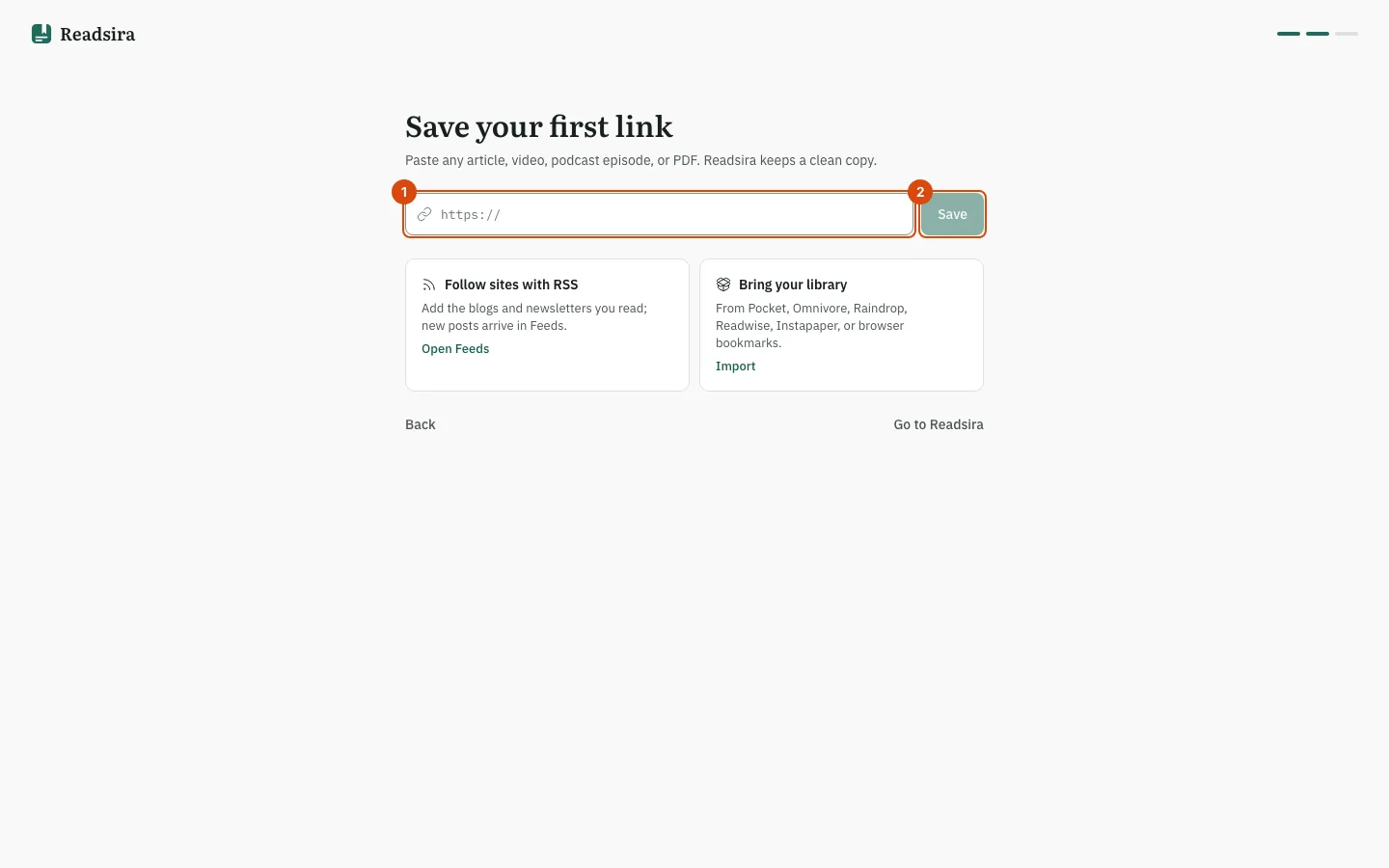
The step Save your first link asks for a link. Paste the address of any article, video, podcast episode or PDF and select Save. Readsira keeps a clean copy and a small page confirms Saved to Inbox.
-
Under the field, two cards offer other ways to start:
- Bring your library opens the import page for Pocket, Omnivore, Raindrop, Readwise, Instapaper or browser bookmarks.
- A card for the browser extension, or Follow sites with RSS when no extension link is set up on your server.
-
Select Go to Readsira to leave the tour and open Readsira.
Tips
- The answer in step 1 only decides which view opens first. Nothing is locked.
- Other ways to save a link are in Save your first article.