Save your first article
Available onFreeProResearch
Readsira keeps a clean copy of every page you save, so you can read it later, search it and highlight it. Pick the way that fits how you browse. The first one needs nothing to install.
Save from the web app
-
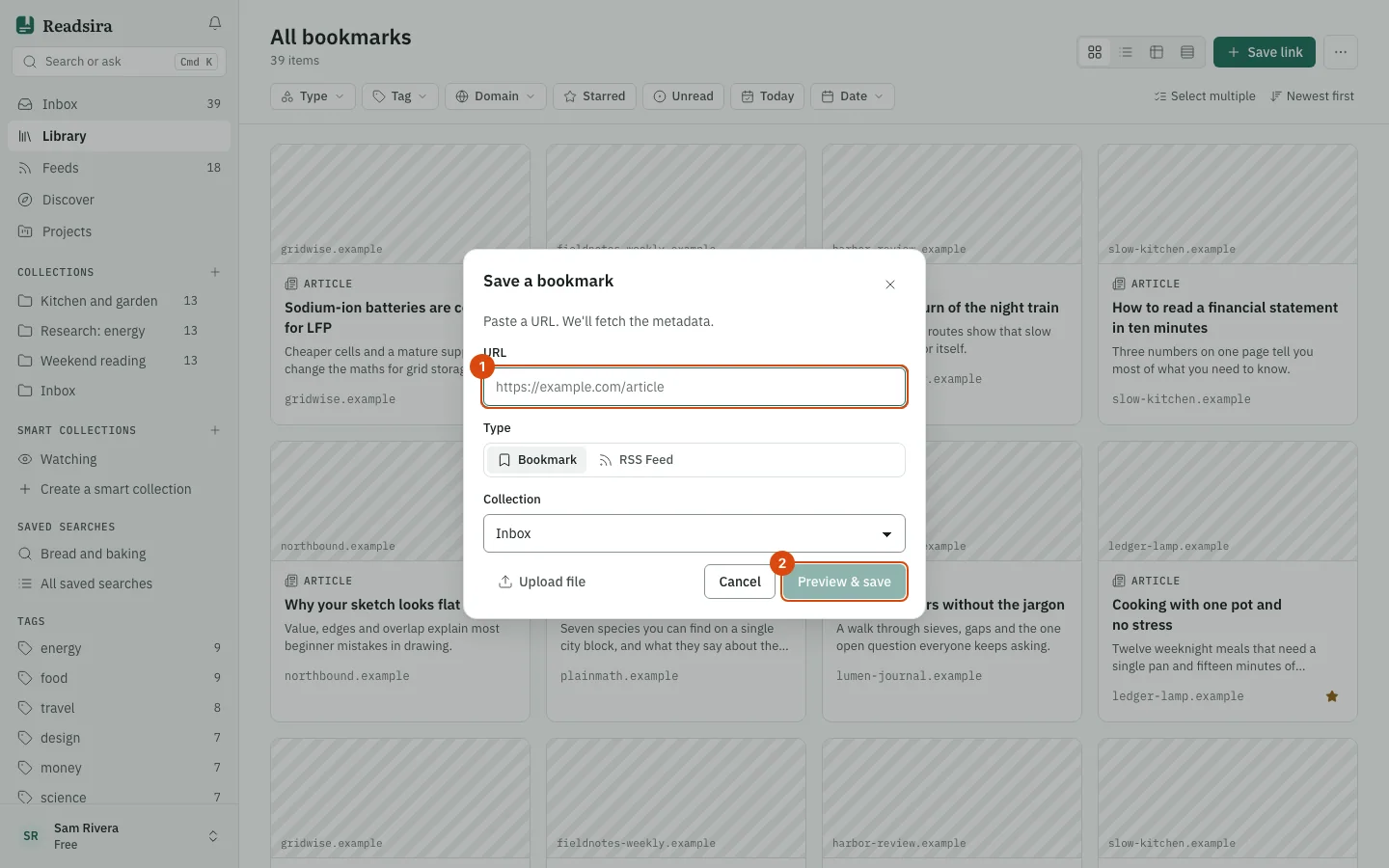
Open your library at app.readsira.com and select Save link at the top right.
-
Paste the address into URL. The dialog is titled Save a bookmark. Keep Bookmark chosen.
-
Pick a collection, or leave it on Inbox. Select Preview & save.
-
Check the title. Change it in Custom title (optional) if you like, and add tags.
-
Select Save. The item appears in your Inbox or in the collection you chose.
If the address is a feed, a banner says This link is a feed and offers Follow feed or Save as bookmark instead. You can also drag a link onto the Readsira window and drop it there.
Save with the browser extension
The extension saves the page you are on with one click, and it lets you highlight text on the page.
-
Install the Readsira extension for your browser and sign in. The first time you save, it opens Readsira in a new tab; sign in there, return to your page and click again.
-
Open a page you want to keep.
-
Click the Readsira icon in the toolbar, or press
Ctrl+Shift+F(on a Mac,Control+Shift+F). The page is saved before the popup finishes opening. Your browser lets you change the shortcut.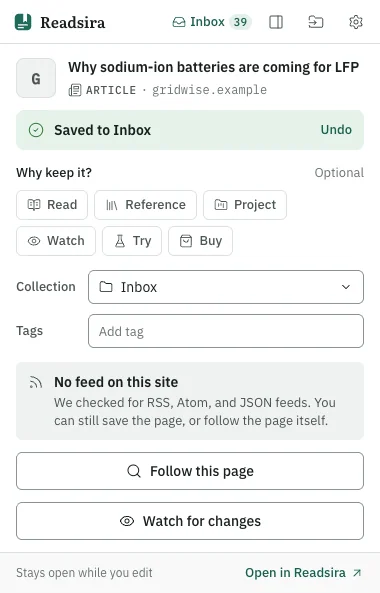
-
The popup says "Saved to" and the collection name, and offers Undo. Under "Why keep it?" you can pick a reason, and you can change the collection and add tags. If you saved the page before, the popup tells you when.
-
Right-click a page or a link and choose "Save page to Readsira" or "Save link to Readsira" to save without opening the popup.
Offline? The page waits in a queue and syncs when you are back online.
Save with a bookmarklet
A bookmarklet is a bookmark that saves the current page. It needs no extension, so it works in any desktop browser.
-
Open the Import page.
-
Find the section Bookmarklet (no extension).

-
Drag the button Save to Readsira onto your bookmarks bar.
-
On any page, click that bookmark. A small window opens and saves the page to your Inbox. Text you had selected on the page is saved as the note of the item.
-
The window says Saved to Inbox. Choose a reason under Why keep it? if you want to, then select Close tab.
If the page did not answer, the window says Saved the link, not the page: the link is in your Inbox and Readsira tries the page again in the background. If you saved the link before, it says Already in your Inbox and adds nothing twice.
Receive newsletters by email
Every account has its own address at inbox.readsira.com. Mail sent there goes straight to your library, so you can read newsletters next to everything else you save.
- Open Settings and go to Account. Your address is in the field Save-by-email address.
- Copy it and subscribe to the newsletter with that address, or forward a mail you already received to it.
- The mail appears in a feed called "Newsletters" within a minute or two.
Sending the same message twice does not make a copy. Attachments are ignored, and a message over 10 MB is bounced back to the sender.
Save from your phone
The Readsira mobile app is not in the app stores yet. On your phone, open app.readsira.com in the browser and save the link from the web app as above.
Tips
- Everything you save goes to the Inbox unless you chose a collection.
- Saving the same link twice does not make a copy.