Sign in and reset your password
Available onFreeProResearch
Sign in with your email and password, with a one-time link sent to your email, or with Google. If you forgot your password, you can set a new one from the same page.
Steps
-
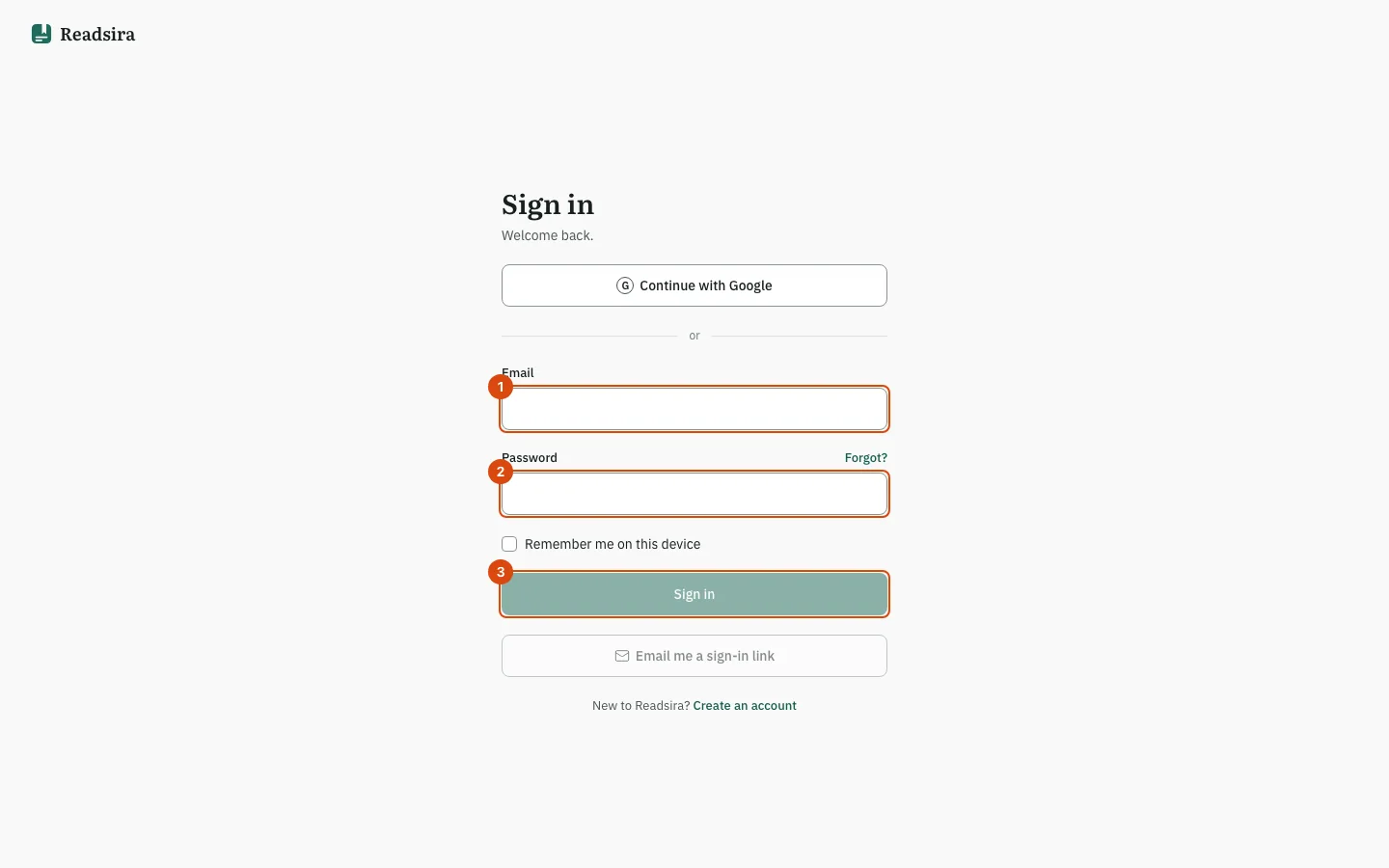
Open app.readsira.com/auth/login. The page is titled Sign in.
-
Type your address in Email. Your username works here too.
-
Type your password in Password.
-
Tick Remember me on this device only on a device that is yours. You then stay signed in much longer than with a normal sign-in.
-
Select Sign in. The button stays off until both fields are filled.
If your address or password is wrong, Readsira says so in the same words for an unknown account and for a wrong password.
Sign in with an email link
If you do not want to type the password, type your address and select Email me a sign-in link. Readsira says that a link has been sent if the address is registered; the message is the same for an unknown address. Open the email on the device you want to sign in on. A link works once. An old or used link brings you back to the sign-in page with a note.
Two-factor sign-in
If you turned on two-factor sign-in in Settings, a page titled Enter your code opens after your password.
- Type the six-digit code from your authenticator app.
- Tick Trust this device for 30 days if you do not want to be asked again on this device for 30 days.
- Select Verify.
Lost your device? Select Use a backup code and type one of the 10 backup codes that you saved when you turned two-factor sign-in on.
Reset a forgotten password
-
On the sign-in page, select Forgot? next to the password field.
-
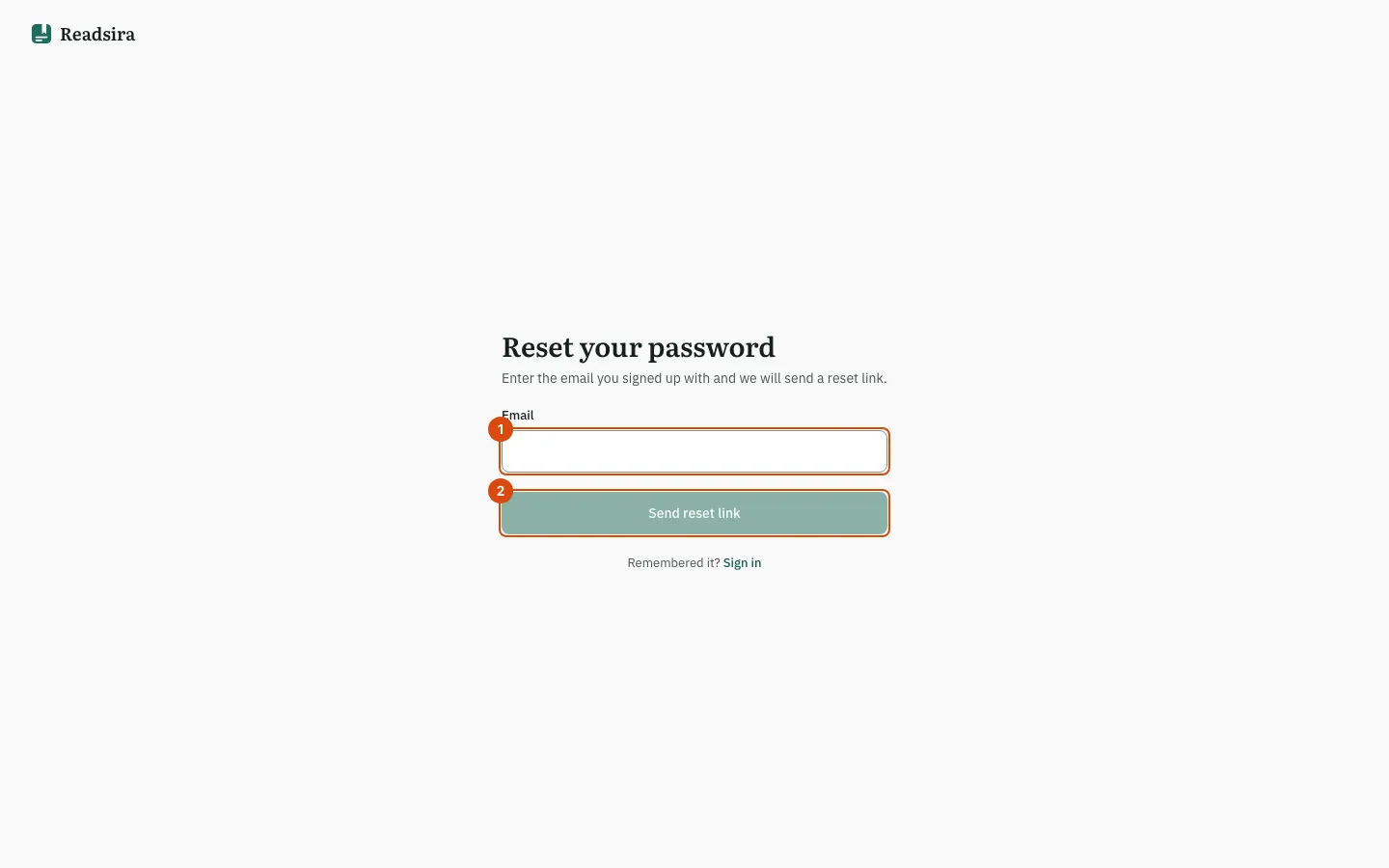
On the page Reset your password, type the email you signed up with.
-
Select Send reset link. Readsira says that a reset link has been sent if the address is registered. It does not say whether the address has an account.
-
Open the email and select the link. On the page Choose a new password, type a new password and select Save password.
-
Sign in with the new password. You are signed out on your other devices.
If the page says the link is invalid or expired, request a new one. If too many requests were made, wait a few minutes first.
Tips
- You can see where you are signed in, and sign out other devices, in Settings.
- Sign-in methods and two-factor sign-in are set in Settings, Account.