Listen episodes
Available onProResearch
Listen turns saved articles into one private podcast episode. Each article is a chapter, read aloud in a voice that matches its language. Play it in Readsira or add your private podcast feed to a podcast app.
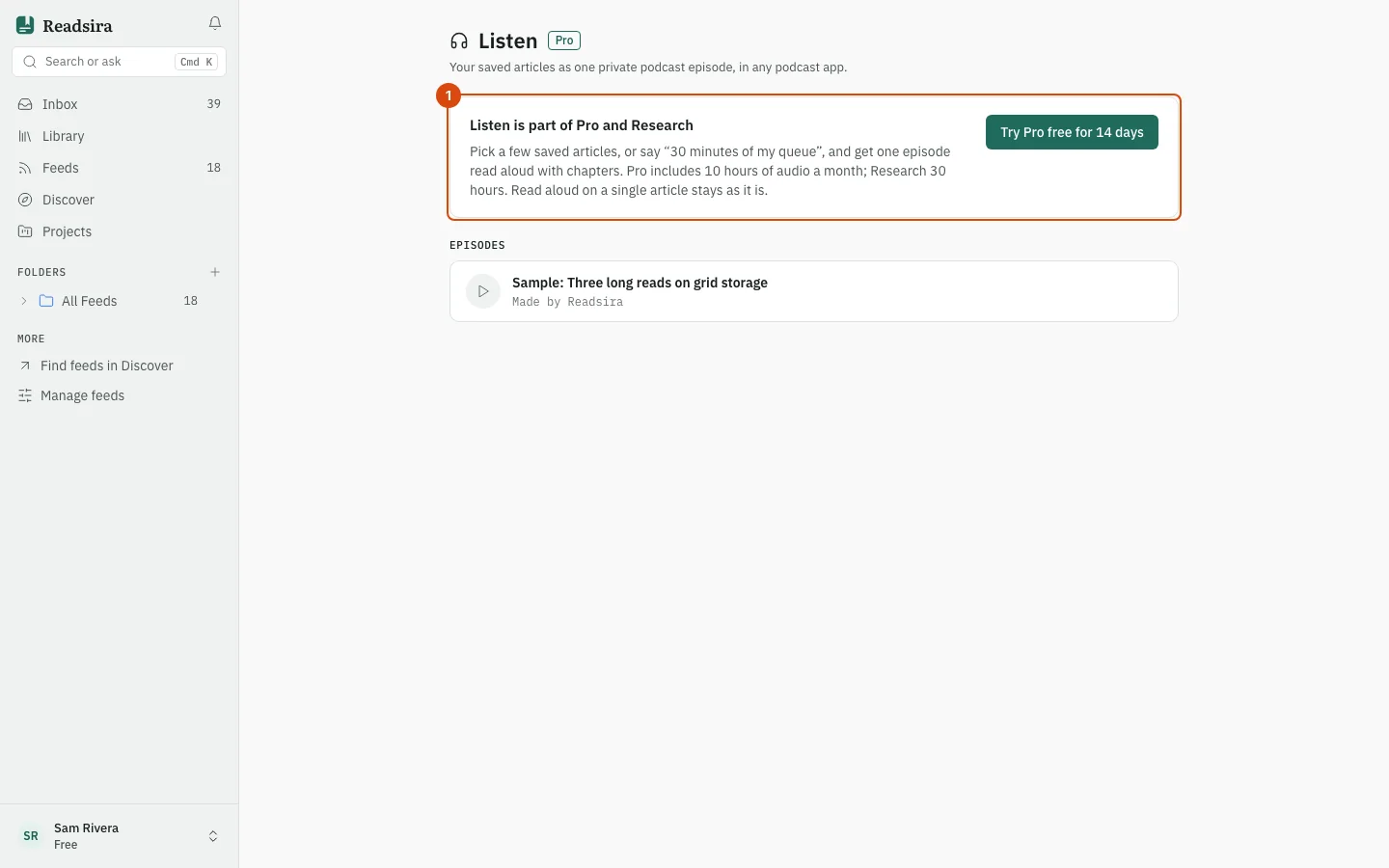
On the Free plan the page explains Listen and offers a sample episode to play (Play sample) and a button to start a free Pro trial (Try Pro free for 14 days) when you are eligible.
Before you start
- You need a Pro or Research plan. How many minutes of audio you get each month differs by plan; see Plan limits.
- You need saved articles that have readable text. Articles without text are skipped.
Open Listen
Open the command palette (Command palette), switch to Go to and
choose Listen. You can also open app.readsira.com/listen.
Make an episode
-
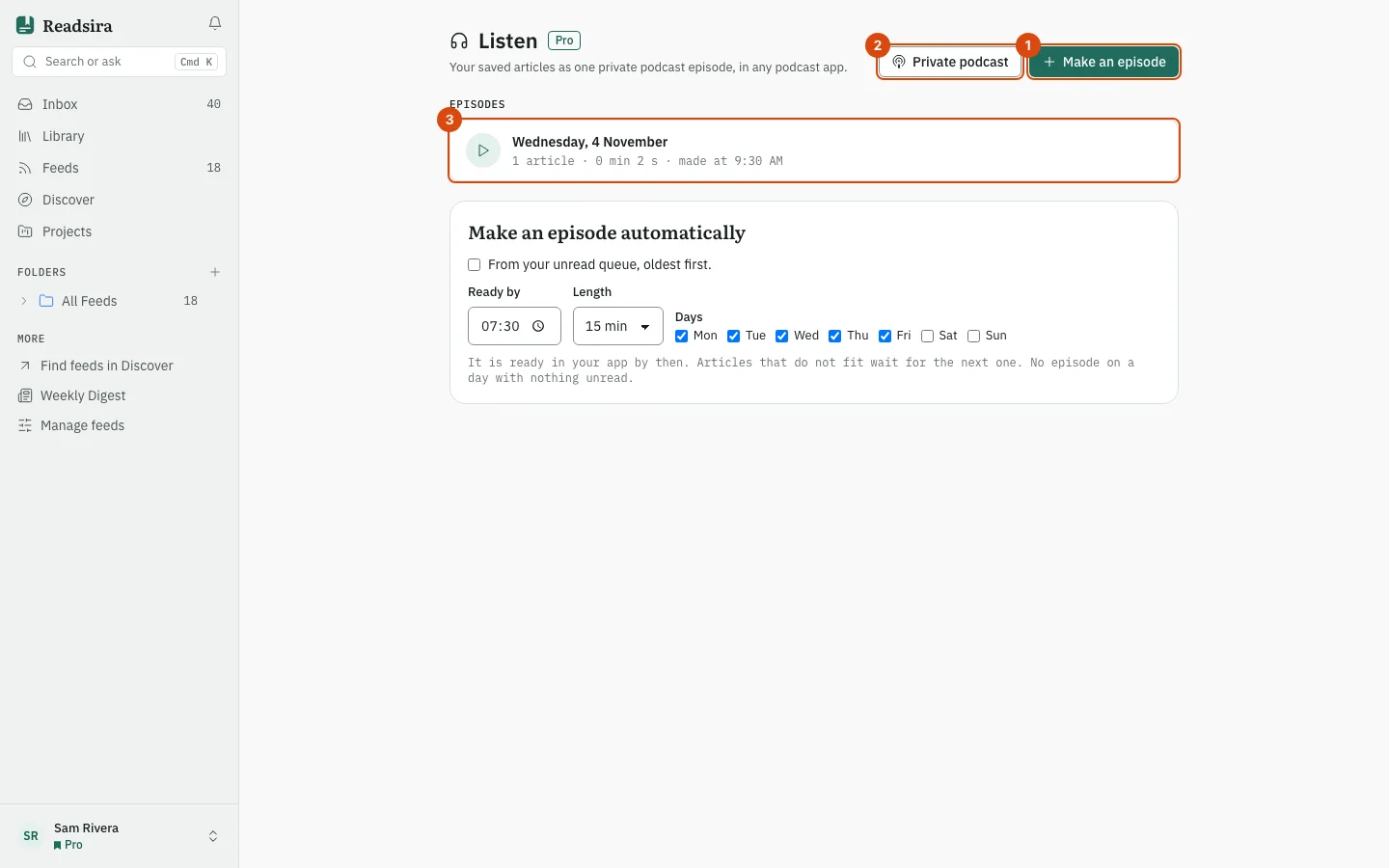
Press Make an episode.
-
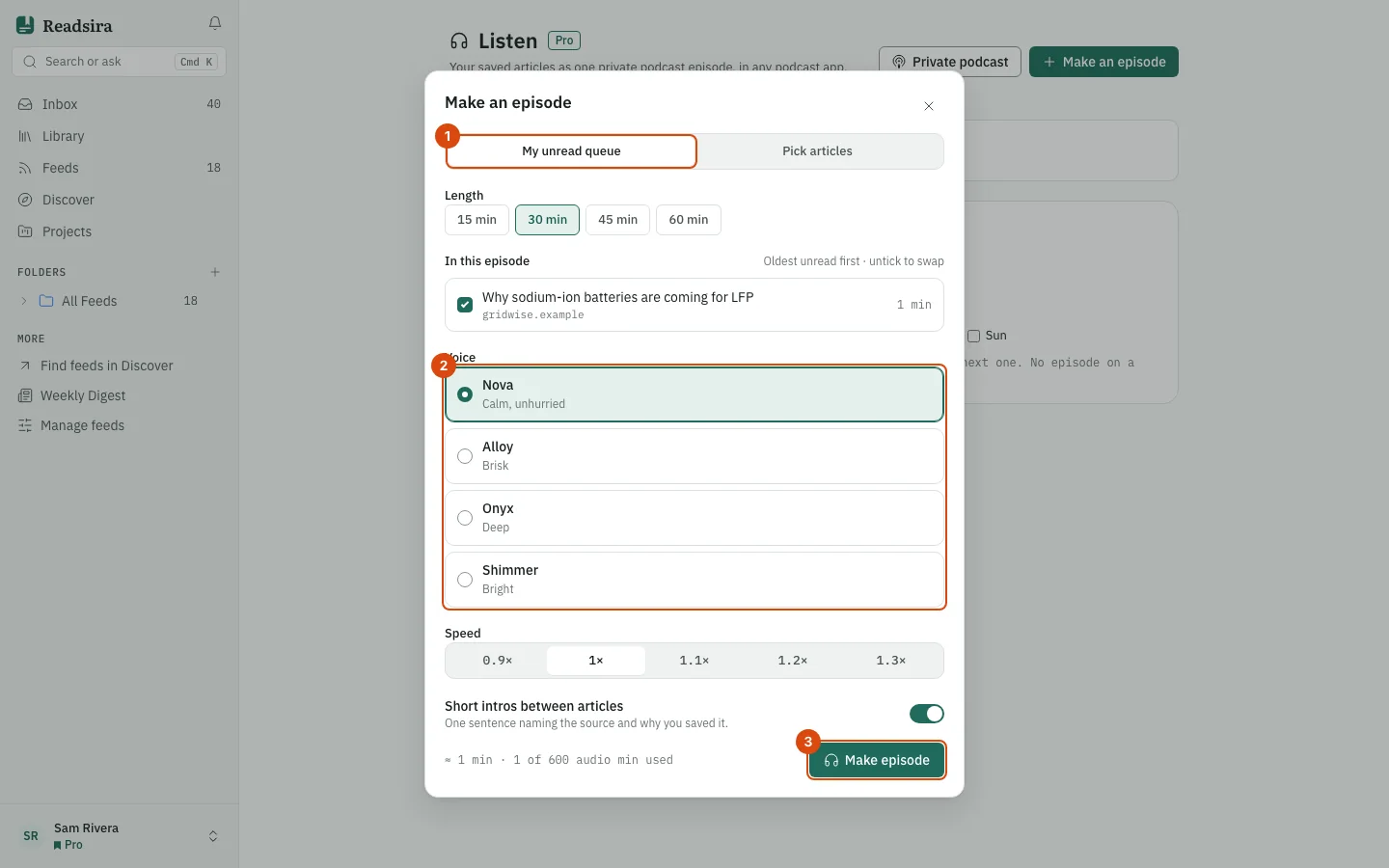
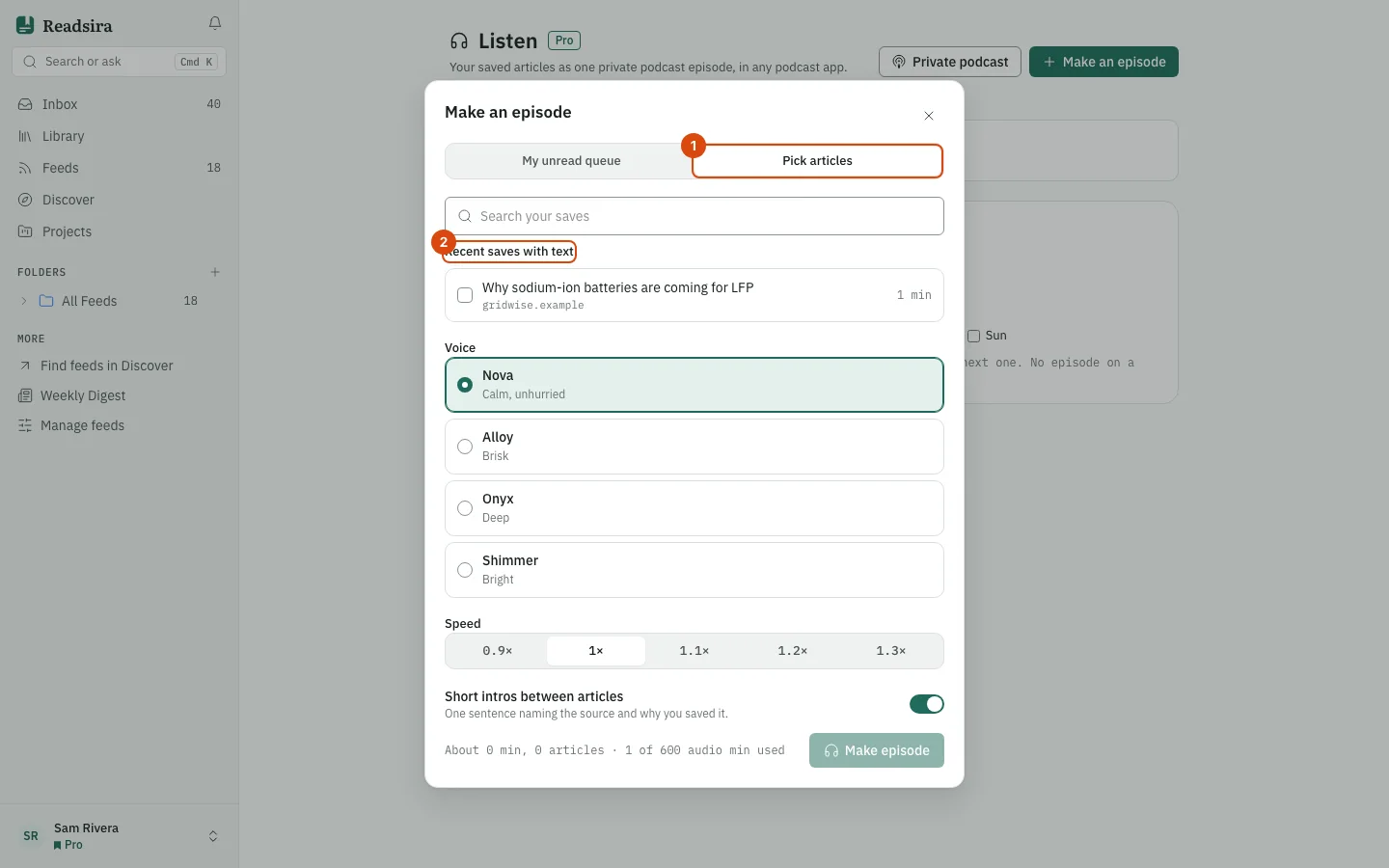
Choose where the articles come from:
- My unread queue: pick a Length of 15, 30, 45 or 60 minutes. Readsira fills it from your unread saves, oldest first. The list In this episode shows what will be read, and you can untick an article to swap it.
- Pick articles: search your saves and tick the articles you want, up to 20. They stay ticked while you search.
-
Choose a Voice: Calm, unhurried, Brisk, Deep or Bright describe how each sounds. The voice you hear is one that matches the language of each article, so one episode can use different voices for articles in different languages.
-
Choose a Speed between 0.9x and 1.3x.
-
Turn Short intros between articles on or off. An intro is one sentence naming the source and why you saved the article.
-
Check the estimate under the options: it shows the length and how many of your audio minutes are used. Press Make episode.
-
A card shows each article as it is read. You can close the page; the episode appears in the list and in your podcast app when it is ready.
If an episode needs more minutes than you have left this month, the dialog says so and asks you to untick an article. Articles that cannot be read are skipped and the card tells you why: no readable text, or longer than an hour. If none can be read, no episode is made and no minutes are used.
Play an episode
- Open an episode from the list under Episodes. A row shows Played or the minutes left.
- Use the big play button, the 15 second buttons and the speed button.
- Open an entry under Chapters to jump to that article, or press Open article to read it. The Transcript follows the playback.
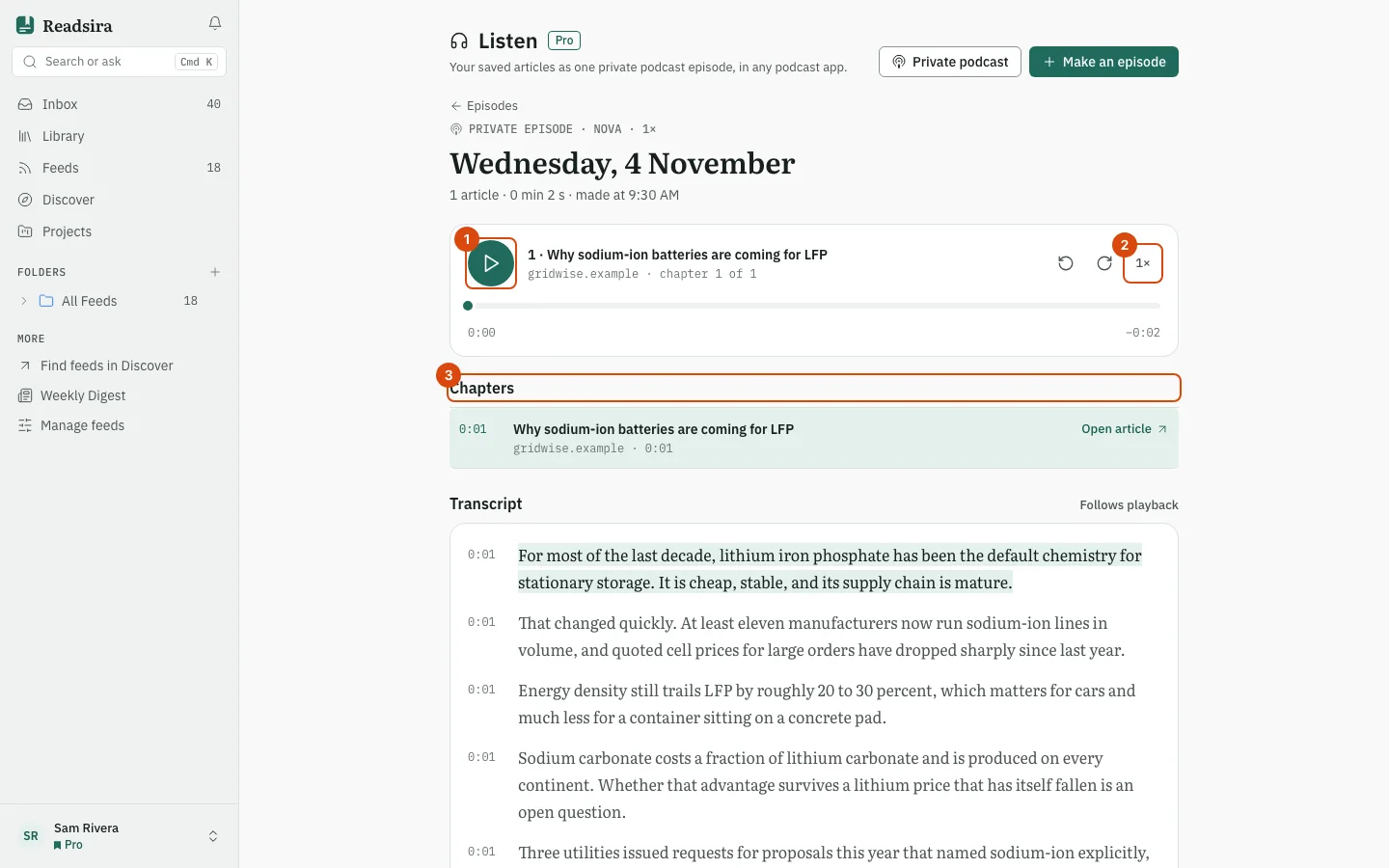
Readsira remembers where you stopped in each episode.
Add the feed to your podcast app
- Press Private podcast.
- Press Show feed link. The link is shown once, because only a fingerprint of it is kept.
- Press Copy and paste it into your podcast app, or use Add to Apple Podcasts, Add to Pocket Casts or Add to Overcast.
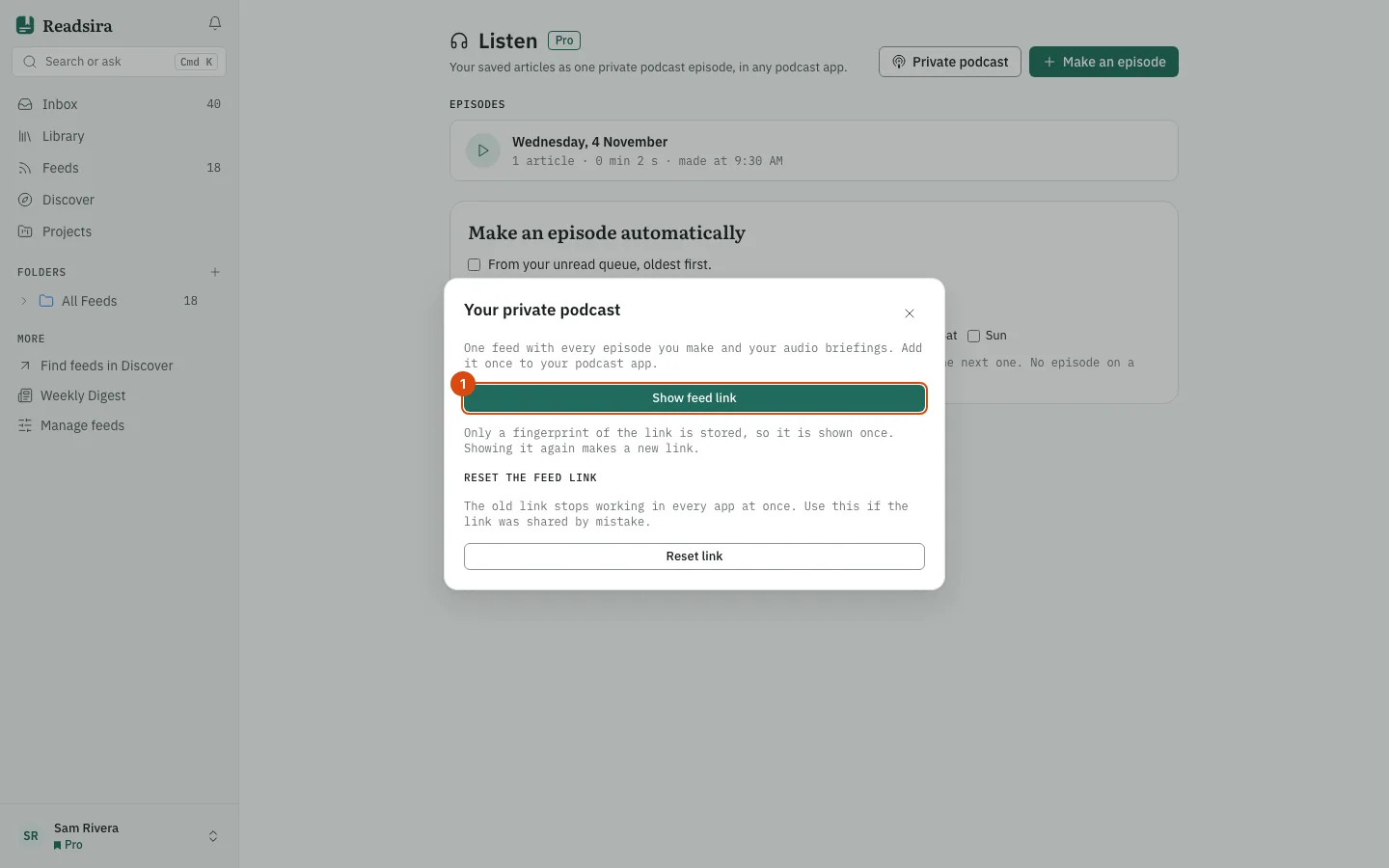
The feed holds every episode you make and your audio briefings. Anyone with the link can listen, and it is in no directory, so do not post it. If it gets shared by mistake, press Reset link: the old link stops working in every app and you add the new one.
Make an episode every day
Under Make an episode automatically choose when the episode should be ready (Ready by), its Length and the Days. Each time, Readsira fills it from your unread queue, oldest first. Articles that do not fit wait for the next one, and no episode is made on a day with nothing unread.
Tips
- If the page says The audio did not load, press Try again. The episode is still in your podcast app.
- A failed episode does not use any of your minutes.