Create a project
Available onFreeProResearch
A project holds the sources for one question. Readsira writes outputs from them, and every claim links to the passage it came from. The number of active projects and the items in each depend on your plan; see Plans and limits.
Steps
-
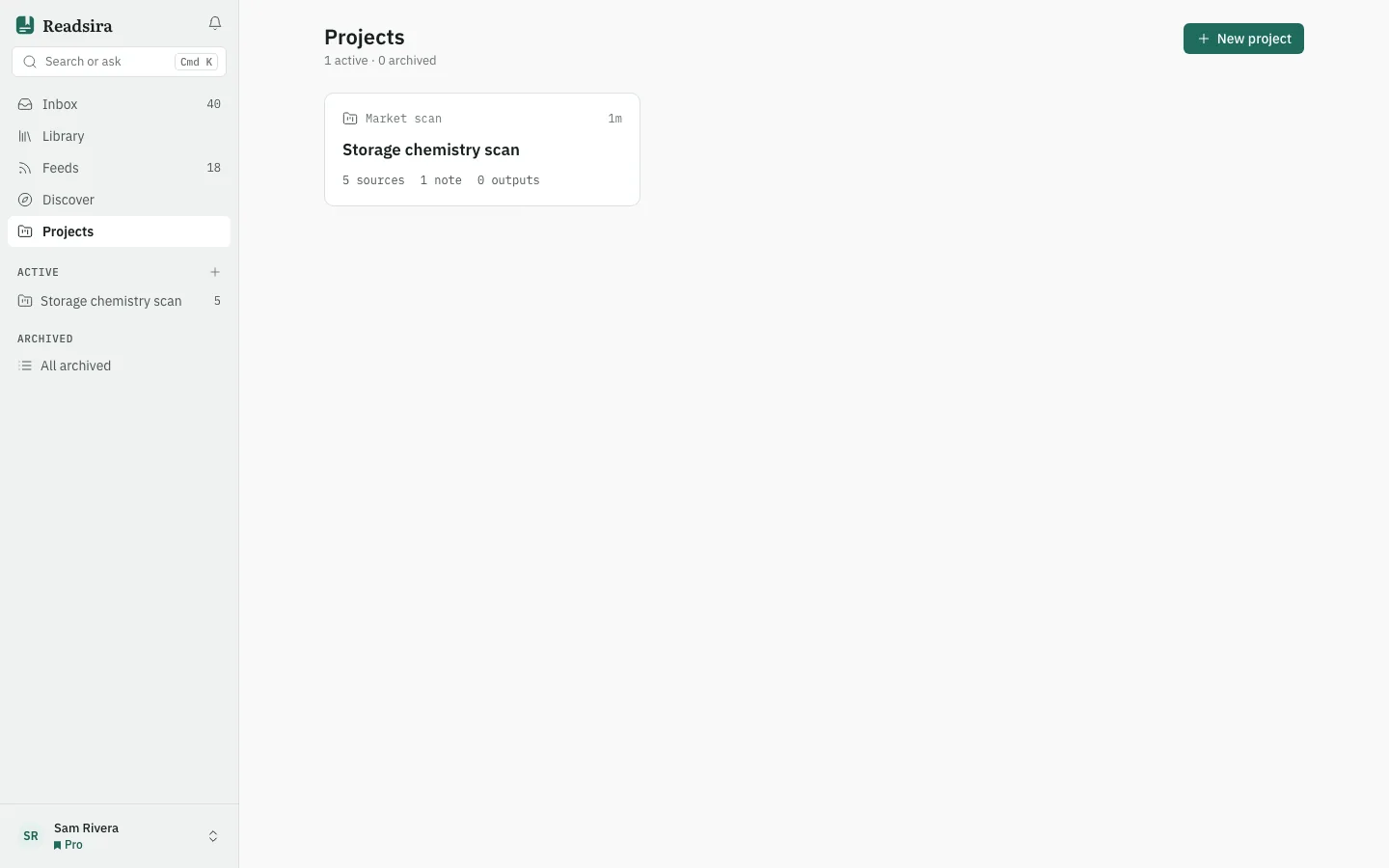
Open Projects in the sidebar.
-
Press New project. With no projects yet, the page explains what a project can produce.
-
Fill in the form.
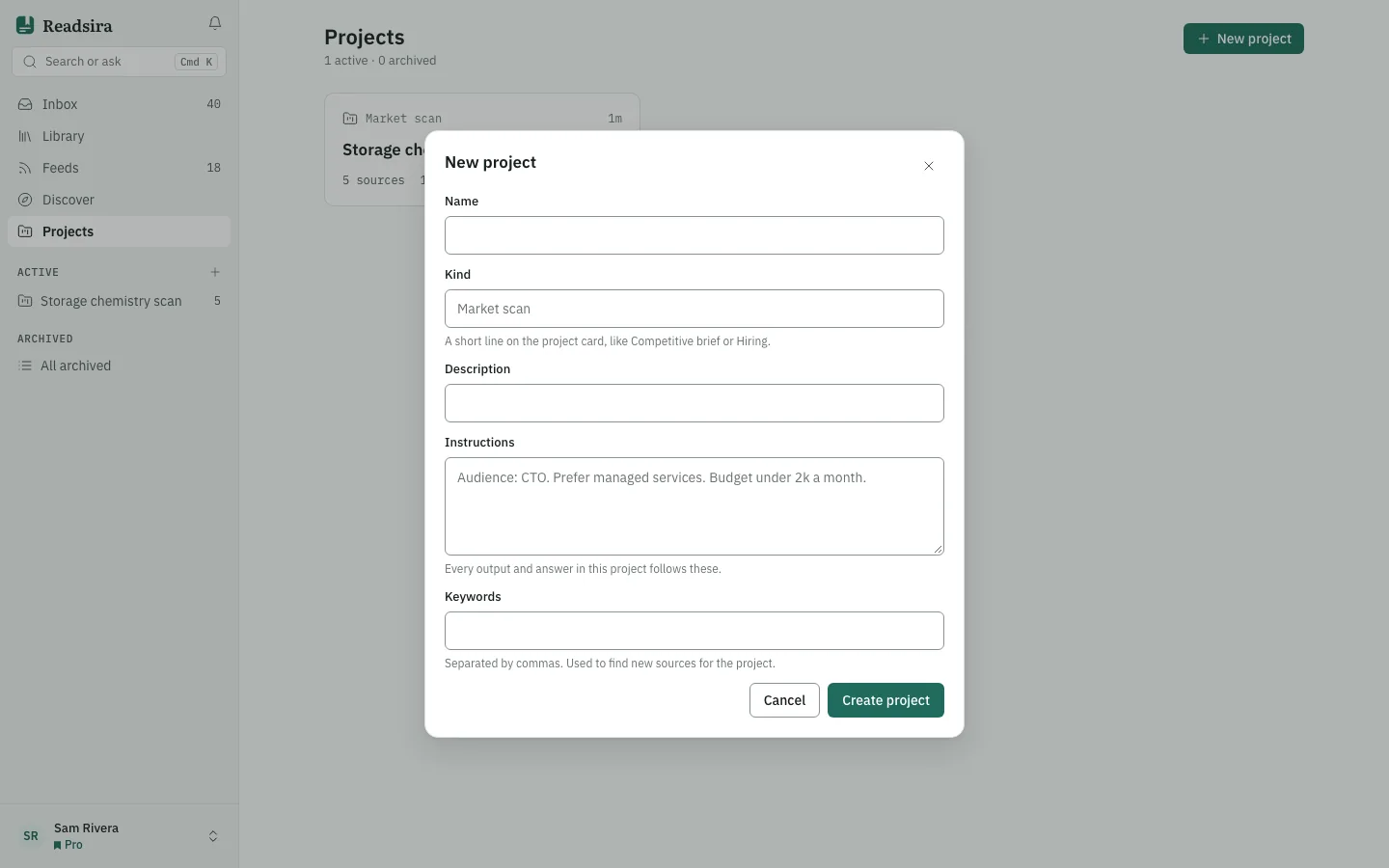
- Name is required.
- Kind is a short line on the project card, like Competitive brief or Hiring.
- Description is for you.
- Instructions are followed by every output and answer in this project, for example the audience or what to prefer.
- Keywords are separated by commas and are used to find new sources.
-
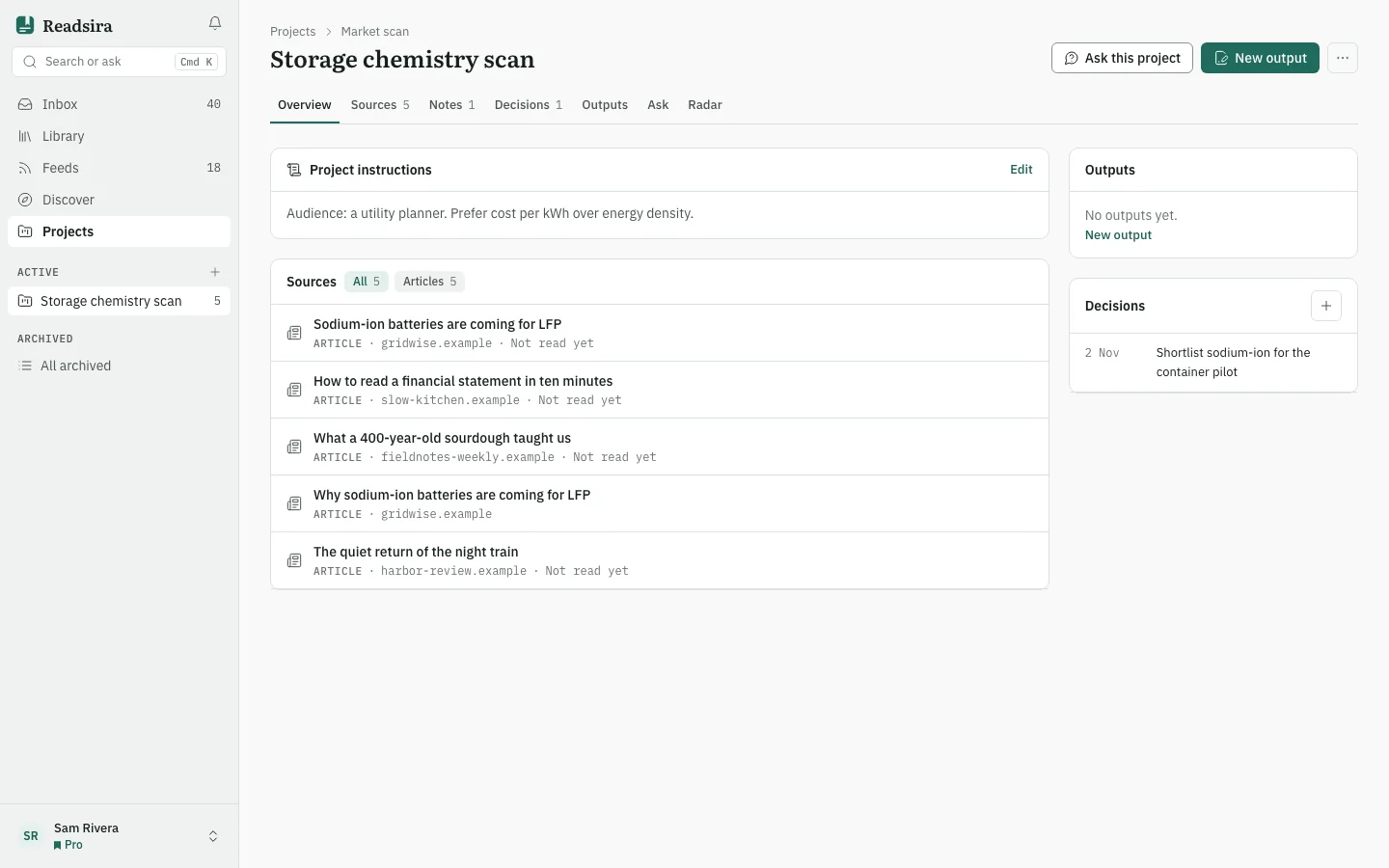
Save the form. The project opens on its Overview tab.
-
To change the details later, open the menu More project actions and choose Edit project.
Archive, restore and delete
- Archive makes the project read-only. It moves to the archived list. Restore brings it back so you can add sources and write outputs again.
- Delete project removes the project with its notes, decisions and outputs. The bookmarks stay in your library.
Add things from elsewhere
You do not have to open the project first. Choose Add to project on a library item, in the reader or in the Inbox to put it into a project. If the item is already there, the dialog tells you.