Sources, notes and decisions
Available onFreeProResearch
A project has three kinds of content: sources (what the outputs rest on), notes (your own thoughts) and decisions (what you chose and why). They sit on their own tabs of the project.
Add sources
-
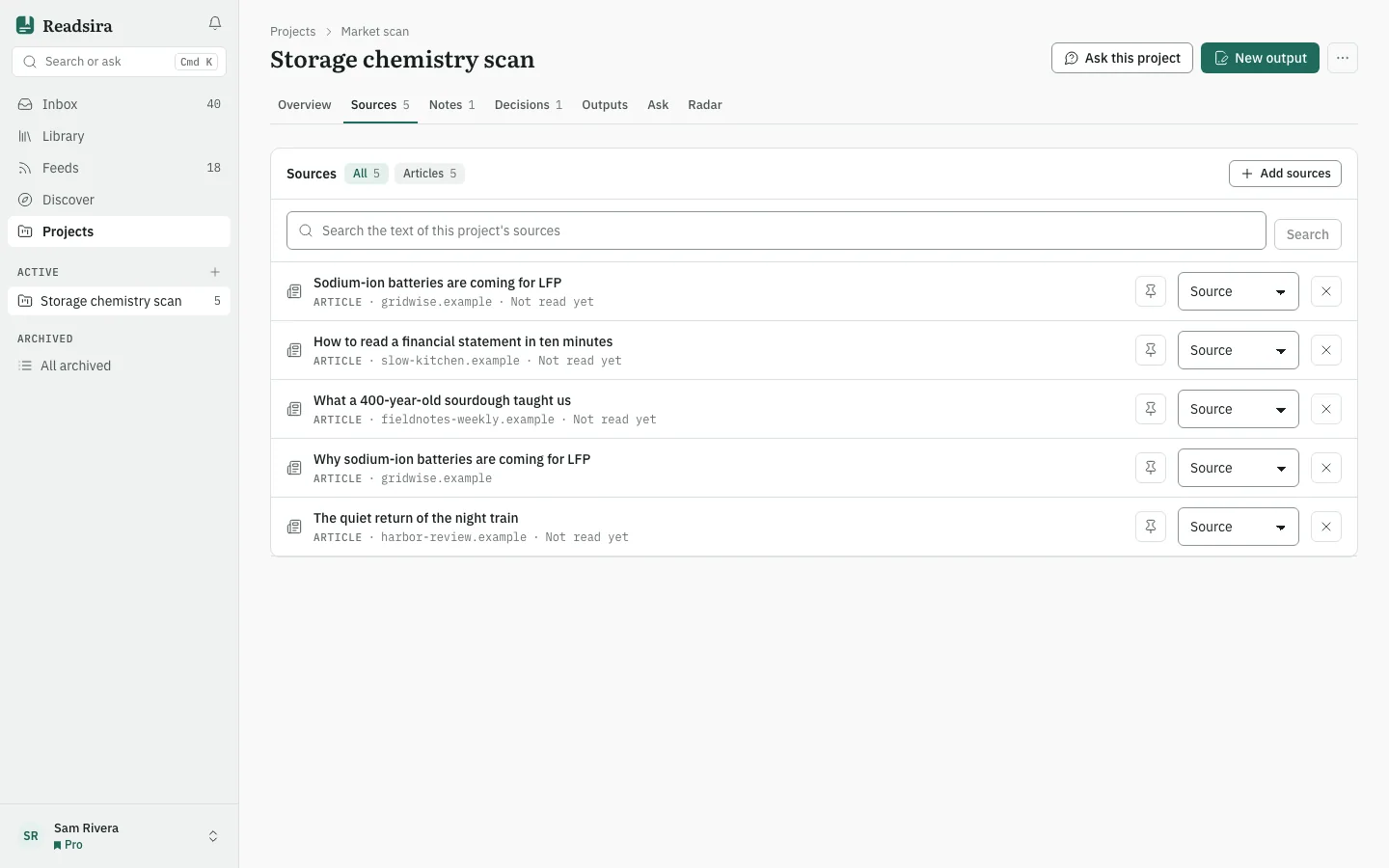
Open the project and choose the tab Sources.
-
Press Add sources. In the box Paste a link or search your library paste a web address, or type words from a title to search your library. Library matches are listed under Library results. Press the button on a result to add it.
-
To limit the list to one kind of item, use Filter sources by type: article, PDF, podcast, video, highlight or note.
-
To search inside the project, use Search in this project. It searches the text of the sources. When AI search is paused it shows exact word matches only.
-
To control how a source is used, use the controls on its row. The role menu (Role) offers Source, Background and Excluded. The pin button keeps a source always in use for outputs. A source shows Not read yet until Readsira has read it, and how often outputs cited it.
-
To take an item out, use Remove from project. It stays in your library.
Notes
-
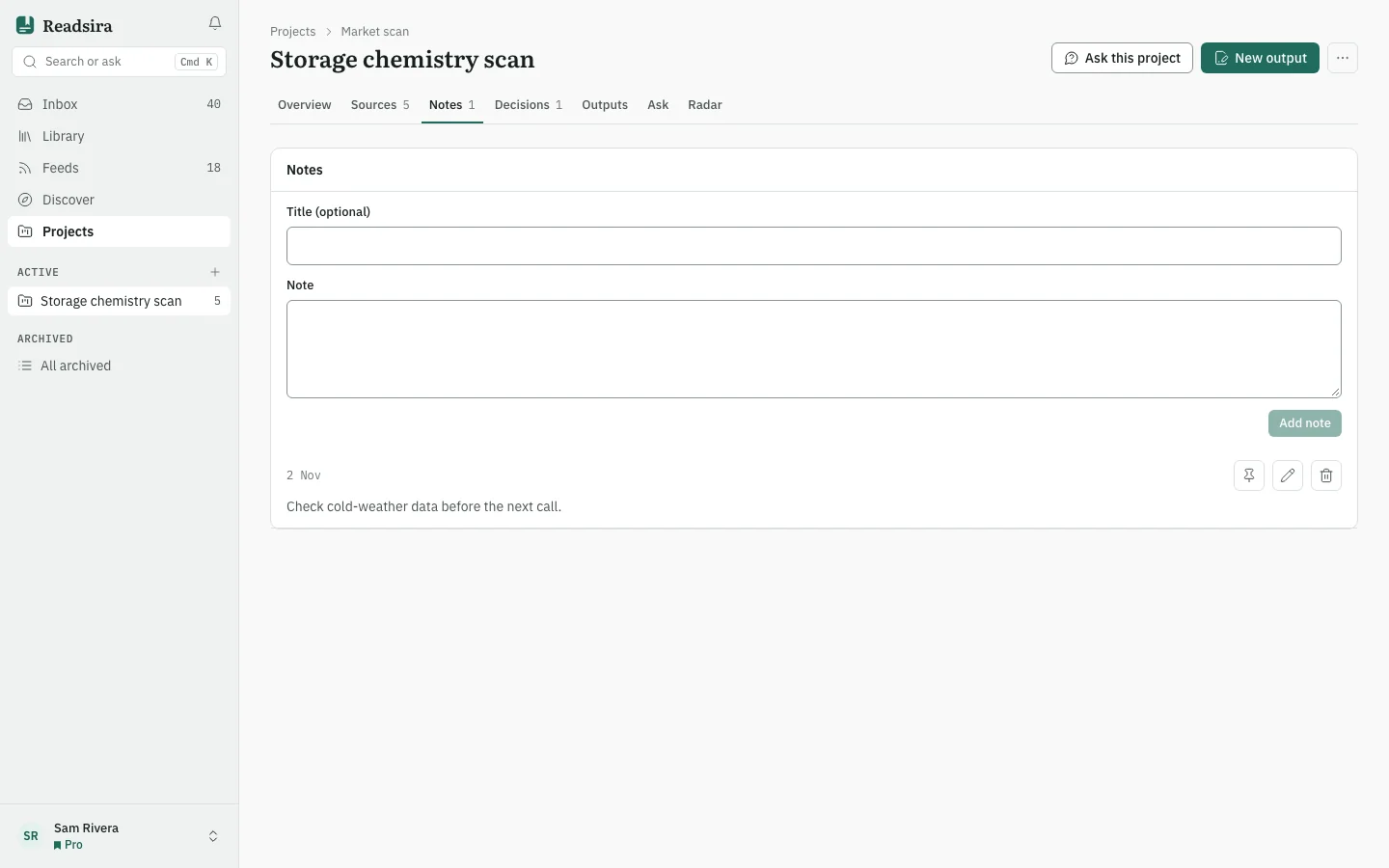
Choose the tab Notes and add a note, with an optional title.
-
Press Pin note on a note to pin it; a pinned note leads the context of outputs. Notes go into every output of this project.
-
Edit or delete a note from its row.
Decisions
-
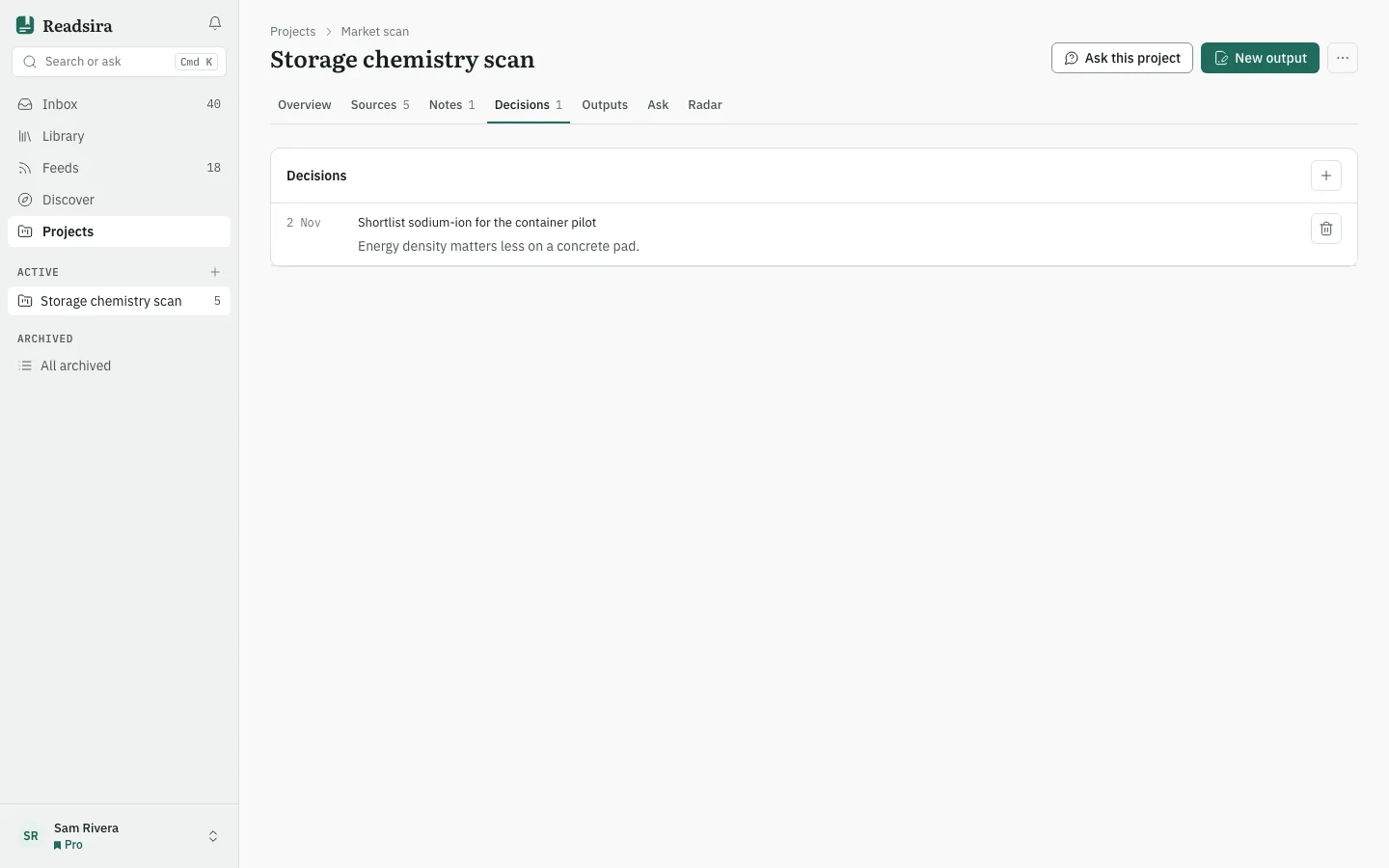
Choose the tab Decisions and press Record a decision.
-
Write the Decision and, if you like, the reason in Why (optional).
-
Set the Status: Proposed, Decided, Superseded or Reversed.
-
When a decision changes, add a new one and pick the old one in Replaces.
You can also turn an output into a decision; it keeps the output's citations.