Share and publish a collection
Available onFreeProResearch
There are three ways to share a collection. Choose by who should see it: one person you pick, anyone who has a link, or everyone on the web.
| You want to... | Use | Needs an account to view |
|---|---|---|
| Give a person access, with a permission | Share | Yes |
| Send a read-only link, which can expire | Public link | No |
| Publish a page with its own web address | Public page | No |
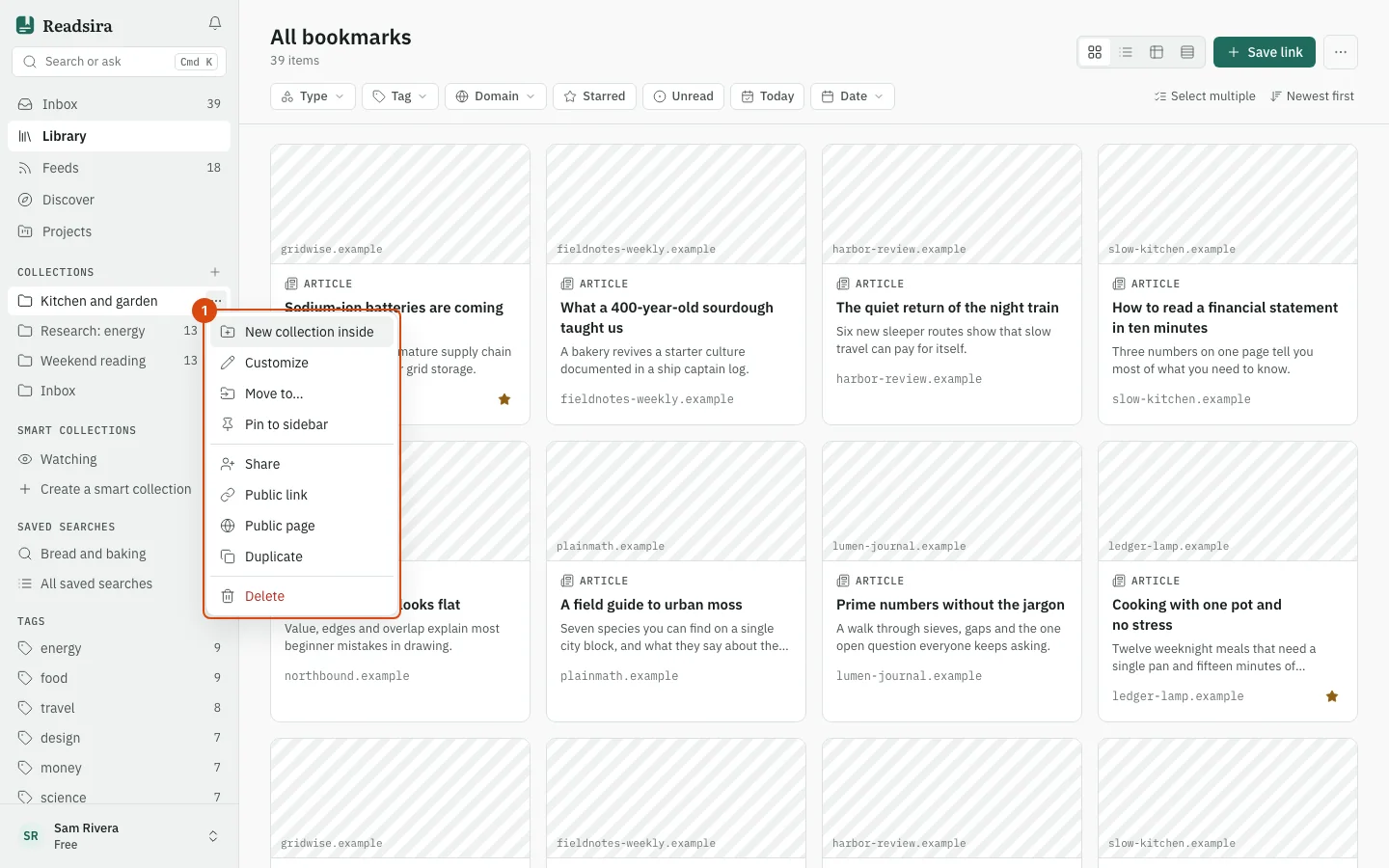
All three start in the same place: the three-dot menu next to the collection in the sidebar.
Share with a person
-
Open the menu and choose Share.
-
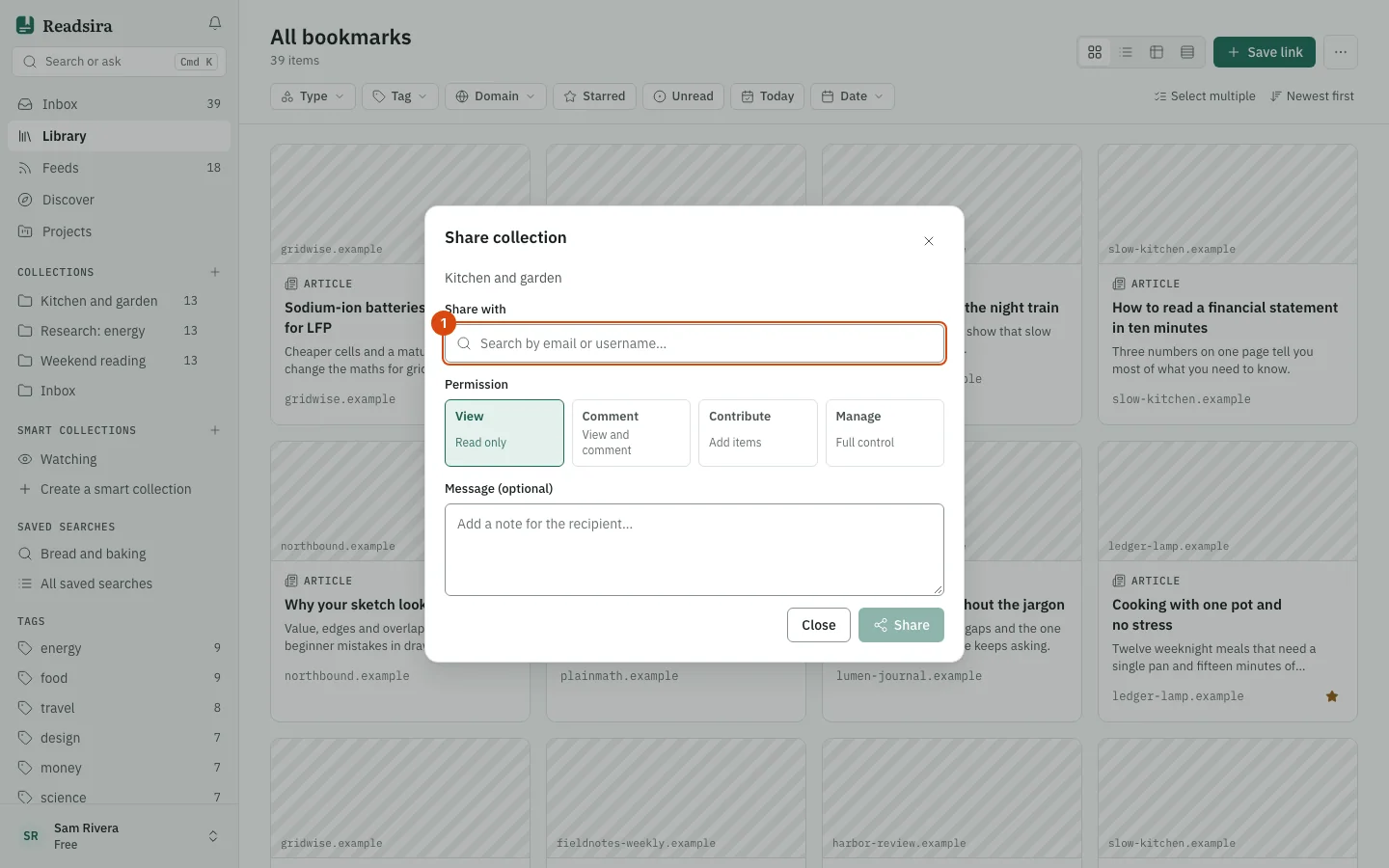
Under Share with, type an email address or a username and pick the person from the list. You cannot pick yourself.
-
Choose the Permission: View (read only), Comment (view and comment), Contribute (add items) or Manage (full control).
-
Add a note in Message (optional) if you like, and select the share button.
-
The person is listed in the dialog under "Currently shared with". Select Remove next to a name to take the access back.
The person finds the share on the page Shared with me and chooses Accept or Decline. The page has the tabs Pending, Active, All and Shared by me, which lists what you shared and lets you Revoke it. A recipient can Leave a share at any time.
Send a read-only link
-
Open the menu and choose Public link.
-
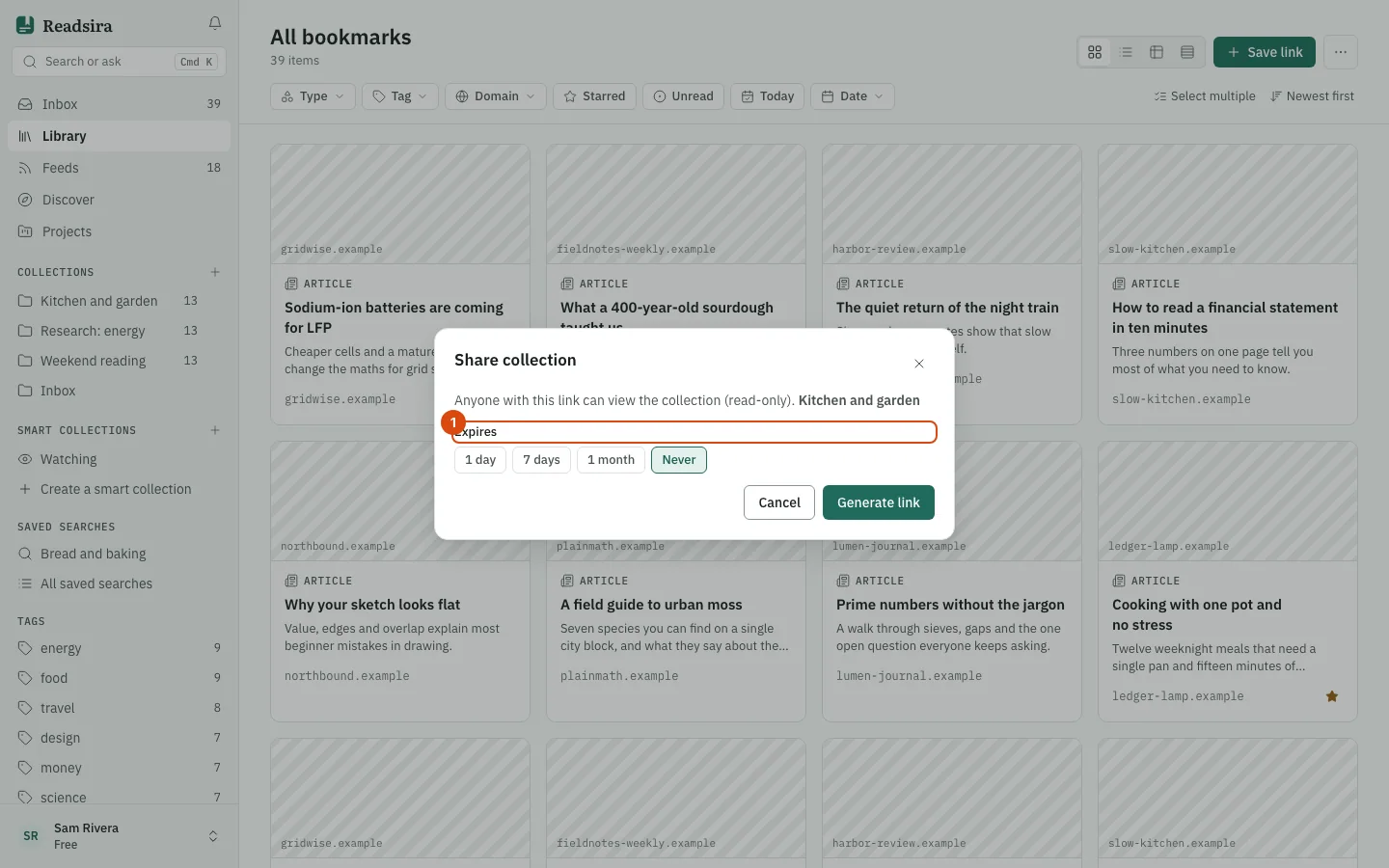
Under Expires, choose 1 day, 7 days, 1 month or Never.
-
Select Generate link. The link looks like
app.readsira.com/share/followed by a short code. Copy it or open it in a new tab. -
To change it later, open the same dialog. Regenerate makes a new link and the old one stops working. Revoke link turns the link off; the address then says the link expired or was revoked.
The page behind the link is read only. A visitor without an account can browse the items and is offered a way to sign up to save them.
Publish a public page
-
Open the menu and choose Public page.
-
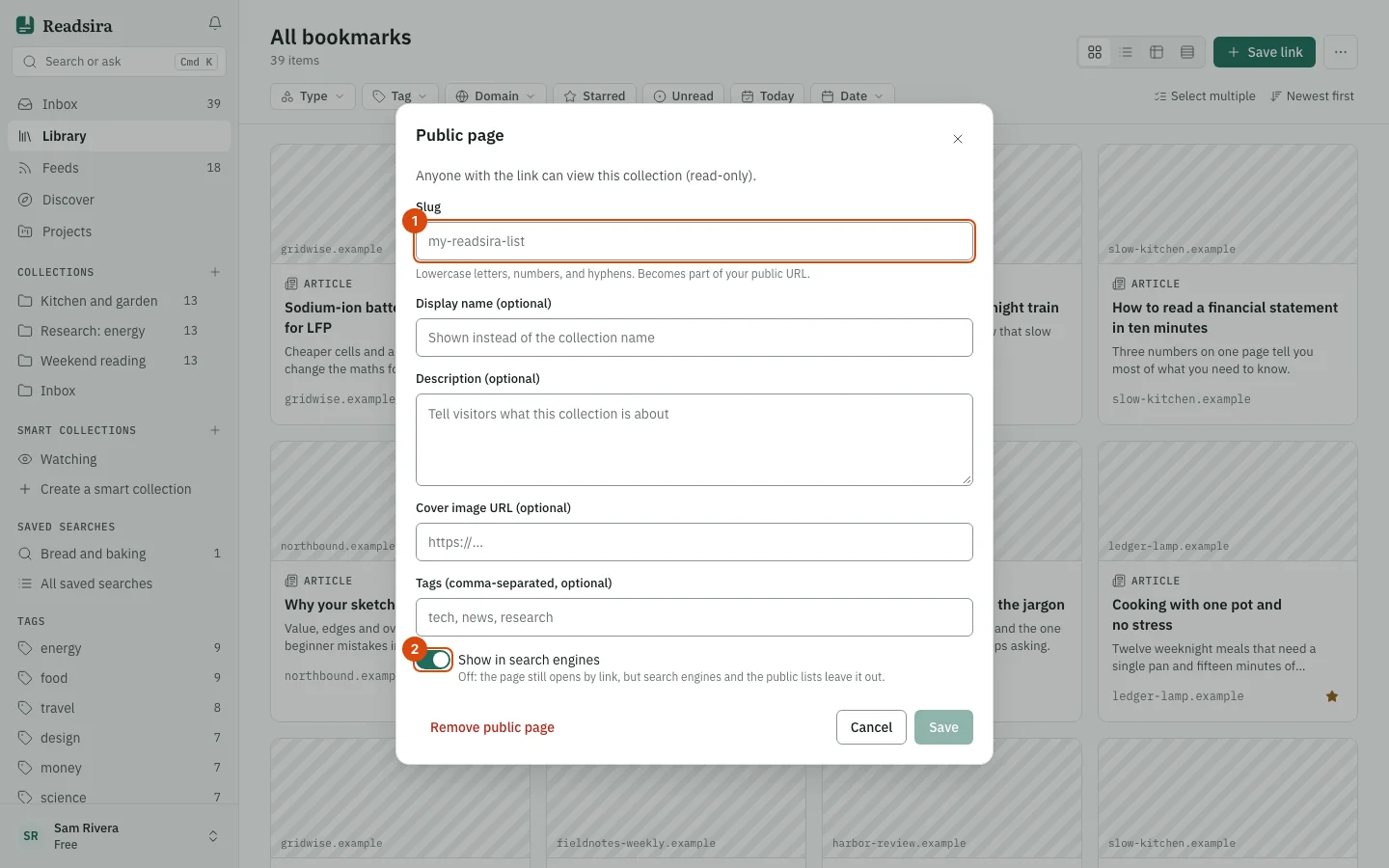
Type a Slug: lowercase letters, numbers and hyphens. It becomes the end of the address,
app.readsira.com/c/followed by your slug. -
Optionally set a display name, a description, a cover image address and tags. The display name is shown instead of the collection name.
-
The switch Show in search engines decides whether search engines and the public lists may include the page. Off, the page still opens by link.
-
Select Save. The dialog then offers View public page.
To take the page down, open the dialog again and select Remove public page. The address stops working and the collection is private again.
The public page lists the items of the collection that are public, and its header counts only those. Visitors can follow the collection, copy its RSS address and, if you allow it, fork it. See Fork and follow. To stop forks, turn off Allow others to fork this collection in Customize.
Tips
- How many public collections you can publish depends on your plan: limits differ by plan. See Plan limits.
- New accounts wait about a week before their pages are included in search engines. The dialog tells you when a page is held back and why.
- Anyone can report a public page. A moderator reviews each report.