Create and nest collections
Available onFreeProResearch
A collection is a folder for the things you save. A collection can hold other collections, up to 5 levels deep, so you can keep a tidy tree such as Work, Projects, Client.
Steps
-
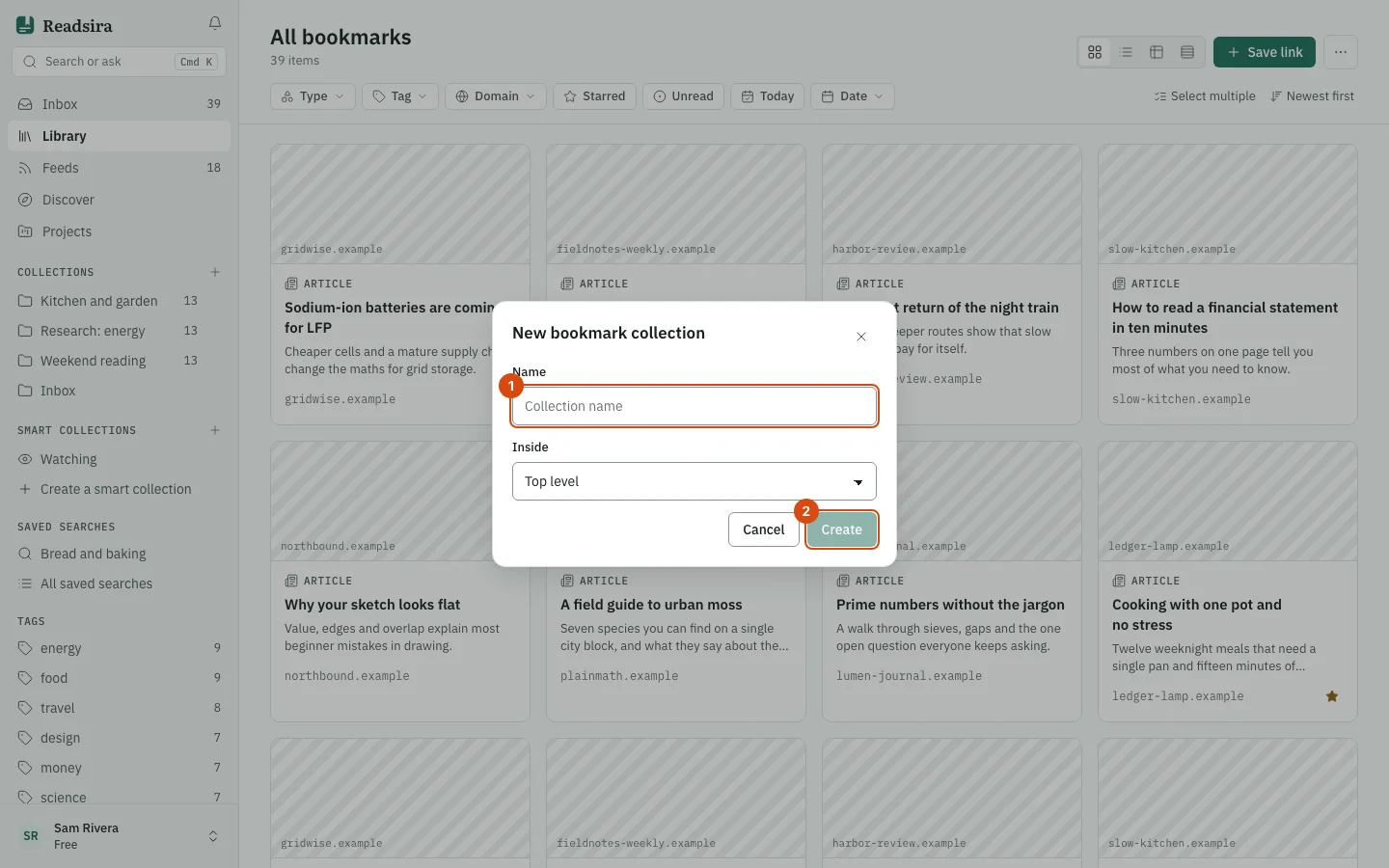
In the sidebar, find the heading Collections and select the plus button (New collection).
-
Type a name in Name. A name can have up to 100 characters.
-
To put the new collection inside another one, pick it under Inside. Leave Top level to make a top-level collection. Places that are already 5 levels deep are grayed out.
-
Select Create. The collection opens, empty, and appears in the sidebar.
If a collection with the same name is already in that place, Readsira says so. The same name is fine in different places.
Put items in a collection
- When you save a link, pick the collection in the Save a bookmark dialog (see Save your first article).
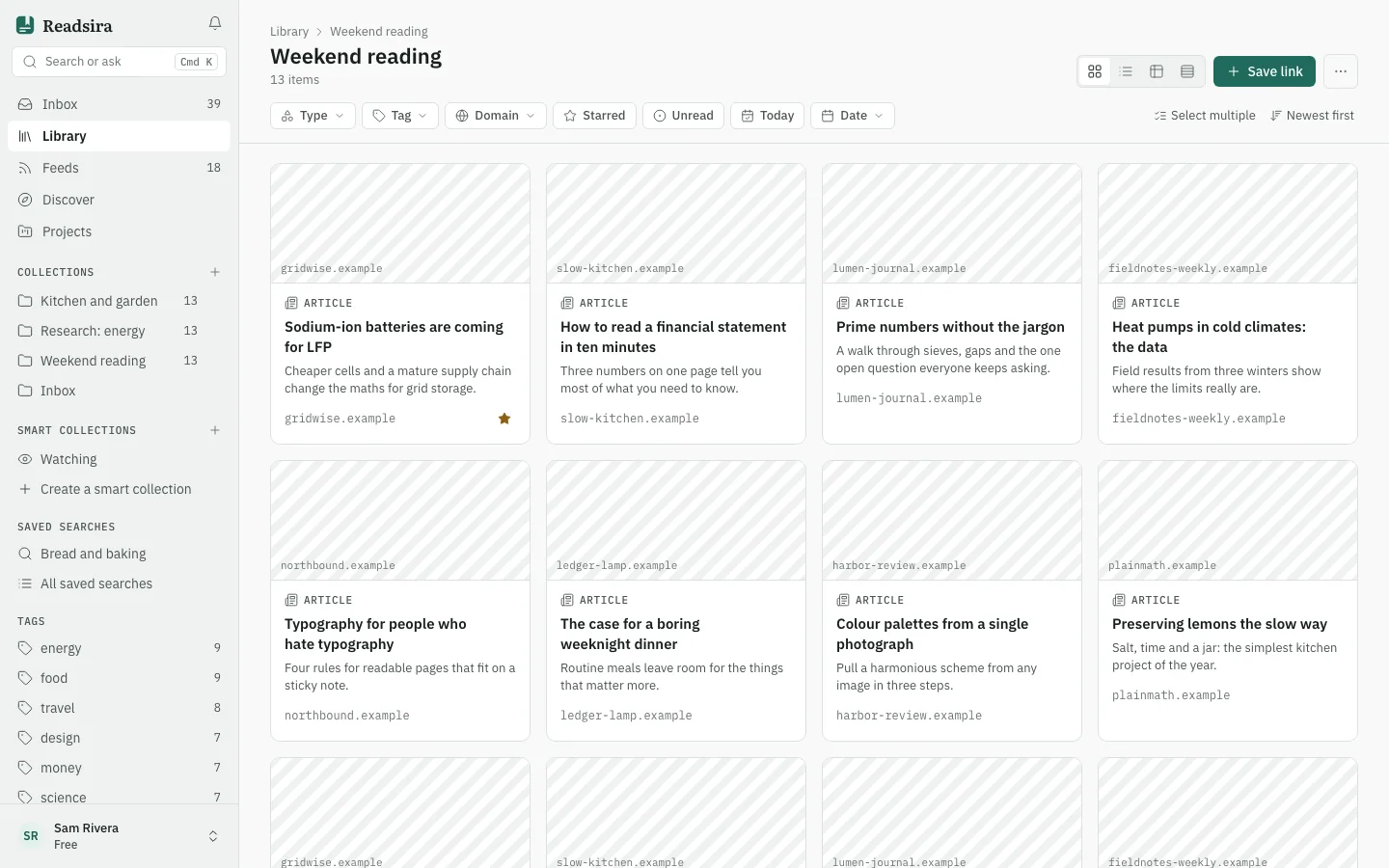
- Drag a card from the library onto a collection in the sidebar.
- Select cards with Select multiple, then choose Move in the bar that appears and pick a collection.
Nest and reorder
-
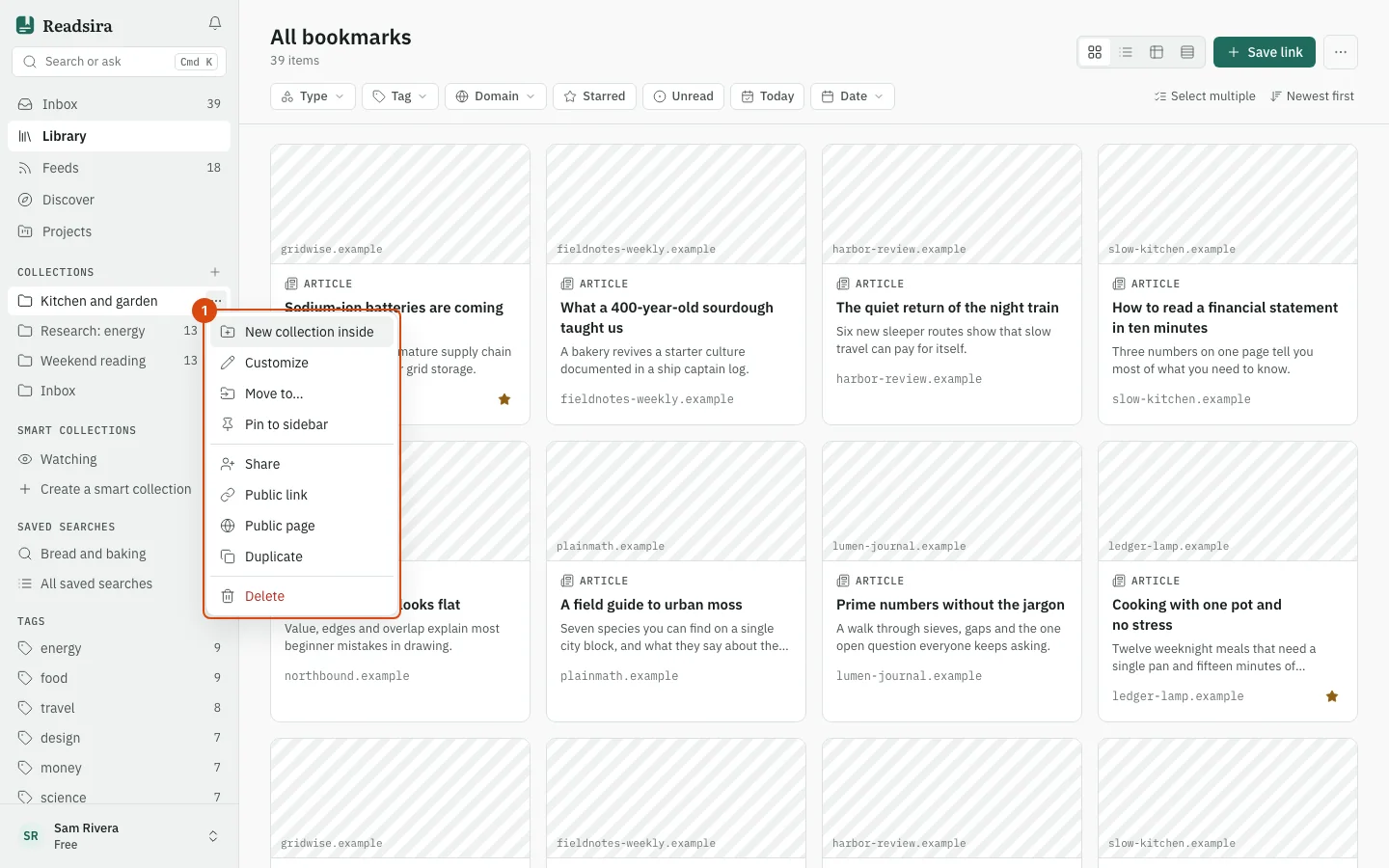
Next to a collection in the sidebar, select the three-dot button to open its menu.
-
Choose New collection inside to make a sub-collection, or Move to… to move this collection into another place or back to the top level.
-
You can also drag a collection onto another one to nest it, or above or below another to change the order. A collection cannot go inside itself or one of its own sub-collections.
-
A collection with sub-collections has an arrow. Select it to expand or collapse the branch.
Customize a collection
-
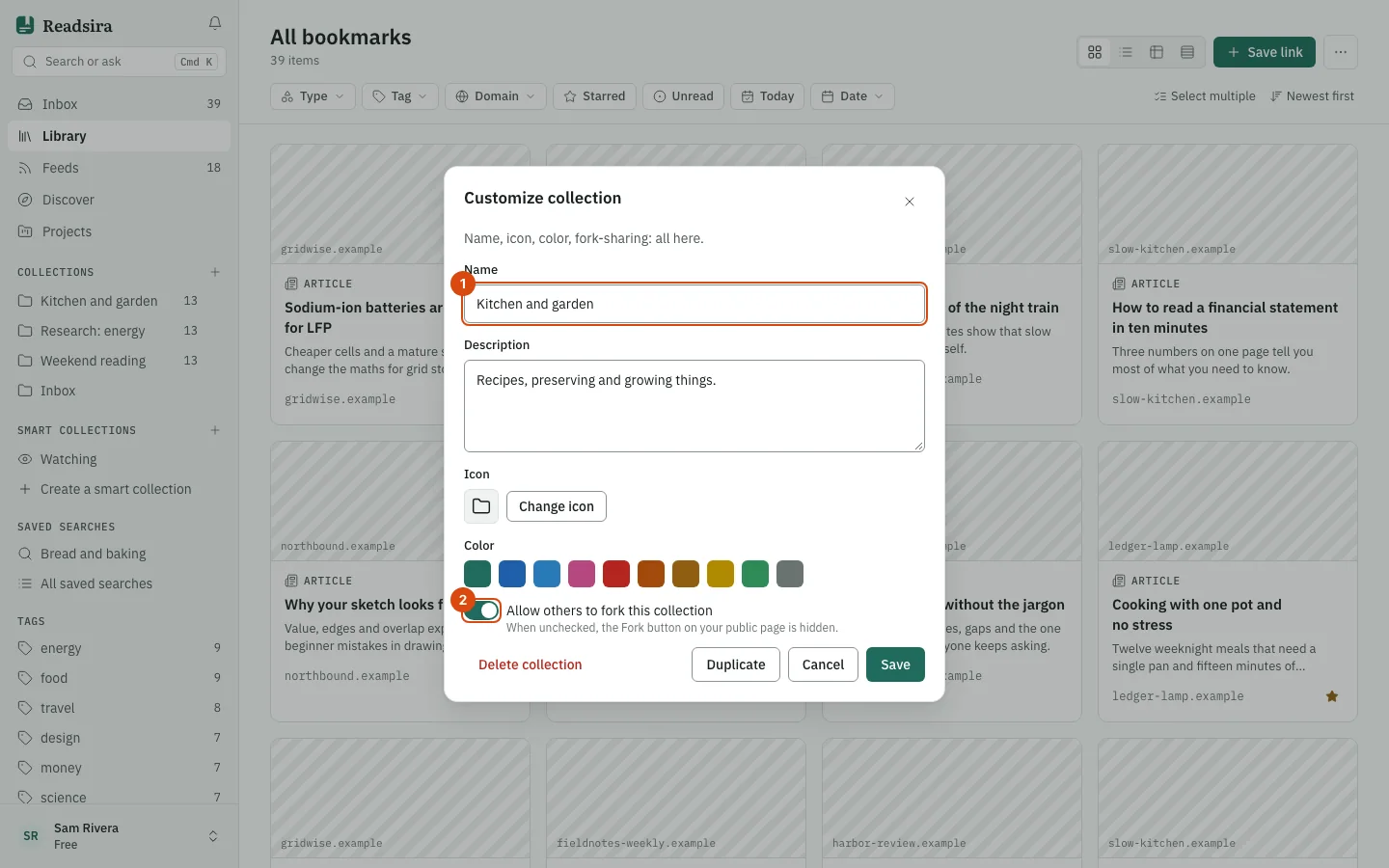
In the menu, choose Customize.
-
Change Name and Description.
-
Select Change icon to pick an icon, and choose a color. Select Reset to remove a custom icon.
-
The switch Allow others to fork this collection controls whether others can copy your collection once it is public. See Share and publish.
-
Select Save.
Duplicate, pin or delete
- Duplicate makes a copy with a copy of the items, named like the original with "(Copy)" after it. The original is unchanged.
- Pin to sidebar pins the collection to the top of the sidebar.
- Delete asks to confirm. The bookmarks stay: they move to your Inbox. The sub-collections of the collection you delete are deleted too.
Tips
- In the Feeds view, the plus button makes a collection for feeds instead of for bookmarks.
- How many public collections your plan allows is listed in Plan limits.