Follow and manage feeds
Available onFreeProResearch
A feed is a site, newsletter, podcast or YouTube channel that publishes new posts. When you follow it, the posts arrive in Feeds. This page shows how to add a feed from its address and how to look after the feeds you follow. To find feeds you do not know yet, use Discover.
Before you start
You need the address of the feed, or of the site's home page. Readsira looks for the feed on the page for you. Each plan includes a number of feeds; see Plan limits.
Follow a feed by its address
-
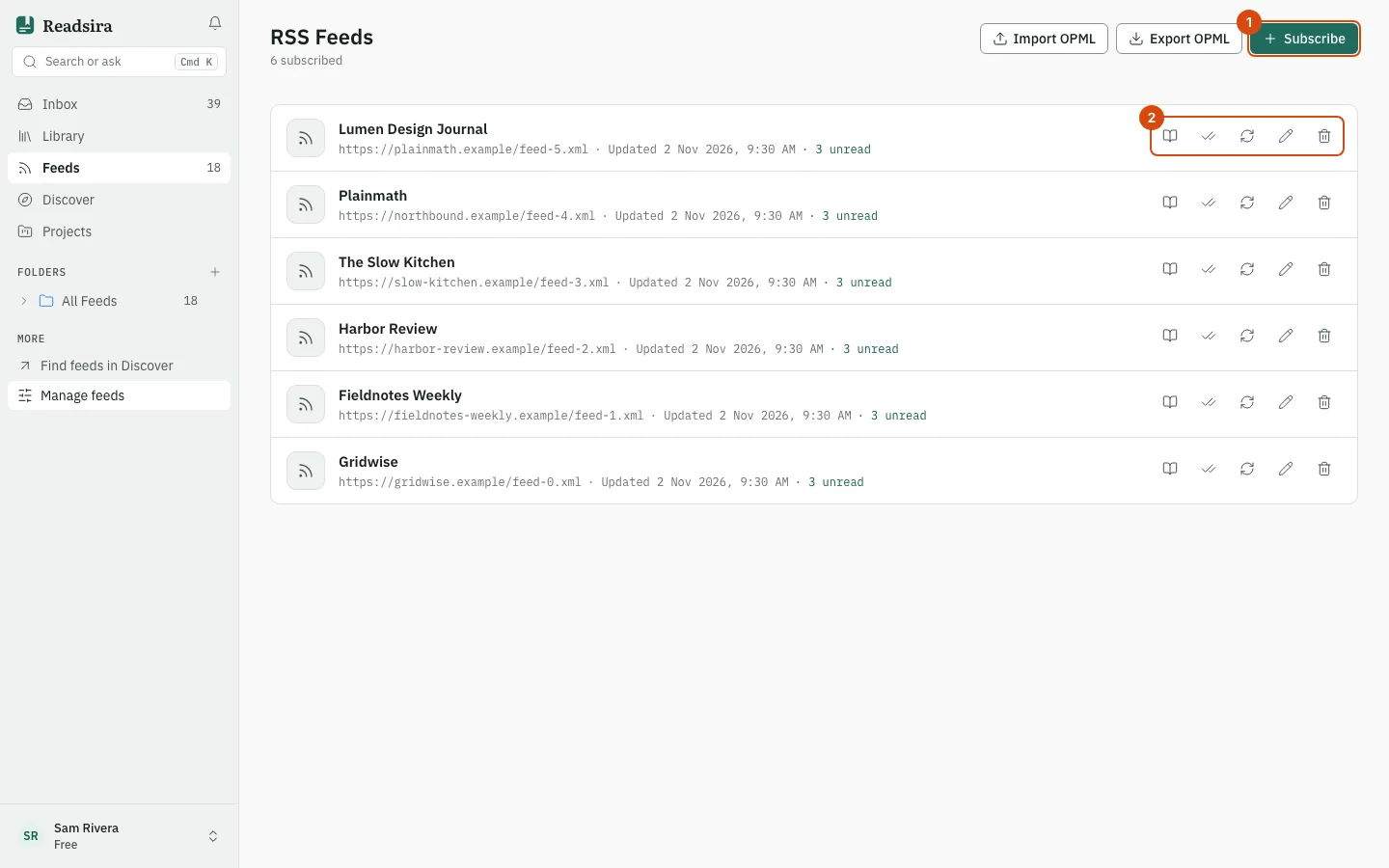
In the sidebar, under Feeds, open Manage feeds. The page is titled RSS Feeds.
-
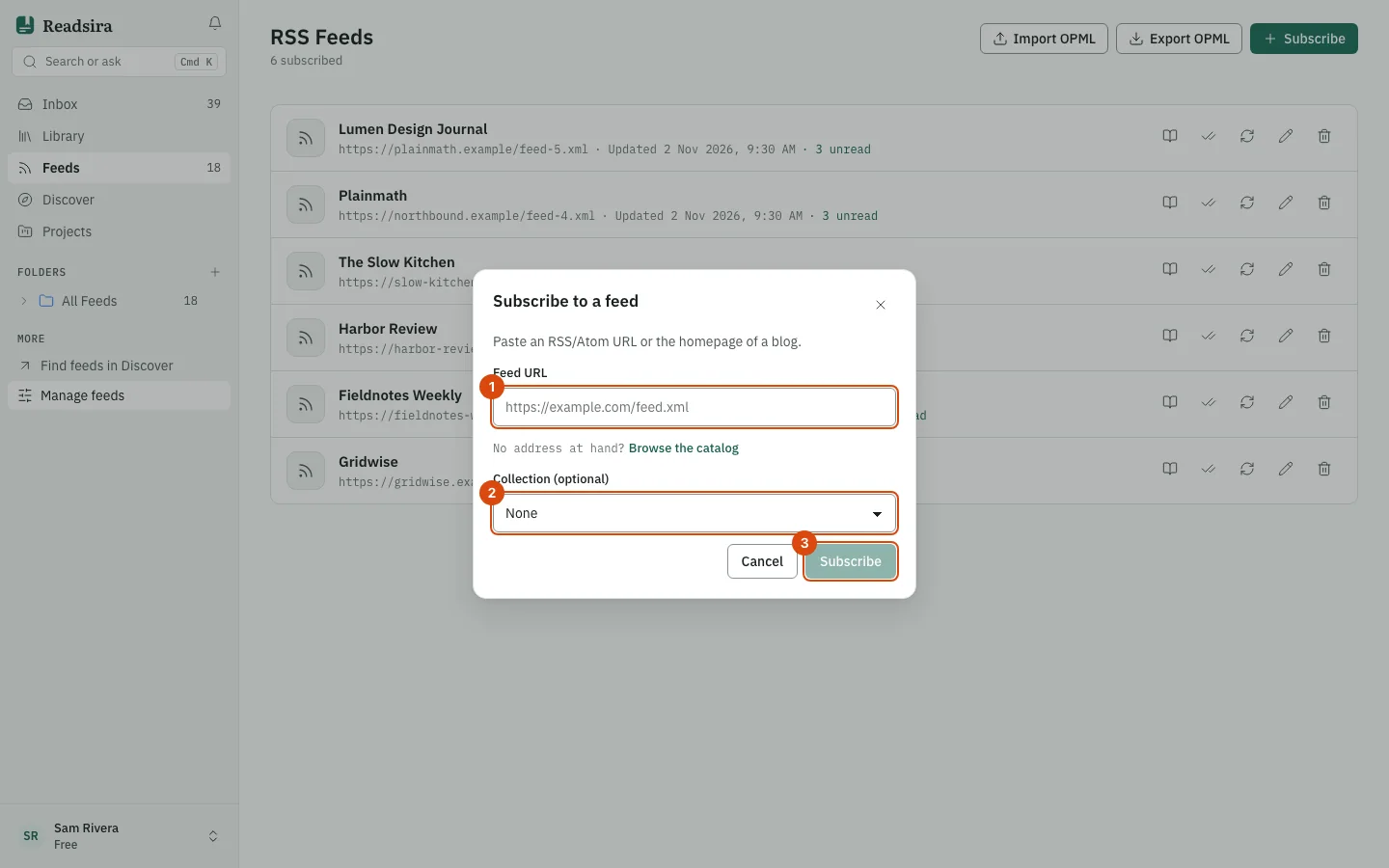
Select Subscribe. The Subscribe to a feed dialog opens.
-
Paste the address into Feed URL. Use a full address that starts with
https://. A feed address (for examplehttps://example.com/feed.xml) and a site's home page both work. -
To file the feed in a folder, choose one under Collection (optional). Leave None to skip this.
-
Select Subscribe.
The feed appears in the list on this page and in the sidebar. Its posts are fetched shortly after, so a new feed can be empty for a moment.
If you do not have an address, use the link Browse the catalog in the dialog to open Discover.
When the site has no feed
If the address is a page without an RSS or Atom feed, the dialog says No feed on this site. Follow the page instead? and offers two choices:
- Follow the page turns a repeating list on the page, such as a press room or a release list, into a feed. See Follow a page without a feed.
- Watch for changes checks the page and tells you when its text changes. See Watch a page for changes.
Read the new posts
-
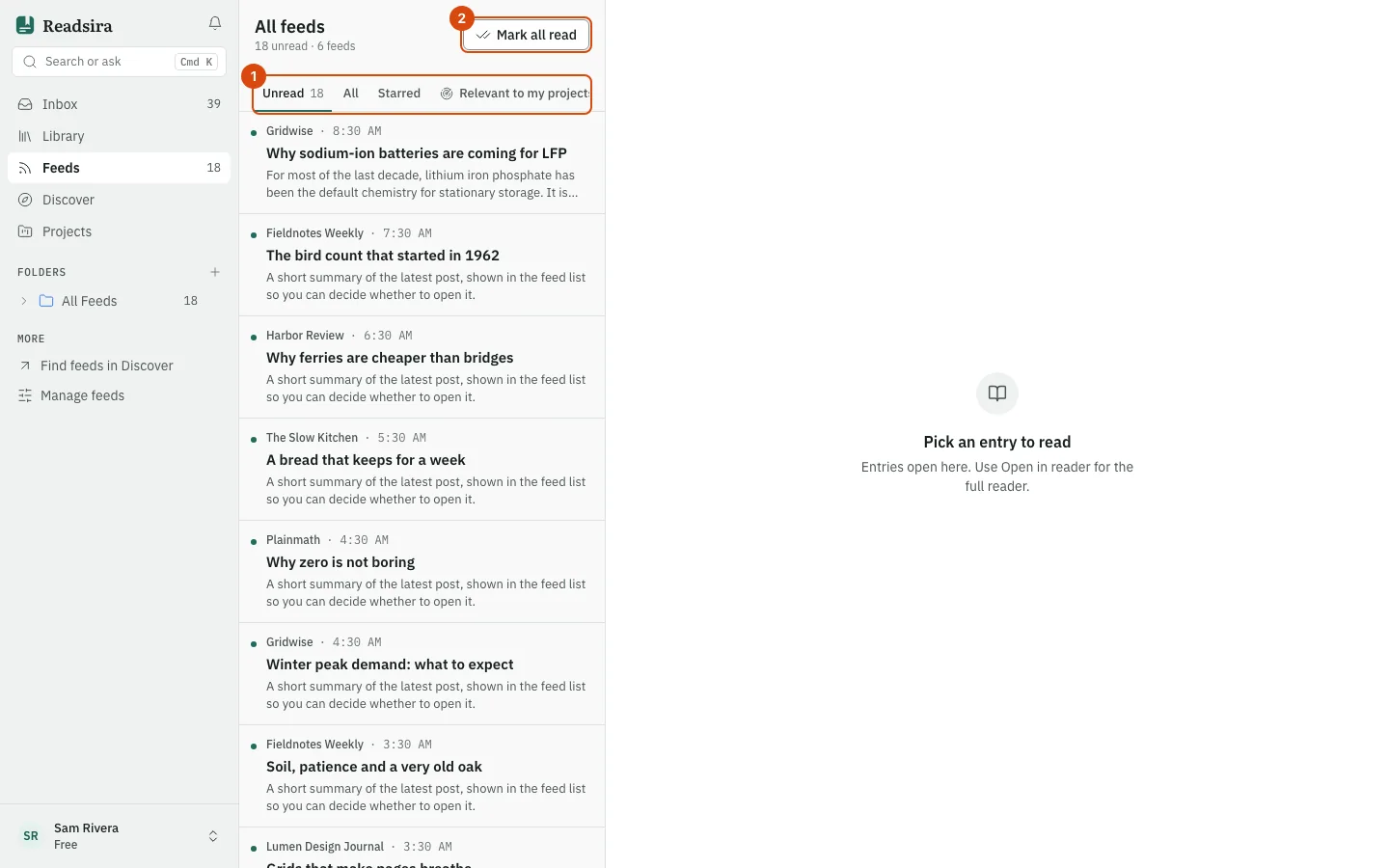
Open Feeds in the sidebar. The list shows posts from the feeds you follow.
-
Use the tabs above the list to choose what you see: Unread, All and Starred. Under More you also find Today (posts published today), Must read (posts that AI triage rates as high priority, a Pro and Research feature) and Archive. With Radar on in a project, a tab Relevant to my projects also appears.
-
Select a post to read it in the pane next to the list. Open in reader opens the full reader, and Save to library keeps the post in your library. The reader is described in The reader.
-
Use Star to keep a post at hand, or Archive to put it away. Mark all read marks everything shown as read.
Manage the feeds you follow
The RSS Feeds page lists every feed with its address, the time of its last update and the number of unread posts. The icons at the end of each row are, from left to right:
| Icon | What it does |
|---|---|
| Open feed | Opens the feed's posts in Feeds. |
| Mark all read | Marks every post of this feed as read. |
| Refresh | Asks Readsira to fetch the feed again now. |
| Customize | Changes the title, icon and color shown in your sidebar. |
| Unsubscribe | Stops following the feed. Posts you saved stay in your library. |
Rename a feed or change its color
- In the row of the feed, select Customize.
- Type a name under Custom title, change the icon with Change icon, or pick a color under Custom color.
- Select Save. Reset to default brings back the original look.
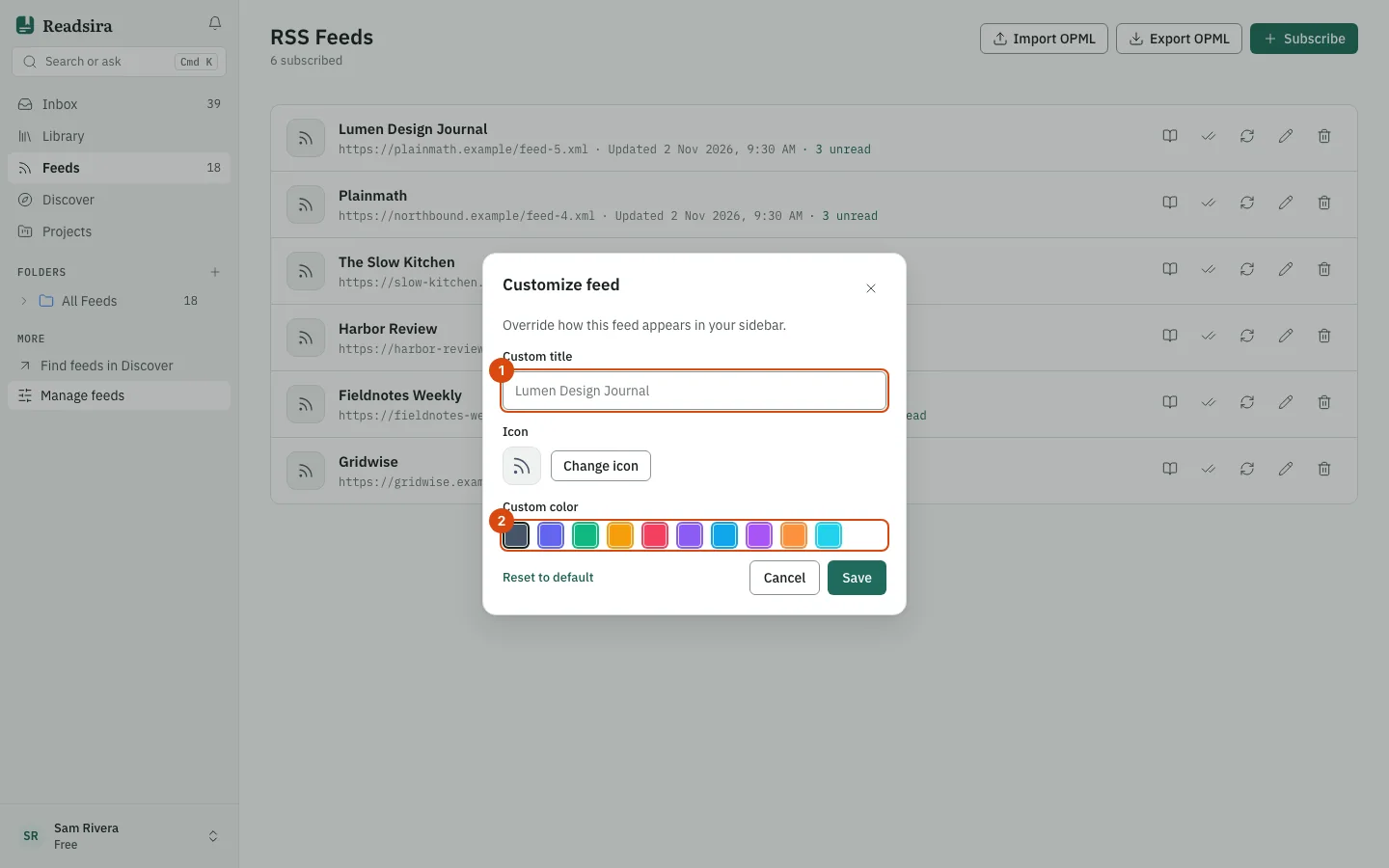
The change only affects your own sidebar. The feed itself is not renamed for anyone else.
Unsubscribe
- In the row of the feed, select Unsubscribe.
- Confirm with Unsubscribe. The dialog says that saved entries stay.
Move your feeds with OPML
OPML is the standard file for moving a list of feeds between readers. Most readers can export it.
- To bring feeds in, select Import OPML and choose an
.opmlor.xmlfile. If the import fails, the page shows the reason in a banner above the list. - To take your feeds out, select Export OPML. Readsira downloads a file named
readsira-feeds-with today's date. It contains every feed you follow, grouped by folder.
If a feed does not update
When a feed cannot be fetched, Feeds shows a notice such as 1 feed could not be refreshed with the reason (the site answered with an error, did not answer in time, could not be found, or sent something that is not a feed). Readsira keeps trying on its own, and Try again asks for another try at once. Posts you already have stay. More help is in Troubleshooting.