Daily briefing
Available onProResearch
The daily briefing picks three items from your unread saves and tells you why. Open it when you want to know what to read next without scanning the whole library.
Steps
-
Open the search box (Search or ask) and choose Audio briefings.
-
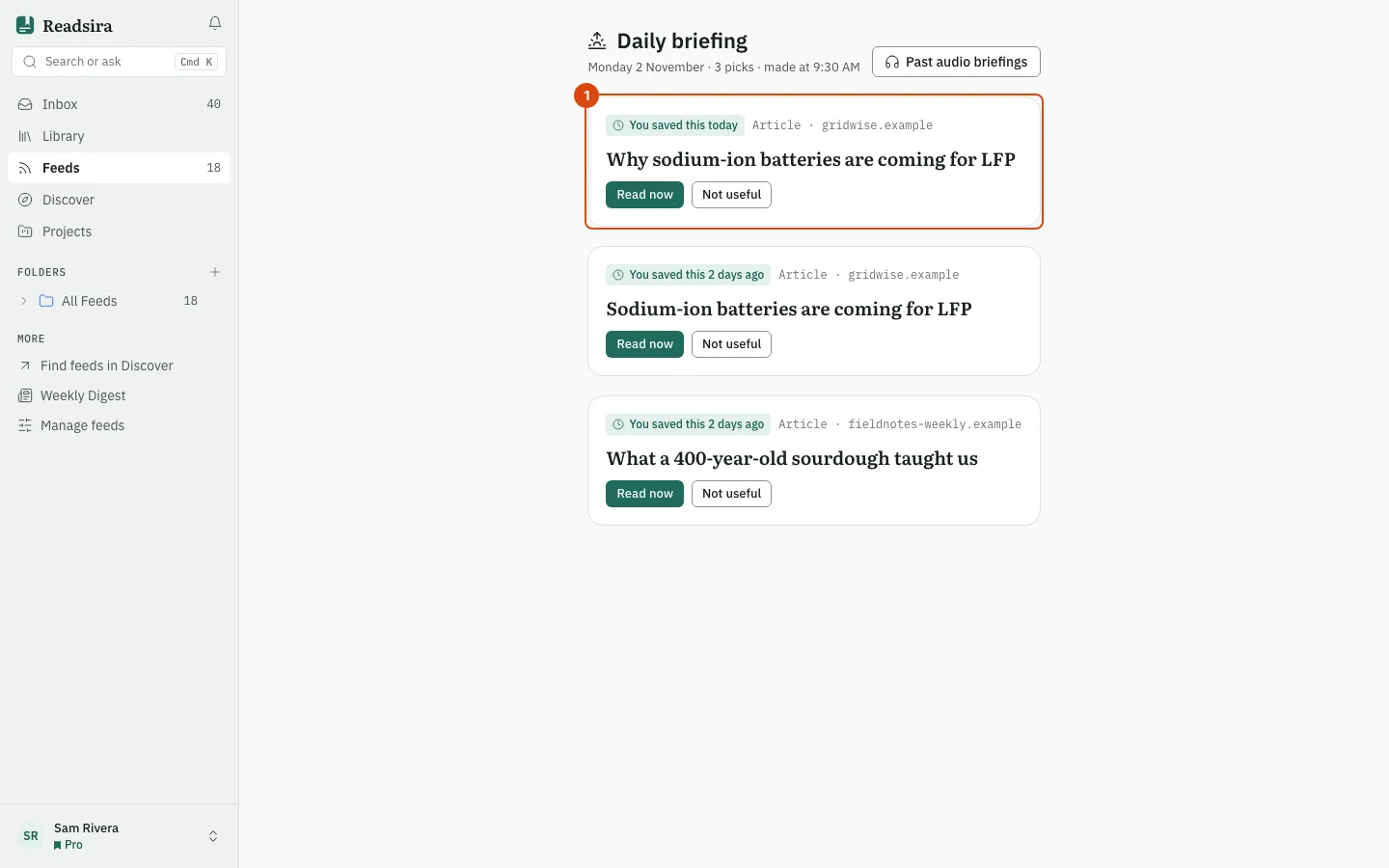
Read the line under the title. It shows the day, how many picks there are, about how many minutes they take altogether (when every pick has a known length) and the time the briefing was made.
-
Look at the chip on each card. It says why Readsira picked it: for example "Resume at 40%" for an item you started, or "You saved this 2 days ago" for one you did not open. The line next to it shows the type, the length and the site.
-
To read an item, press the button on the card. It opens the saved page in a new tab. Videos say Watch now and podcasts say Listen now.
-
To drop a pick you do not want, press Not useful. The pick leaves today's briefing and is not picked again.
How the picks are chosen
The briefing looks at your unread saves: not deleted, not archived and read less than 90 percent. Items you already started come first, then the newest. Today's three picks stay the same all day; only Not useful removes one.
With no unread saves the page shows No briefing today. Save a few things or follow feeds and tomorrow's briefing has something for you.
By email
If your digest email is set to daily, you also get the same three picks by email at your send time. Choose this under Notifications, in the card Digest emails. Email notifications must be on.
Tips
- Past audio briefings in the top right opens your audio briefings.