Ask My Library for visitors
Available onProResearch
Ask My Library gives your public collections an AI assistant. Visitors ask a question on your page and get an answer with sources taken only from your public items. It is off until you turn it on, and it needs an AI plan.
Before you start
- Have at least one public collection. Without public items there is nothing to answer from.
- On Free the settings page shows an upgrade prompt.
Steps
-
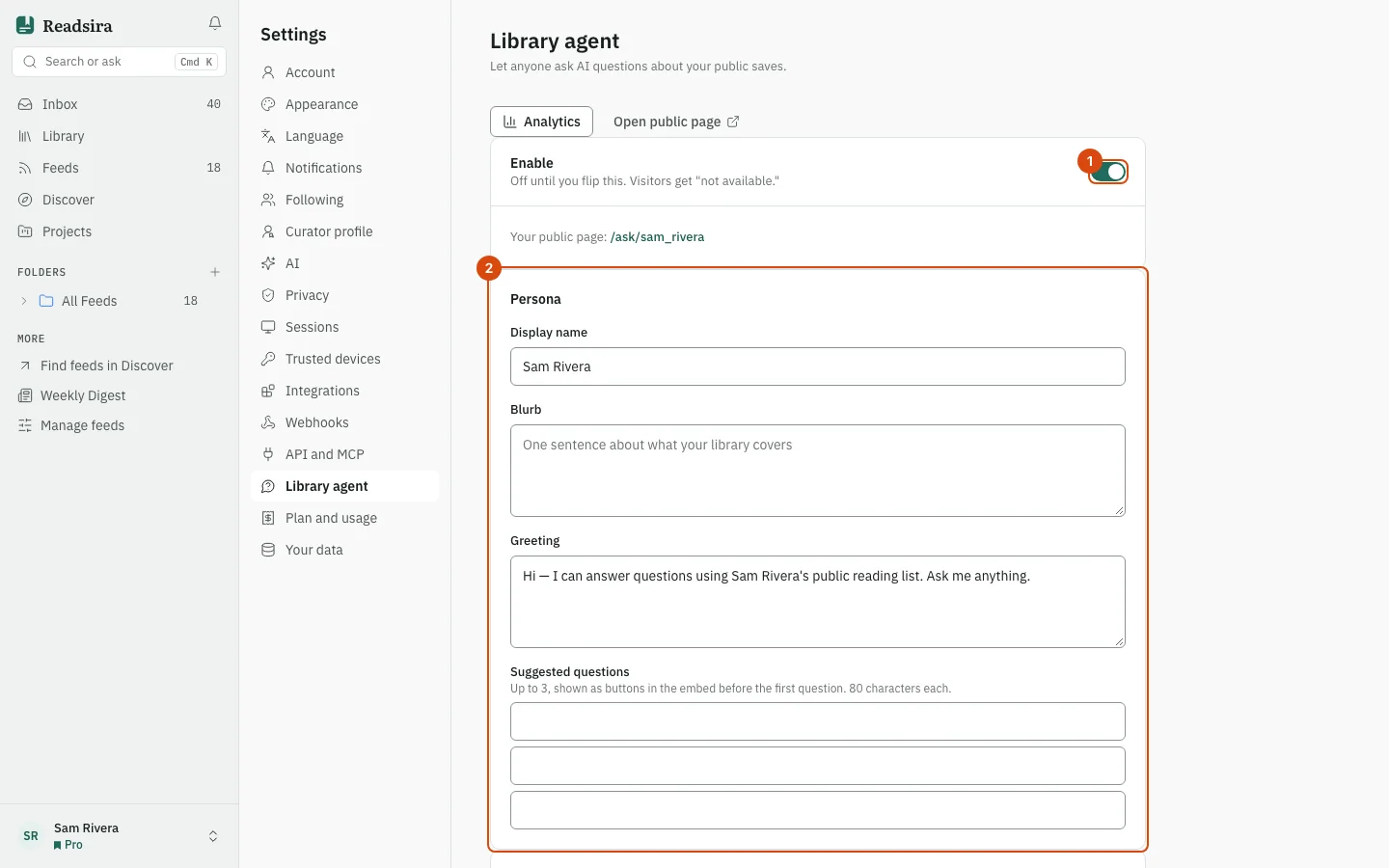
Open Settings and choose Library agent.
-
Turn on Enable. Your page is at
/ask/followed by your username. While the switch is off, visitors see "not available". -
Under Persona, fill in the display name, Blurb (one sentence about what your library covers) and Greeting (the first message visitors see).
-
Under Suggested questions, write up to three questions of up to 80 characters. They show as buttons in the embed before the first question.
-
To put it on your own site, copy the code from Embed on your site with Copy code and paste it into your page. It is an
iframethat shows your ask page in embed form. -
Choose the Answer style: cited, narrative or list.
-
Decide who may ask. Allow anonymous visitors off makes visitors sign in first. The slider Questions per visitor per day sets how many questions one visitor may ask per day, counted per address for anonymous visitors and per account when signed in. You can always ask your own agent.
-
Blocklists shows how many bookmarks and collections are excluded from the answers. This view only shows the counts.
-
Press Open public page to look at your page the way a visitor does.
See what visitors ask
Press Analytics on the settings page. The page Ask My Library analytics covers the last 30 days: Total questions, how many answers visitors rated useful or not relevant, the average answer time, Top questions and the Most-cited bookmarks.