Sessions and devices
Available onFreeProResearch
Sessions lists every browser, phone and extension where you are signed in. Use it when you lose a device, sign in on a shared computer, or see a device you do not know.
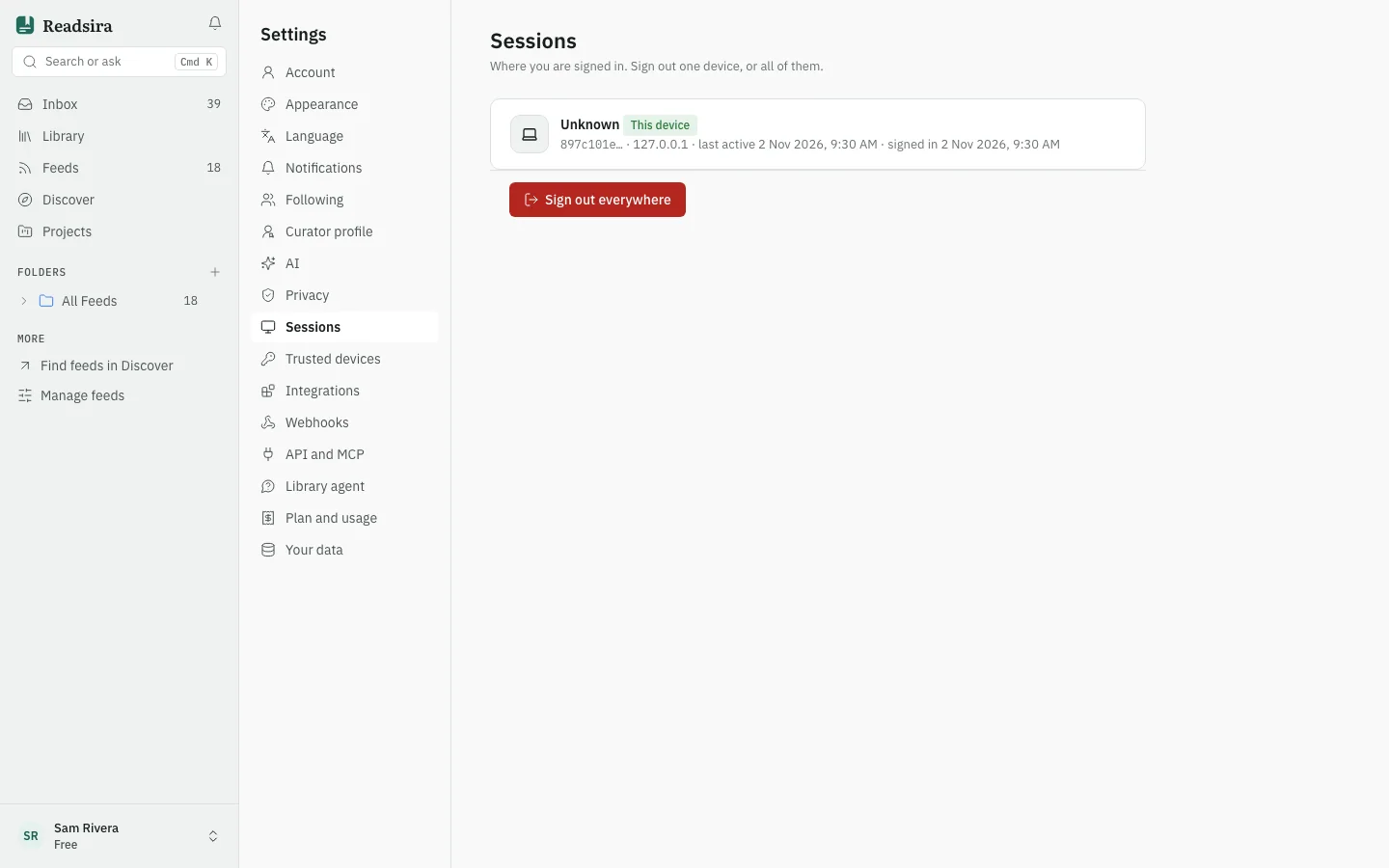
See where you are signed in
- Open Settings and choose Sessions. The old address
/settings/sessionsopens the same page. - Read the list. Each row shows the device name, a short session id, the IP address, when the session was last active and when it signed in. The row of the device you are using is marked This device.
A device with no recognisable name shows as Unknown device.
Sign out one device
- Press Sign out on the row of the device. The row of the device you are using has no such button; use the options below.
- Confirm in the dialog Sign out this device?. That device has to sign in again.
Sign out all other devices
- Press Sign out all other sessions.
- Confirm. Other browsers, phones and the extension are signed out. You stay signed in on the device you are using.
Sign out everywhere
- Press Sign out everywhere.
- Confirm. Every device is signed out, including this one, and you sign in again.
Signing out everywhere also removes all trusted devices.
Trusted devices
If you use two-factor sign-in, you can tick Trust this device for 30 days when you enter a code. That browser then skips the code step for 30 days.
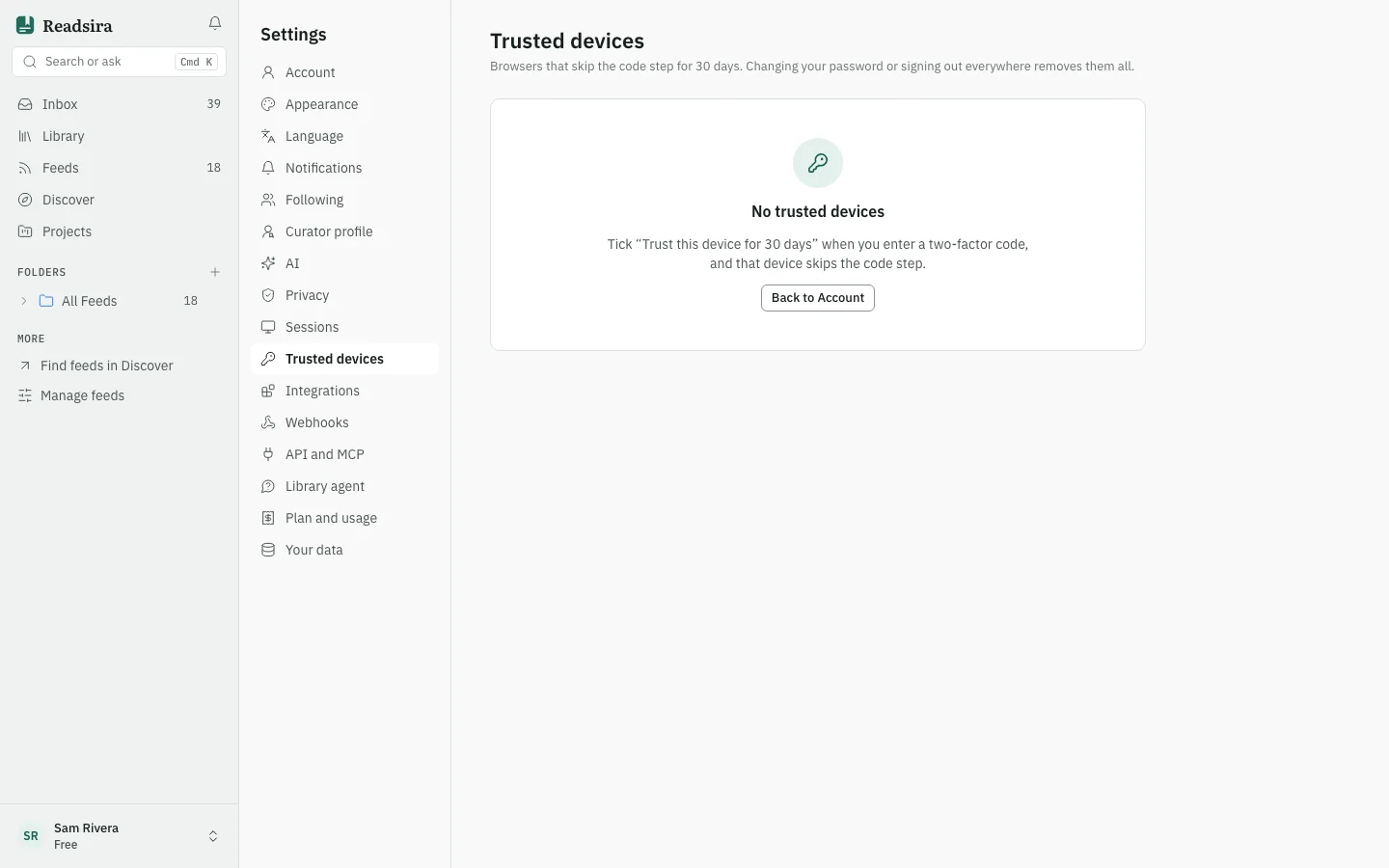
- Open Settings and choose Trusted devices.
- Each row shows when the device was trusted and until when. Revoke one device, or all of them.
Revoking a trusted device asks it for a code at its next sign-in. It does not sign the device out; use the list above for that. Changing your password or signing out everywhere removes every trusted device.
Tips
- If you see a device you do not know, sign it out, then change your password.
- A sign-in method you did not add? Follow the link in the email we sent you: Secure your account.