Profile and preferences
Available onFreeProResearch
Settings is where you change how you appear in Readsira and how the app looks and reads. Most of it is saved to your account, so it follows you to every device where you sign in.
Open Settings
- Open Settings. On a phone, Settings opens as a list of sections; tap one to open it.
- On a larger screen, Settings opens on Account. Choose another section from the list at the side.
Change your name and photo
- Open Account.
- Press Change photo and choose a JPEG, PNG or WebP image of at most 2 MB. The photo uploads at once.
- Type your name in Name. It is shown on shared collections and on your public profile.
- Press Save.

The Email field is read only. It is the address you sign in with and where receipts go.
Change your password
- Open Account and find the sign-in methods card.
- Press Change password.
- Enter your Current password, then the New password twice (the second field is Confirm new password). A new password needs at least 10 characters.
- Press Save.
If you signed up without a password, the same card shows Set a password. Readsira emails you a link to set one. See Two-factor and sign-in methods.
Choose how Readsira looks
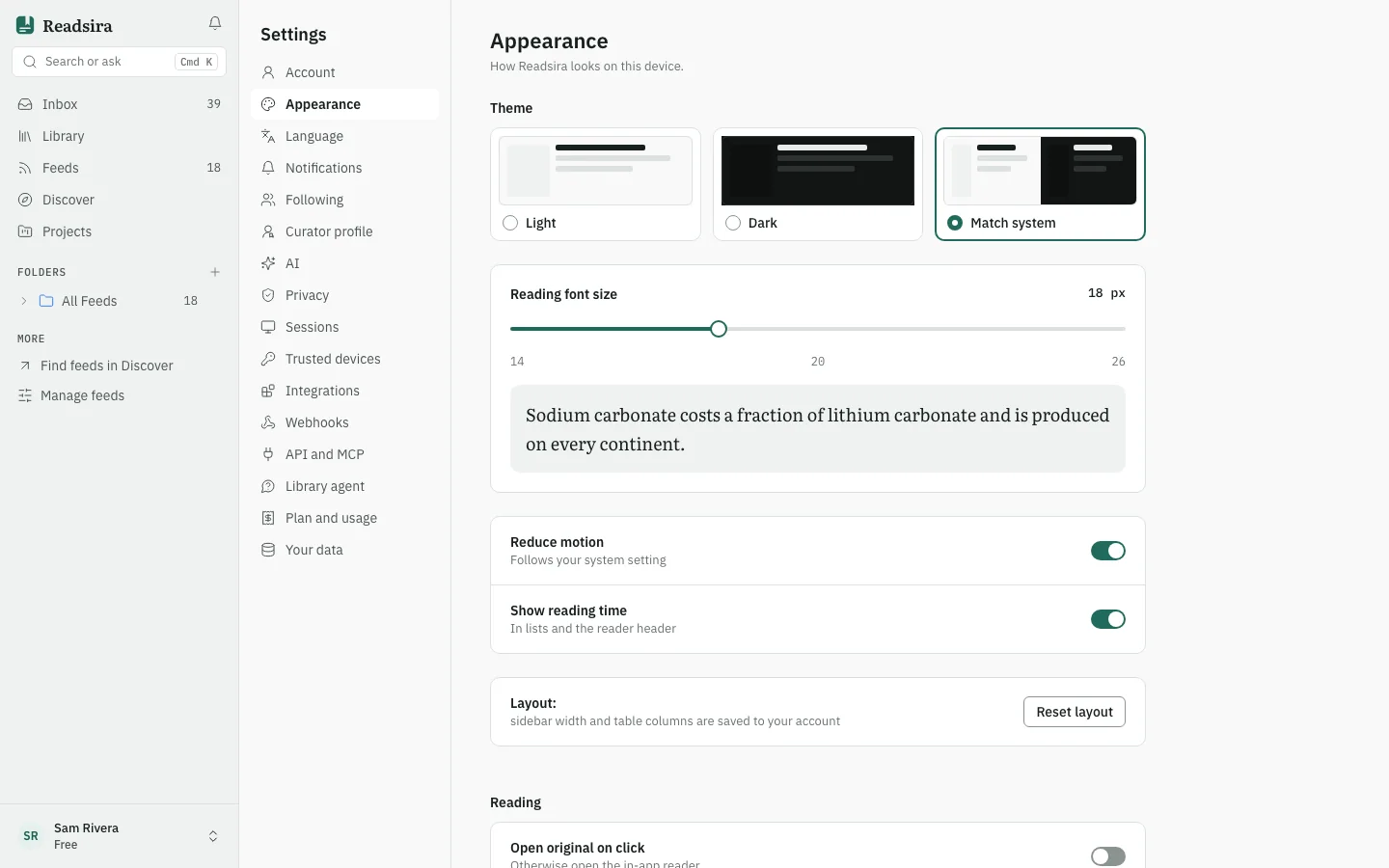
Open Appearance.
- Theme: Match system, Light or Dark. This is saved on the device you are using.
- Reading font size: the text size in the reader. A preview line shows the result.
- Open original on click: open the original page when you click an item, instead of the Readsira reader.
- Mark as read on scroll: feed items that scroll past are marked read.
- Default library on a new device: whether a new device opens on Feeds or Bookmarks.
- Show reading time: show the reading time in lists and in the reader header.
- Reduce motion: follows your system setting until you change it on this device.
- Reset layout: puts the sidebar width and the Library table columns back to their defaults on every device where you are signed in. Your items and collections are not touched.
Choose the interface language
- Open Language.
- Choose a language: English, German, French, Spanish, Arabic or Hebrew.
Arabic and Hebrew switch the whole interface to right-to-left. Articles keep the direction of their own language, and Readsira never translates your content without asking.
Tips
- On a new device, sign in and your name, photo and layout come back. The theme is chosen per device.
- Deleting your account is in Your data. See Delete your account.