Two-factor and sign-in methods
Available onFreeProResearch
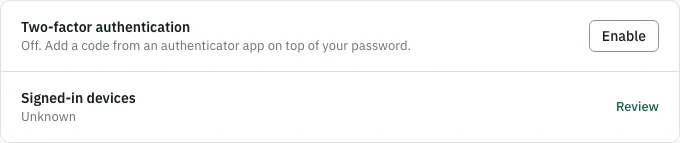
Two-factor sign-in asks for a six-digit code from an authenticator app after your password. Sign-in methods are the ways that open your account: a password and any provider you connect. Both are in Settings, Account.
Before you start
- An authenticator app on your phone, such as 1Password, Authy or Google Authenticator.
Turn on two-factor sign-in
- Open Settings and choose Account.
- In the Two-factor authentication row, press Enable.
- Scan the QR code with your authenticator app. If you cannot scan it, type the secret shown under the code into the app by hand.
- Enter the six-digit code from the app in Six-digit code from the app and press Continue.
- Save your backup codes. A dialog titled Save your backup codes shows 10 codes. Each works once. Press Download to keep them in a file, then press I saved my codes.
Readsira shows the backup codes only once. If you lose them, create a new set (below).
Sign in with two-factor on
- Sign in with your email and password.
- Enter the six-digit code from your app. If you lost your phone, press Use a backup code and enter one of your backup codes.
- Tick Trust this device for 30 days if you want this browser to skip the code for 30 days.
See Sign in and reset your password.
Create new backup codes
When few codes are left, the row says how many remain. Create a new set before you run out.
- In the two-factor row, press Manage.
- Press Regenerate codes. A new set of 10 codes replaces the old ones, and the old codes stop working.
- Confirm it is you with an Authenticator code or your Password, then press Create new codes.
- Save the new codes.
Turn off two-factor sign-in
- Press Manage, then Turn off two-factor.
- Enter a six-digit code from your app or a backup code.
Sign-in then asks only for your password.
Sign-in methods
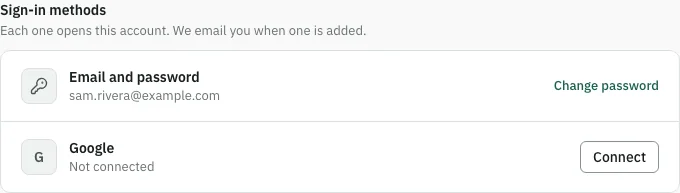
The sign-in methods card lists each way to open your account.
- Email and password. Press Change password, or Set a password if you have none. Readsira emails a link to set it.
- Providers. A provider such as Google has its own row. It says Connected or Not connected. Press Connect to add one. You finish on the provider's page and come back.
- Press Disconnect to remove a provider and confirm. You can no longer sign in with it.
You cannot disconnect the only way you can sign in. The card tells you to set a password or connect another provider first.
If a provider account is already linked to another Readsira account, Readsira does not connect it and tells you which address that account uses. Sign in there, disconnect the provider, and connect it here.
Readsira emails you whenever a sign-in method is added. If you did not add it, the email has a link that removes it and signs you out everywhere. See Secure your account.
Tips
- Keep backup codes outside your phone, for example in a password manager.
- Trusted devices and signing out other devices are in Sessions and devices.