Export your data
Available onFreeProResearch
You can download everything you saved, highlighted and wrote in Readsira at any time. Each file downloads straight to your computer. Use them as a backup, to move to another app, or to feed a notes app such as Obsidian.
Steps
-
Open Settings and choose Your data in the list on the left. You can also open
app.readsira.com/settings?section=data. -
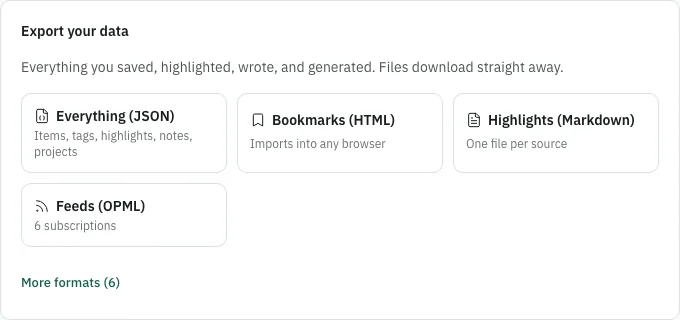
Find the card Export your data. It shows four formats first. Select the link under them that says how many more formats there are to show the rest; the same link then reads Fewer formats.
-
Select the format you want. The file downloads at once. If something goes wrong, a message says The export failed. Try again. and you can try again.
Which format to pick
| Format | What is in the file | Good for |
|---|---|---|
| Everything (JSON) | Your account as one JSON file: saves with tags and notes, highlights, collections, projects and their outputs, feed subscriptions, reminders, saved searches, preferences | A full backup |
| Bookmarks (HTML) | Your saves as a bookmarks file, with tags and notes | Importing into any browser |
| Highlights (Markdown) | A ZIP with your highlights as Markdown, one file per source | Keeping highlights in a notes app |
| Feeds (OPML) | Your feed subscriptions as an OPML file | Moving to another feed reader |
| Library (Markdown) | One Markdown file with every save, its link, saved date, tags, description and note | Reading or searching as plain text |
| Library (JSON) | A JSON file with every save, its tags and notes | Scripts |
| Library (CSV) | A CSV file that opens in any spreadsheet | Sorting and filtering your saves |
| Obsidian | Markdown with YAML frontmatter | Obsidian |
| Logseq | Markdown with page properties | Logseq |
| Notion | Plain Markdown | Importing into Notion |
File names carry the date, for example readsira-account-2026-11-04.json.
What the files leave out
- The saved article text is not in the library files. They hold your links, titles, tags and notes.
- Everything (JSON) holds up to your 10,000 most recent saves. If your library is larger, use the CSV, JSON or Markdown library export as well; they page through every save.
Tips
- Your data is yours even when you leave: the export keeps working while an account deletion is waiting out its grace period.
- The same page lists your recent imports under Import history, with the option to undo one while its undo window is open (see Import your library).