Browser extension
Available onFreeProResearch
The Readsira extension saves the page you are on in one click, lets you highlight text on any page, and puts your library in a side panel next to the page you are reading. It is available in the Chrome Web Store.
The extension has its own language files, so the names of its buttons are written in quotes below and may differ a little from the web app.
Install and connect
- Open the extension in the Chrome Web Store and choose to add it to your browser.
- A welcome page opens. Follow its steps: it asks you to connect your account, then shows how to pin Readsira to the toolbar (click the puzzle piece, then the pin next to Readsira).
- To connect, the extension opens Readsira in a new tab. Sign in if you are asked, and approve the browser. The extension never sees your password. This page stays open until you approve, then moves on by itself.
- When the page says the extension is connected, close the tab.
If you click the toolbar button before you have connected, the popup says "Sign in to save this page" and opens Readsira in a new tab. Sign in there, go back to your page and click again.
Save a page
-
Open the page you want to keep.
-
Click the Readsira button in the toolbar, or press
Ctrl+Shift+F(on a Mac,Control+Shift+F). The page is saved before the popup finishes opening.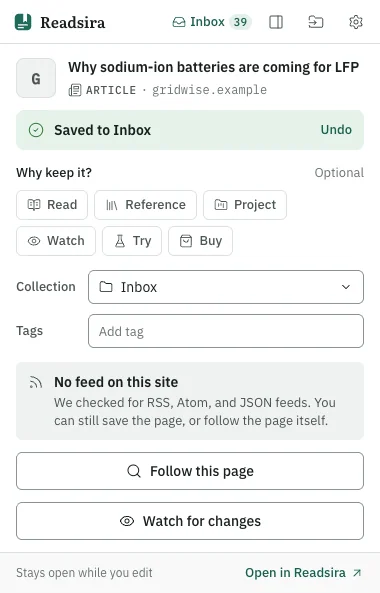
-
The popup shows "Saved to" and the collection name, with an "Undo" button. Under "Why keep it?" you can choose a reason: "Read", "Reference", "Project", "Watch", "Try" or "Buy". You can also change the collection and add tags. The popup closes by itself after a few seconds unless you touch it.
-
If the page was already in your library, the popup says "Already saved on" and the date, and nothing is added twice.
You can also right-click a page or a link and choose "Save page to Readsira" or "Save link to Readsira". A small notification confirms the save. The toolbar button is filled in when the page in the tab is already in your library.
Pages you save with no connection wait in a queue ("You are offline. Saved to the queue") and
sync when you are back online. Browser pages such as chrome://extensions cannot be saved.
Highlight on a page
- Select text on any page. A small toolbar appears next to the selection.
- Choose a colour. Yellow is the default; blue is for a reference, pink for a question and green for something to use. The colours stay fixed so they remain distinct for people who are colour blind.
- To add a note, choose "Note", type it and choose "Save note".
- The toolbar can also copy the text ("Copy"), open the highlight in Readsira ("Open in Readsira"), save the quote into a project ("Save quote to project") or remove it ("Delete highlight").
You can also select text and press Ctrl+Shift+L (on a Mac, Control+Shift+L), or right-click the
selection and choose "Highlight selection". Highlighting a page saves it to your library, so a
highlight on a page you have not saved counts as a save on your plan. If your plan cannot save more
pages the toolbar says so and the highlight is not kept.
When you come back to a page, your highlights and notes are shown in place. If the page changed so that a highlight can no longer be found, the side panel lists it under "Not found on this page" and the highlight stays in your library. Your highlights are also in Readsira: see Highlights and notes.
By default the extension runs on a page only after you use it there. To see your highlights, a short note on pages you saved and the saved state on every page you open, turn on "Highlight on every site" in the options; your browser then asks for permission to read all sites.
The side panel
Open the side panel with the "Open side panel" button in the popup, or press Ctrl+Shift+K (on a
Mac, Command+Shift+K). It has three tabs:
- This page. The page's saved state, your highlights on it and a button to add the page to one of your projects.
- Search. Search your library without leaving the page.
- Ask. Ask a question about this page or your whole library. The answer uses only what you saved and cites each source. Ask needs a paid plan; on Free the tab says so and links to the plans.
If a site offers a feed, the popup and the side panel show "This site has a feed" with a "Follow" button. Your plan decides how many feeds you can follow.
Import your browser bookmarks
The extension can copy your browser's bookmarks into Readsira, with your folders as collections and the choice of which folders to bring. Select the folder button in the popup ("Import browser bookmarks") or use the "Browser bookmarks" section of the options. Your browser asks for access to your bookmarks the first time, and nothing is imported until you press the import button. See Browser bookmarks for the steps.
Options
Open the options with the "Options" button in the popup, or from your browser's extension page. They have these sections:
- Account. Connect or disconnect your Readsira account.
- Saving. The default collection for one-click saves, whether to ask "why" after saving, and after how many seconds the popup closes by itself.
- Shortcuts. The three shortcuts above. Your browser manages them, so the options link to its shortcut page where you can change them.
- Highlights. Whether to show the highlight toolbar when you select text, show highlights when you return to a page, remind you on pages you saved (at most once a day per page), the colour names, and "Send only the text I highlight" for pages you only highlight.
- Browser bookmarks. Import your browser's bookmarks, see when you last did it and undo that import for 7 days.
- Privacy. Whether the extension works in private windows (off by default, your browser asks separately) and a list of sites where it never shows the toolbar or saves.
The extension reads a page only when you save it, highlight on it or open the side panel. To know whether a page is already in your library it sends a fingerprint of the address, never the address itself.
Tips
- If the shortcut does nothing, another app may be using it. Change it in your browser's shortcut page.
- A page you saved with the extension appears in your Inbox unless you chose a collection. See Save your first article.